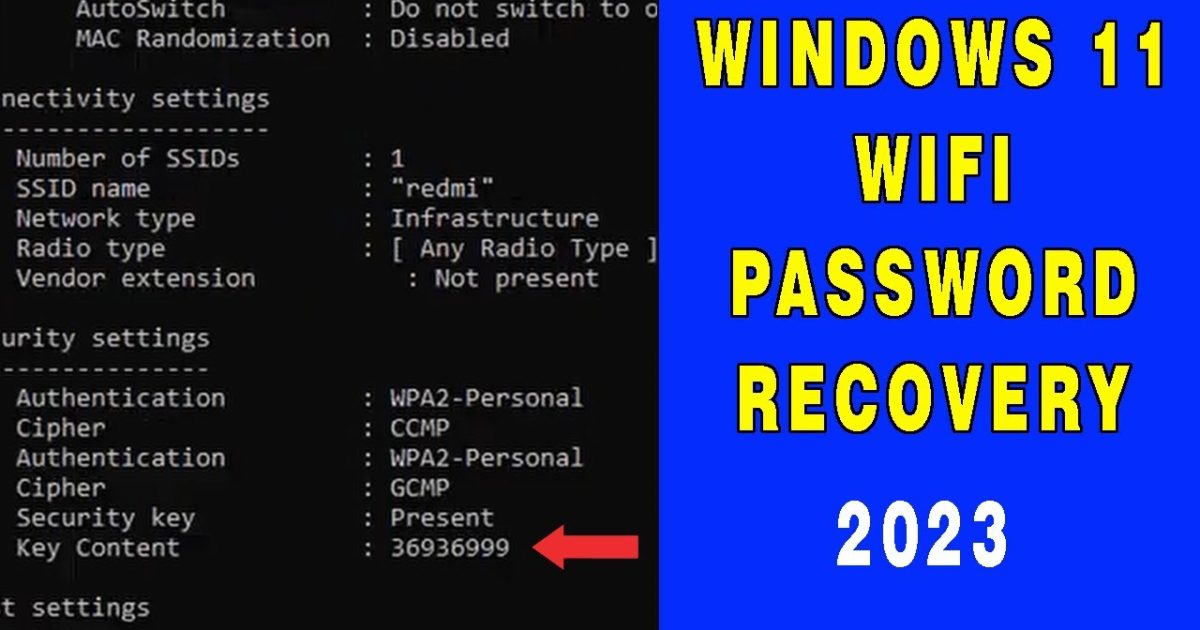
So you just swapped out your motherboard—congrats on the upgrade! But when you boot up your new system, you realize all your saved WiFi networks are gone. The password you’ve been typing for years? Poof. Don’t panic. In this guide, I’ll show you how to dig those passwords out of your old hard drive (even if your old motherboard is now in the trash) and get back online without resetting your router or calling your ISP.
By the end of this tutorial, you’ll have your WiFi passwords back. We’ll cover both Windows and macOS methods, so no matter which OS you’re on, you’ll be covered. All you need is access to your old drive—either plugged in as a secondary drive or via a USB adapter.
What you’ll need
- Access to your old hard drive (internal SATA or via USB adapter)
- A working computer to read the old drive
- For Windows: Administrative privileges
- For macOS: A Mac that can boot from the old drive or use Terminal
- Optional: A USB drive to transfer exported profiles
Step 1: Boot from the Old Drive or Connect It Externally
First, you need to access the old drive that contains your previous Windows or macOS installation. If your old motherboard still works, you could boot from it directly. But since you’ve replaced it, the easiest way is to connect the drive externally using a USB-to-SATA adapter or by plugging it into a SATA port on your new motherboard. Make sure the drive is powered and recognized by your new system.

Step 2: Export WiFi Profiles on Windows
Once you can access the old drive, boot into your new Windows installation. Open Command Prompt as Administrator (right-click Start > Command Prompt (Admin)). Run the following command to export all saved WiFi profiles as XML files:
netsh wlan export profile key=clear folder=C:WiFiProfiles
Command to export all WiFi profiles with passwords in plain text
This creates XML files in C:WiFiProfiles (you can change the path). Each file contains the SSID and password. If the old drive is not the boot drive, you’ll need to adjust the command to point to the old Windows installation’s profile location. Alternatively, navigate to the old drive’s WindowsSystem32configRegBack or use a live Linux USB to extract the SAM and SYSTEM hives. But the netsh method is simpler if the old Windows can be booted via another PC (rare). If you can’t boot the old Windows, you can still run the netsh command from a recovery environment or use a third-party tool.

Step 3: Transfer and Import Profiles to Your New PC
Now copy the exported XML files to your new computer. Open Command Prompt as Administrator again and run this command to import all profiles:
for %i in (C:WiFiProfiles*.xml) do netsh wlan add profile filename=”%i”
Command to import all WiFi profiles from XML files
That’s it! Your WiFi networks should now appear in the system tray, and you can connect without entering a password. If you only have a few profiles, you can import them one by one using netsh wlan add profile filename=”pathtofile.xml”.

Step 4: For macOS Users: Recover from Keychain
On macOS, WiFi passwords are stored in Keychain. If you can boot from the old drive (or access it as an external drive with a Mac), open Terminal and run:
security find-generic-password -ga “YourNetworkSSID” | grep “password”
Command to reveal WiFi password for a specific network
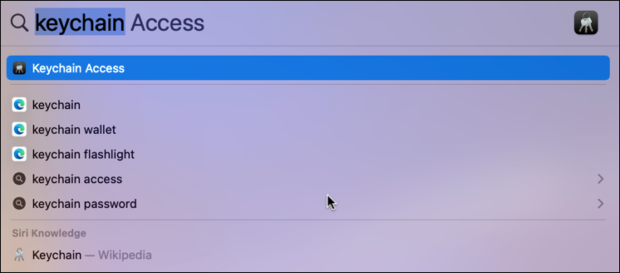
You’ll need to use quotes around the exact SSID. Repeat for each network. Alternatively, use Keychain Access app to browse saved items. For a deeper walkthrough, check out our guide on saved wifi password recovery on mac.
Common Pitfalls
- 1. The old drive is corrupted and can’t be read. In that case, you may need professional tools or a backup like restore wifi passwords after format.
- 2. You exported the profile but forgot to specify the folder—they end up in the current directory. Always use an absolute path.
- 3. On a domain-joined PC, the profile may not export without the key. Try viewing the password in Network & Internet settings or use restore wifi passwords on windows for an alternative method.
Where to next
Now that you have your WiFi passwords back, consider backing them up for future upgrades. Check out our guide on how to restore wifi passwords after format for a solid backup plan. Also, if you ever need to recover without access to the old drive, try wifi password recovery from router or professional wifi password recovery tools if you need advanced options.



