You’re reading this because you forgot your modem’s WiFi password. Maybe you stuck the default sticker somewhere and it faded, or you changed it to something clever and now can’t remember. Whatever the reason, don’t panic—and definitely don’t factory reset your modem just yet. By the end of this guide, you’ll have your WiFi password back using one of several easy methods.
We’ll cover recovering the password directly from the modem’s web interface, pulling it from a Windows or Mac machine that’s already connected, and using a phone if you’re on Android. Most of these methods require nothing more than a few clicks and some basic info about your modem. Let’s dive in.
What You’ll Need
- A computer or phone that can connect to the modem (wired or wireless). If you’re locked out of WiFi, use an Ethernet cable.
- Your modem’s IP address (usually 192.168.0.1, 192.168.1.1, or 10.0.0.1). You can find this on a sticker on the modem or by checking your device’s network settings.
- The modem’s admin username and password. If you never changed it, check the sticker or the default credentials (common: admin/admin, admin/password).
- For alternative methods: a Windows PC (with saved WiFi network), a Mac, or an Android phone (rooted or with access to the saved networks screen).
Step 1: Access Your Modem’s Web Interface
Open a web browser on a device connected to the modem (use Ethernet if WiFi is locked). Type your modem’s IP address into the address bar and press Enter. You should see a login page. If you get an error, double-check the IP—common addresses are listed above.
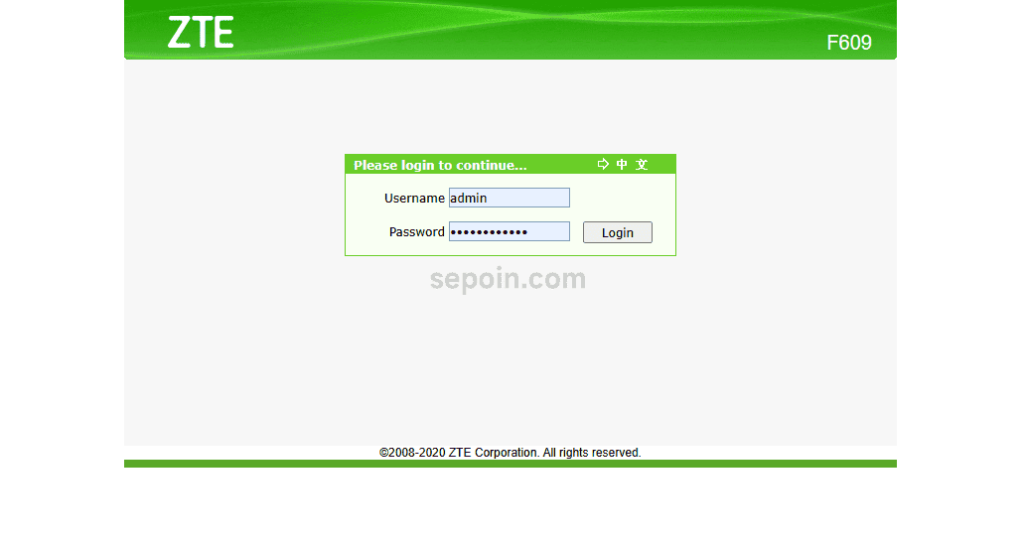
Step 2: Log In with Admin Credentials
Enter the admin username and password. On many modems, the default credentials are printed on a sticker. If you changed them and forgot, you might have to reset the modem (but hold off—try default combos first like admin/password). Once logged in, you’ll see the modem’s dashboard.
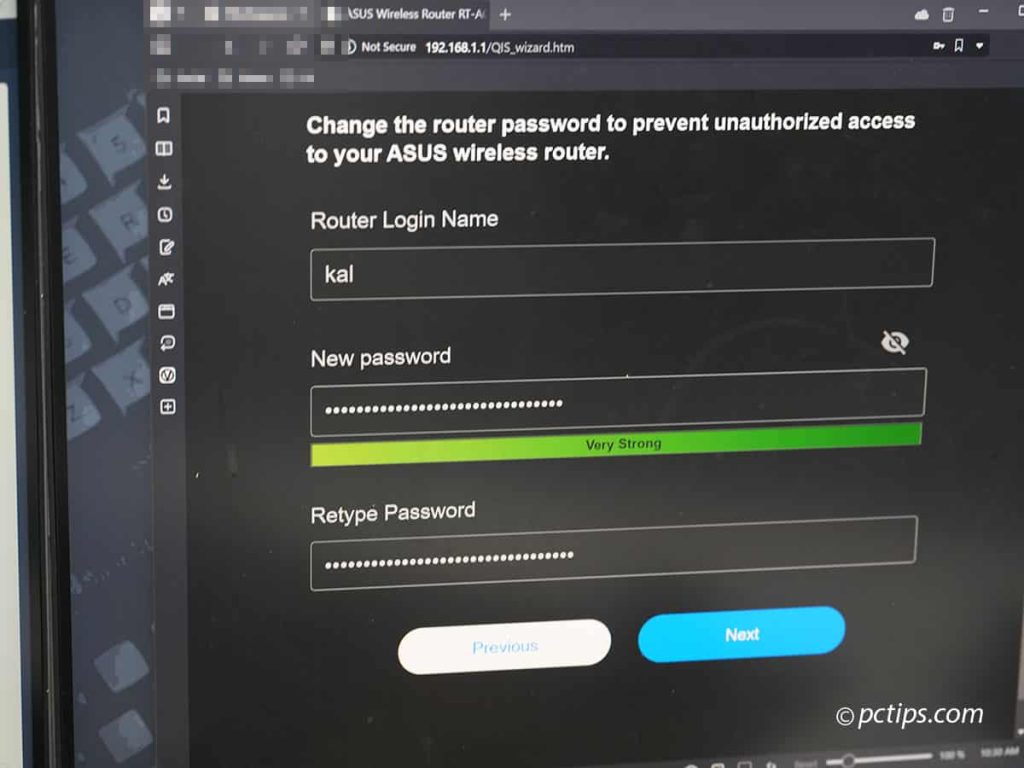
Step 3: Find the WiFi Settings Page
Navigate to the WiFi or Wireless section. It might be under a tab called ‘Wireless’, ‘WiFi’, or ‘Network Settings’. In some modems, it’s under ‘Basic Setup’ or ‘Home Network’. Look for an option like ‘SSID’ (your network name) and ‘Security Key’ or ‘Passphrase’.
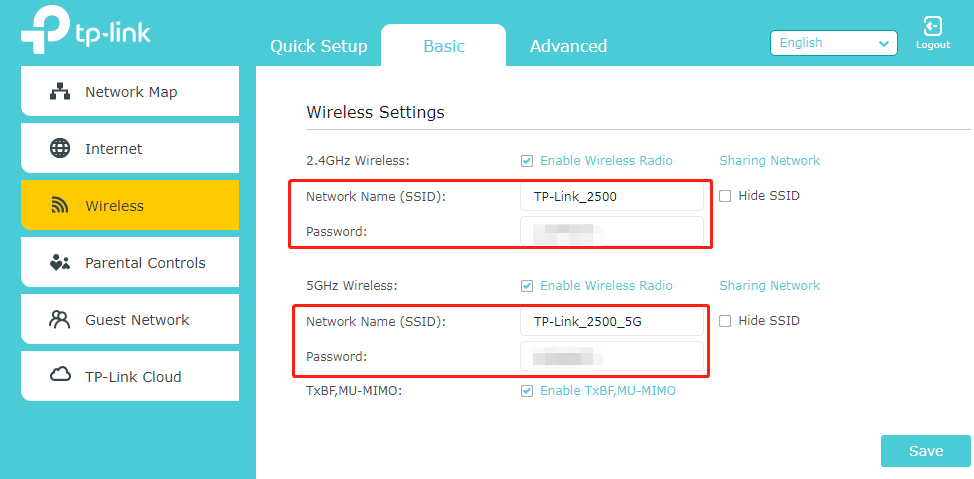
Step 4: Reveal the WiFi Password
The password field is often masked with dots. Look for a checkbox or button that says ‘Show’, ‘Reveal’, or ‘Show Password’. Click it to see the actual characters. Write it down or copy it. You’ve now recovered your password—no reset needed!
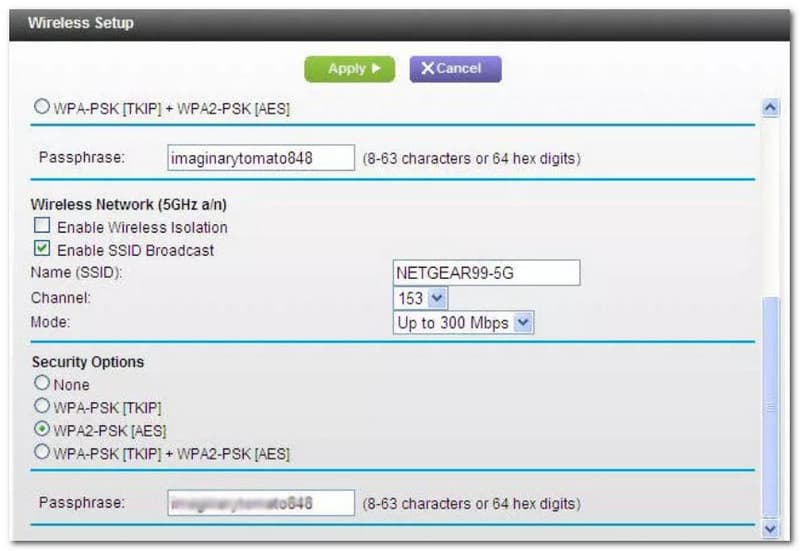
Step 5: Recover from a Windows PC (If Already Connected)
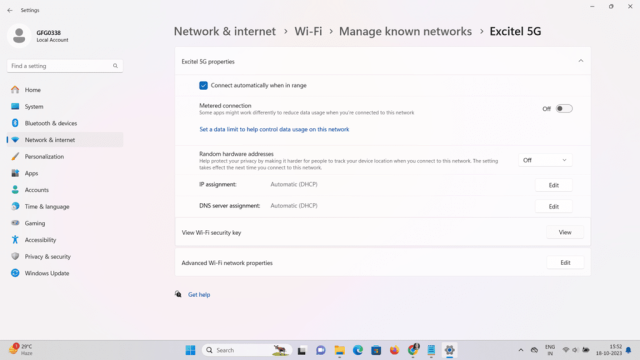
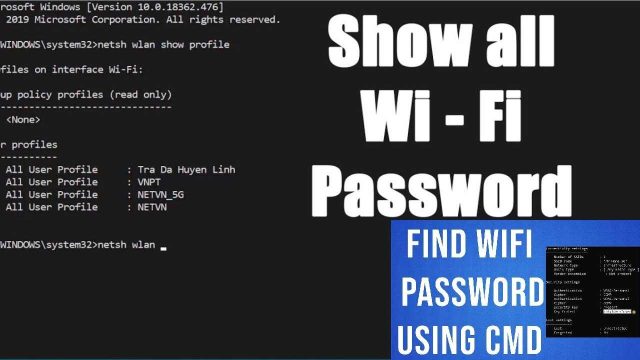
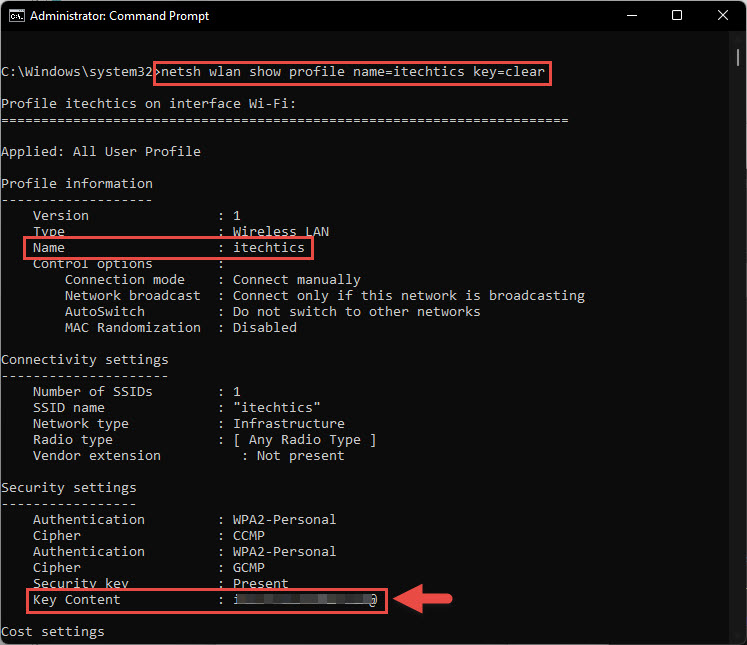
If you have a Windows computer that’s currently connected to the WiFi (or was previously), you can pull the password via command prompt. Open Command Prompt as administrator and type: netsh wlan show profile name="YourNetworkName" key=clear. Look for ‘Key Content’ under Security Settings. This is your password. For more on this method, check our guide to restore WiFi passwords on Windows.
Step 6: Recover from a Mac (Using Keychain)
On a Mac, open Keychain Access from Applications > Utilities. Search for your WiFi network name. Double-click it, then check the box ‘Show Password’. Enter your Mac’s login password when prompted. The WiFi password will be displayed. For more details, see how to find saved WiFi passwords on Mac.
Step 7: Use an Android Phone (QR Code or App)
On Android (9+), go to Settings > Network & Internet > WiFi, tap the gear icon next to your network, and select ‘QR code’ or ‘Share’. Scan the QR with another phone to see the password, or tap it to view the plaintext (depending on your version). If you don’t have access, a WiFi password recovery app may help—but many require root. For no-root methods, check our guide to recover without resetting.
Common Pitfalls
- Incorrect IP address: Make sure you’re using the right gateway IP. Check your device’s network details or use the sticker on the modem itself.
- Can’t remember admin credentials: Try default combos (admin/admin or admin/password). If those fail, you may need to perform a factory reset (hold the reset button for 10 seconds), which will also erase your WiFi settings.
- Password masked but no show option: Some modems don’t have a show password button. In that case, try using a wireless password recovery tool, or copy the password field in the browser’s developer tools to reveal the actual value.
Where to Next
Now that you have your WiFi password back, consider backing it up. Check our guide to restore WiFi passwords after a format if you’re planning a PC overhaul, or explore how to recover directly from your router for even more control. Stay connected!