
Ever been locked out of your own WiFi because you forgot the password? It happens more often than you think. This guide is for anyone who needs to recover a saved WiFi password from their computer or device without resetting the router. By the end, you’ll have a clear step-by-step method to retrieve your wireless key using a dedicated tool.
Whether you’re on Windows, macOS, or Linux, wireless password recovery can extract stored network credentials quickly. You won’t need any hacking skills—just a few clicks and terminal commands. Let’s dive in.
What You’ll Need
- A computer with saved WiFi networks (the one you want to recover)
- Administrator or root access (to view stored passwords)
- Optional: a USB drive if you need to run a portable tool
- Internet connection to download the tool (if not already on device)
Step 1: Choose the Right Wireless Password Recovery Tool
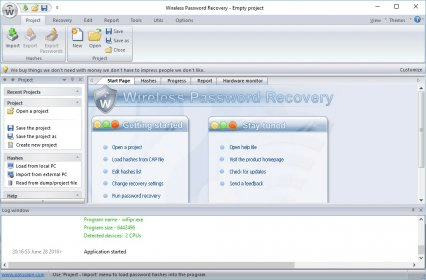
The first step is picking a tool that matches your operating system. For Windows, WirelessKeyView is a popular choice—it’s a professional wifi password recovery tool that reveals passwords in seconds. On macOS, you can use the built-in Keychain Access or third-party utilities. Linux users often use nmcli or the terminal. If you prefer a dedicated app, look for a wireless password recovery app from a trusted developer. For a great overview, check out our guide on professional wifi password recovery tools.
Step 2: Download and Install the Tool

Visit the official website of the tool you chose. Download the installer or portable version (no installation needed). Avoid shady download sites—stick to the developer’s page. If your antivirus flags the tool, don’t panic; it’s common because these tools access protected system areas. Temporarily disable antivirus only if you’re sure the source is safe. For macOS, you might need to right-click and open the app to bypass Gatekeeper.
Step 3: Run the Tool and Scan for Saved Networks

Launch the tool with admin privileges (right-click > Run as Administrator on Windows, or use sudo on Linux/Mac). Click the scan button or let it auto-detect saved networks. Within seconds, you’ll see a list of all WiFi profiles your computer has ever connected to—including the SSID and security key. If you don’t see any networks, make sure you’re running as administrator. For Linux, the wifi password recovery via terminal method may be faster for some users.
Step 4: View and Copy Your WiFi Password

Find your network in the list—usually identified by its SSID (the name you see when connecting). The tool will show the password in a column like “Key (Ascii)” or “Password.” Click on the entry and select copy, or highlight it and press Ctrl+C. You can also export all passwords to a text file for backup. This is especially handy if you want to restore wifi passwords after format or move to a new device. For more details, see our guide on restore wifi passwords after format.
Step 5: Verify the Password (Optional)

Now that you have the password, try connecting a new device to confirm it works. Open your phone, tablet, or another computer, find the same SSID, and enter the password you recovered. If it connects, you’re golden! If not, double-check that you copied the password correctly—some tools show extra characters. For common issues, refer to our wifi password recovery without reinstalling windows or find saved wifi password mac guides.
Common Pitfalls
- Not running as administrator/root: The tool can’t access the credential store. Always right-click > Run as Administrator on Windows or use sudo on Mac/Linux.
- Antivirus blocking the tool: Many security suites flag password recovery tools as potentially unwanted. Temporarily disable antivirus only if you trust the source, then re-enable after use.
- Choosing the wrong network: If you see multiple saved networks, pick the one you’re actively trying to recover. The password shown is for that specific network—make sure it’s the right one.
Where to Next?
You now know how to use a wireless password recovery tool to retrieve lost WiFi keys. If you prefer command-line methods, try our wifi password recovery via terminal guide. For users migrating devices, check out the wifi password recovery migration guide. And if you ever need to recover passwords after a software update, we’ve got you covered with wifi password recovery after software update. Happy surfing!



