
Ever needed the WiFi password for a network your Windows PC already knows? Maybe a friend asks for it, or you’re setting up a new device. You don’t have to reinstall Windows or reset your router. This guide is for anyone who wants to dig up that saved password using only tools built into Windows—no extra software, no hassle. By the end, you’ll know exactly how to view any WiFi password your computer has ever connected to, using both the graphical interface and command line.
We’ll walk through two simple methods: the graphical Settings app (great for beginners) and the command prompt/powershell (works on all Windows versions and can reveal every password at once). Even if you’re not tech-savvy, you’ll be able to follow along. Let’s get started.
What You’ll Need
- A Windows PC (Windows 10 or 11 preferred, but 7/8 also work)
- Administrator access (you need to be able to run Command Prompt as admin)
- The name of the WiFi network you need the password for (or you can list all saved networks)
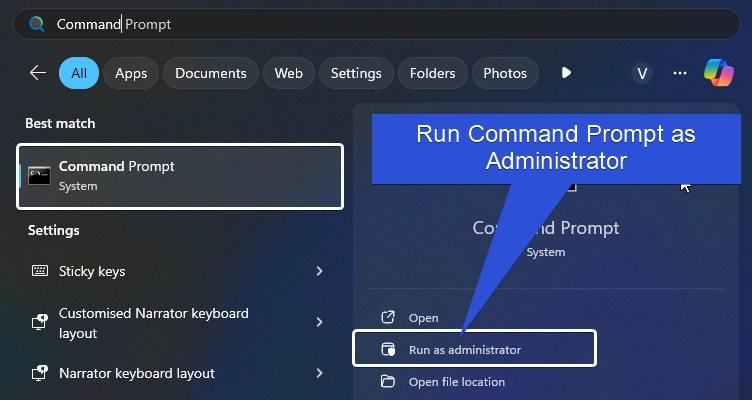
Step 1: Open Command Prompt as Administrator
Click the Start button, type “cmd” or “Command Prompt”, then right-click the result and select “Run as administrator”. If you see a User Account Control prompt, click “Yes”. This gives us permission to view system settings.
Step 2: List All Saved WiFi Networks
In the Command Prompt window, type the following command and press Enter:
You’ll see a list of all WiFi networks your PC has ever connected to. Note the exact name (SSID) of the network you need. If your network name has spaces, use double quotes around it in later steps.

Step 3: View the Password for a Specific Network
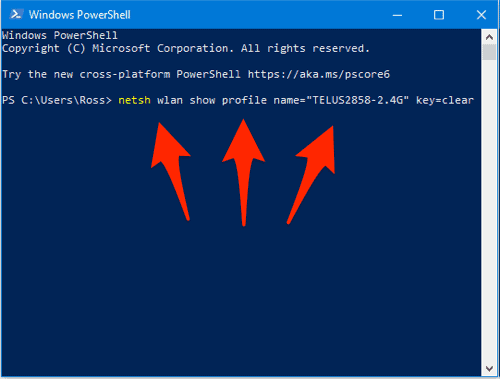
Now run this command, replacing “YourNetworkName” with the actual SSID:
Look for the line that says “Key Content”. That’s your WiFi password. If the network name has spaces, keep the quotes. Otherwise, quotes are optional.

Step 4: (Alternative) Use PowerShell to Export All Passwords
If you want to see all saved passwords in one go, PowerShell can automate it. Right-click Start and select “Windows PowerShell (Admin)”. Paste this command:
This loops through every profile and prints the password. You can scroll through to find each “Key Content”.
Step 5: (Graphical Method) Via Settings App
If you prefer clicks over commands: Go to Settings > Network & Internet > WiFi > Manage known networks. Click on the network you want, then click “Properties”. Under “Wi-Fi password”, click the eye icon to reveal it.
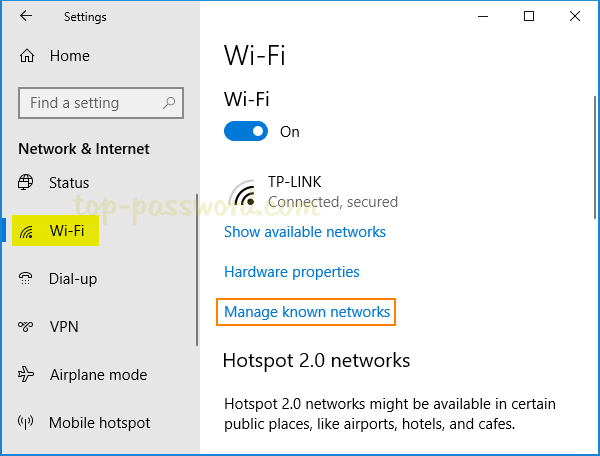
Note: This method only shows the password for the network you’re currently connected to (or that is saved). For other networks, use the command line.
Common Pitfalls
- Not running as admin: If you get “Access denied” or no profiles shown, close and reopen Command Prompt as administrator.
- Typos in network name: SSIDs are case-sensitive. Copy the exact name from the profiles list or use tab-completion with PowerShell.
- Password isn’t stored: Some corporate or enterprise networks don’t store the password in plaintext. In that case, you’ll need to contact your IT admin.
Where to Next
Now that you’ve recovered your WiFi password, you might want to check out our other guides: learn how to restore wifi passwords windows after a fresh install, or try the wifi password recovery command line method on macOS or Linux. If you prefer a completely software-free approach, see our wifi password recovery without software installation guide. For a visual click-through, read about show wifi password settings on other devices. And if you’re tech-savvy, consider writing a wifi password recovery script to automate this for all your machines. Also, explore wifi password recovery via terminal for cross-platform tricks.



