
So you’ve forgotten your WiFi password — again. Maybe a friend came over and asked for it, or you just got a new device and can’t find that little sticker on the router. No worries. You don’t need to hunt down any software or pay for a recovery tool. If you’ve ever connected to that network before, the password is already stored on your device. This tutorial shows you how to dig it out using only the built-in tools on Windows, macOS, and Android.
By the time you finish this guide, you’ll be able to grab the WiFi password from any computer or phone you currently use — no extra downloads, no admin hackery. We’ll cover the most common platforms step by step. If you need to move those saved networks to a new device, we’ve got you covered there too.
What You’ll Need
- A Windows PC, Mac, or Android phone that’s already connected to the WiFi network
- Administrator access (or the ability to unlock the system’s keychain on a Mac)
- About 5 minutes of your time
Step 1: On Windows — Network Settings
If you’re on Windows, the saved password is tucked away in the network settings. This works for Windows 10 and 11. First, open the Control Panel (search for it in the Start menu), then click “Network and Internet” → “Network and Sharing Center”. On the left side, click “Change adapter settings”. Right-click your active WiFi adapter and choose “Status”, then click “Wireless Properties”. Go to the “Security” tab and check the box that says “Show characters”. Boom — your network security key is right there.

If you prefer a faster way, you can also use the command line. Open Command Prompt as administrator and type netsh wlan show profile name="YourNetworkName" key=clear. Look for the “Key Content” line — that’s your password. For more details, check out our guide on wifi password recovery command line.
Step 2: On macOS — Keychain Access
On a Mac, all saved passwords live in the Keychain app. Open “Keychain Access” from the Utilities folder (or search for it with Spotlight). In the top-left, select “System” and make sure “Passwords” is selected. Look for your WiFi network’s name (SSID) in the list — if you don’t see it, try changing the search dropdown to “All Items”. Double-click the entry, then check the box “Show password”. You’ll be asked for your Mac’s admin username and password. Enter those, and the WiFi password will appear. This method is detailed in our saved wifi password recovery mac guide.

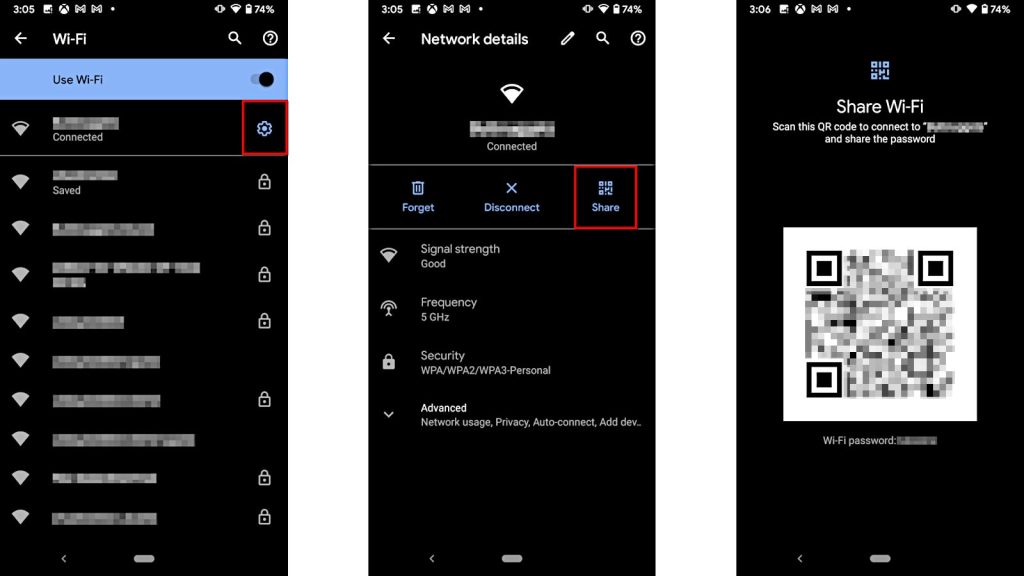
Step 3: On Android (No Root Needed)
Modern Android phones (version 10 and up) let you see the WiFi password right in the settings, no root required. Go to Settings → Network & Internet → WiFi. Tap the gear icon next to the network you’re connected to (or tap the network name). Then tap “Share” or the QR code icon. Android will show you a QR code — but look just below it: you’ll see the network password in plain text. If you’re on an older version of Android, you might need to look at the QR code and scan it with another device, which also works. For a deeper dive, see our post on show wifi password settings.
Step 4: Router Admin Page (Last Resort)
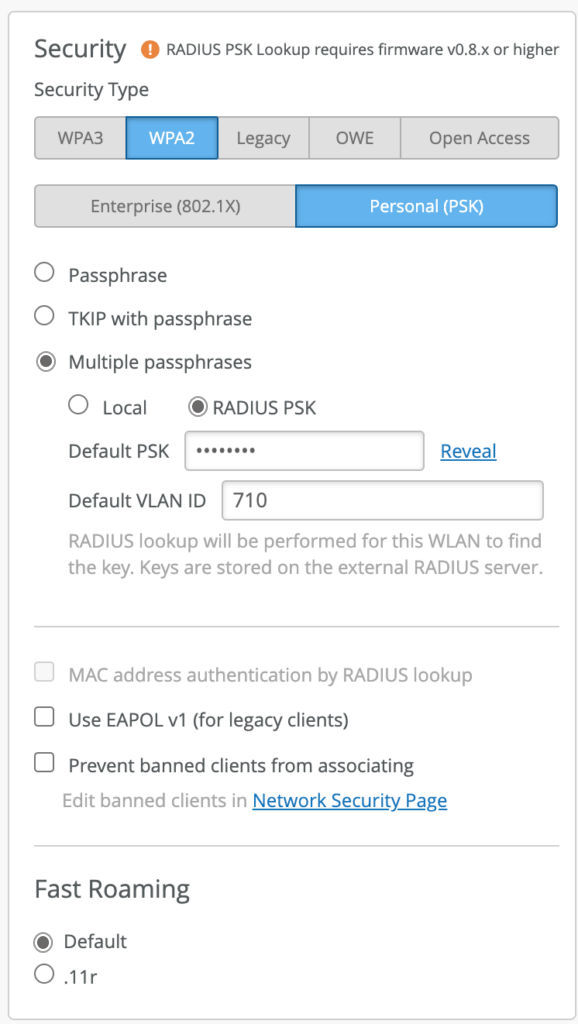
If you cannot access any device that’s already connected, you can always log into your router’s admin page. You’ll need the router’s IP address (usually 192.168.0.1 or 192.168.1.1) and the admin password (often printed on the router sticker). Open a browser, type the IP, log in, then look for “Wireless” or “WiFi” settings. The password will be shown in a field labeled “Pre-Shared Key” or “Passphrase”. Be careful not to change anything. This method is described in our article on wifi password recovery without resetting router.
Common Pitfalls
- You don’t have admin rights on the computer. On a work or school PC, the IT department may have locked these settings. In that case, you’ll need to ask them or use the router method.
- Your Android version is too old (pre-10). Older Androids hide the password behind root access. You can still scan the QR code with another phone or use the router page.
- You mistyped the router’s IP address. Double-check it by opening Command Prompt and typing
ipconfig— look for “Default Gateway” under your WiFi adapter.
Where to Next
Now that you’ve recovered your password, you might want to back it up for next time. Check out our guides on restore wifi passwords windows and recover wifi password on laptop. If you’re switching to a new phone, see our wifi password recovery without resetting router tips to smoothly move your saved networks. And if you ever need to find a password on a device you don’t own, remember: the built-in tools are all you need.



