
Ever been in that situation where a friend asks for the WiFi password and you blank? Or you just set up a new device and need to connect but can’t remember the key? If you’re on a Mac, you’re in luck — your computer stores every WiFi password you’ve ever connected to in a handy little app called Keychain Access. This guide is for anyone who’s ever forgotten a WiFi password and wants to retrieve it quickly, without resetting the router or calling your ISP.
By the end of this tutorial, you’ll be able to view the password for any saved WiFi network on your Mac — either using the graphical Keychain Access app or via the Terminal. We’ll also cover some common hiccups so you don’t get stuck. Let’s dive in.
What You’ll Need
- A Mac running macOS (any version — this works on Catalina, Big Sur, Monterey, Ventura, and later)
- An administrator account (you’ll need to unlock the keychain)
- The exact name of the WiFi network (SSID) — if you don’t know it, check the network you’re currently connected to in System Settings
Step 1: Use Keychain Access (The Easy Way)
Keychain Access is the built-in password manager on macOS. It stores everything from website logins to WiFi passwords. Here’s how to use it to recover your saved WiFi password.
First, open Keychain Access. You can find it by pressing Cmd+Space to open Spotlight, typing “Keychain Access”, and hitting Enter. Alternatively, go to Applications > Utilities > Keychain Access.
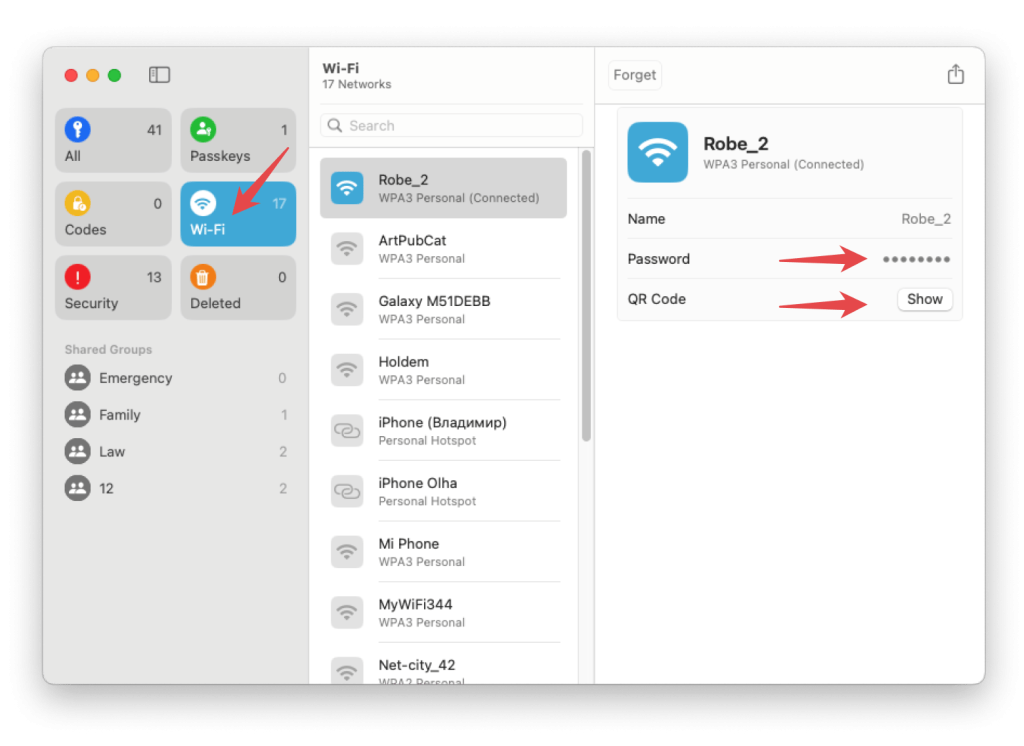
Once Keychain Access is open, look for the search bar in the top-right corner. Type the name of your WiFi network (SSID). If you don’t see results, make sure you’re looking in the “System” keychain (click on “System” in the left sidebar). Double-click the entry that matches your network name. A new window will pop up. Check the box next to “Show password”. You’ll be prompted to enter your Mac’s administrator username and password — that’s the same one you use to log in. After authenticating, the password will be revealed. That’s it! You can now copy it and share it.
If you prefer a visual walkthrough, check out our guide on how to show wifi password settings on various devices — the Mac part is very similar.
Step 2: Use Terminal (For the Command-Line Fans)
If you’re comfortable with the command line, you can retrieve the password even faster. Open Terminal (found in Applications > Utilities or via Spotlight). Type the following command, replacing “YourNetworkName” with the actual SSID of your WiFi network:
Press Enter. You’ll be asked for your Mac’s password (this is your user login password). Type it and hit Enter — nothing will show as you type for security. The WiFi password will then appear as plain text in the Terminal window.
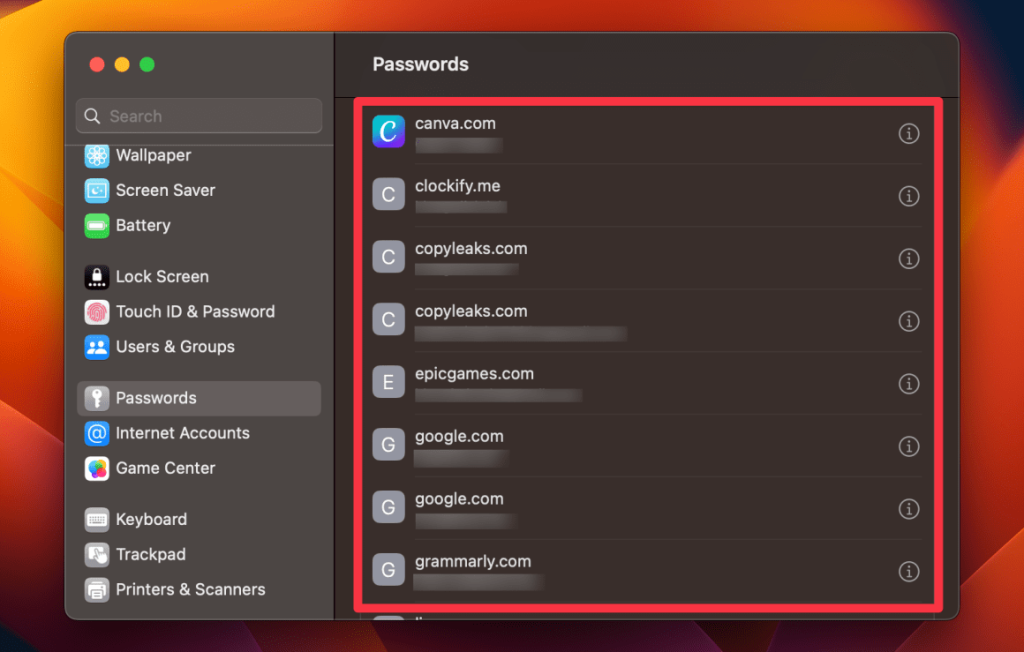
This method is perfect for those who want to save time or script the process. We have a detailed article on terminal-based wifi password recovery if you want to dive deeper into other command-line options.
Step 3: Recover from Router Settings (As a Last Resort)
If for some reason the password isn’t in your Keychain — maybe you never saved it or it was forgotten after a factory reset — you can always log into your router’s admin page. Open a browser and type your router’s IP address (often 192.168.0.1 or 192.168.1.1). Enter the admin username and password (usually printed on the router). Look for a section called “Wireless” or “WiFi” and you’ll see the network key. This is a more involved process, but it works. For a full guide, see our post on how to recover wifi password on laptop — it covers the router method too.
Common Pitfalls
- Keychain is locked: If Keychain Access won’t show the password, make sure you’ve unlocked the System keychain. Go to Keychain Access > Preferences > First Aid and try “Verify” or “Repair”.
- Wrong network name: The SSID is case-sensitive. Double-check the exact name — even a missing space or typo will return no results. You can find your current network name in System Settings > WiFi.
- Terminal permission denied: If Terminal asks for a password but you’re not the admin, you won’t be able to view the password. Ensure you’re logged in with an admin account. If you are, try restarting the Keychain Access process or rebooting your Mac.
Where to Next
Now that you’ve recovered your WiFi password, consider backing it up. If you ever switch to a new Mac or need to share the network with friends, having the password handy is a lifesaver. For more advanced recovery methods, check out our guide on saved wifi password recovery command line — it includes batch export commands. And if you ever need to recover passwords on other devices, we have tutorials for Windows and Android too. Happy surfing!



