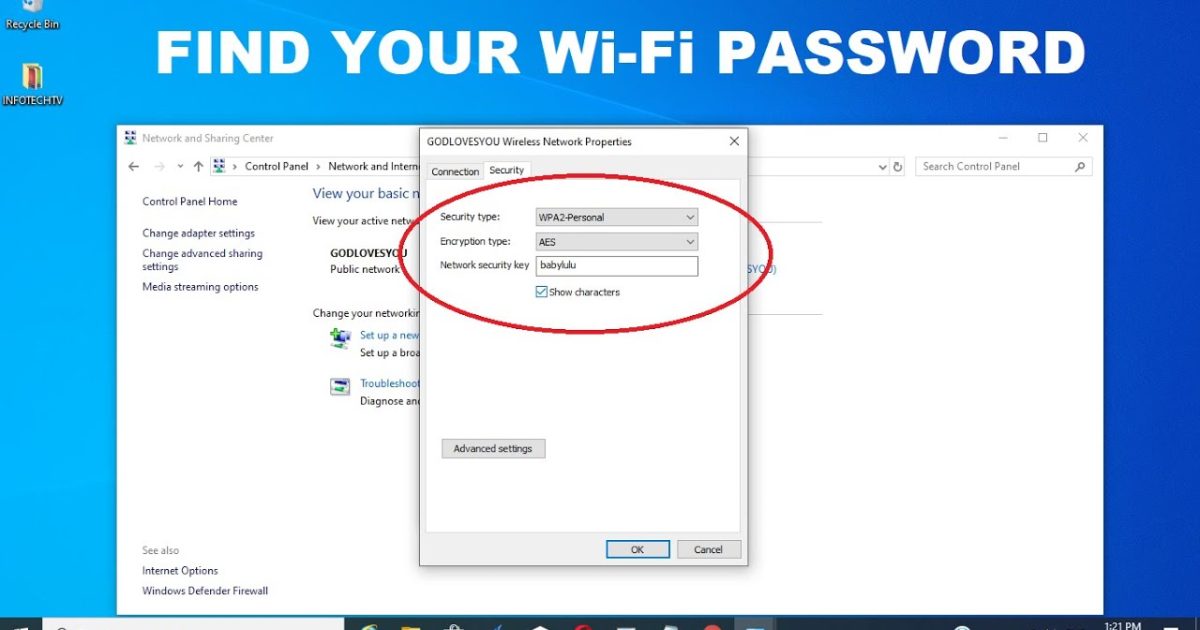
So you’re sitting at your laptop, ready to hop online, and suddenly you realize you have no idea what the WiFi password is. Maybe you typed it in months ago and your laptop remembered it, or perhaps a friend set it up and never shared the key. Whatever the reason, you’re not stuck — your laptop already knows the password. In this guide, I’ll show you how to retrieve that saved WiFi password using only built-in tools on Windows, macOS, and Linux. No third-party apps, no guesswork.
By the end of this tutorial, you’ll have your WiFi password back in plain text, ready to write down or share with other devices. We’ll cover the quickest method for each operating system, plus a universal fallback that works on any laptop if the first methods don’t pan out. Let’s dive in and unlock that network.
What You’ll Need
- A laptop that is already connected to the WiFi network (or that has connected to it at least once before).
- Administrator or root access on your laptop (the ability to run commands with elevated privileges).
- For Windows: Command Prompt or PowerShell (both come pre-installed).
- For macOS: The Keychain Access app (built-in).
- For Linux: A terminal and either nmcli or the ability to read network config files.
Step 1: Recover WiFi Password on Windows Using Netsh
Windows stores all saved WiFi profiles, including their passwords, in a secure location. You can extract them using the netsh command — no extra downloads required. If you’re on Windows 11, this method works exactly the same; check out our detailed wifi password recovery for windows 11 laptop guide for extra screenshots.
- Press the Windows key, type cmd, right-click on Command Prompt, and select Run as administrator. Confirm any UAC prompts.
- In the terminal, type the following command and press Enter:
netsh wlan show profiles. This lists every WiFi network your laptop has ever connected to. - Find the name (SSID) of the network you forgot the password for. Then type:
netsh wlan show profile name="NETWORK_NAME" key=clear, replacing NETWORK_NAME with the actual SSID. - Scroll down to the Security settings section. Next to Key Content, you’ll see your WiFi password in plain text.
That’s it — you’ve recovered your password. If you want to repeat this for multiple networks, just change the profile name. For a more automated approach, check out our guide on wifi password recovery with netsh which includes a script to export all passwords at once.
Step 2: Recover WiFi Password on macOS Using Keychain Access
On a Mac, every WiFi password is stored in the Keychain — macOS’s password management system. Here’s how to pull it out without any third-party tools.
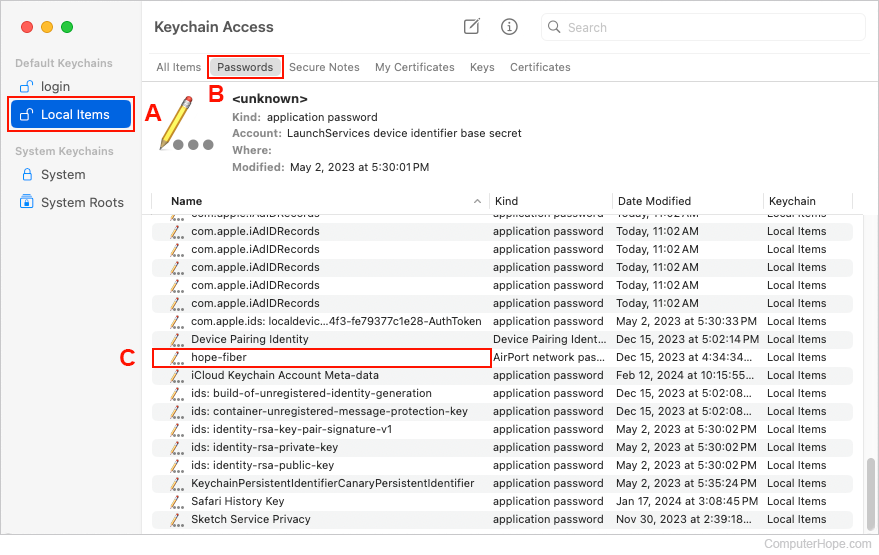
- Open Keychain Access. You can find it in Applications > Utilities, or search for it using Spotlight (Cmd+Space).
- In the search bar at the top right, type the name of your WiFi network (the SSID).
- Double-click the entry that matches your network. A dialog box will pop up.
- Check the box next to Show password. You’ll be prompted for your Mac’s administrator username and password (the one you log in with).
- After entering your credentials, the WiFi password will appear in the Show password field. You can copy it or write it down.
Note: If you’re not the admin of the Mac, you’ll need an admin’s password to see the WiFi key. Also, if you have multiple networks saved, make sure you pick the right one. For more tips, see our forgotten wifi password recovery linux guide — but for macOS, this is the simplest method.
Step 3: Recover WiFi Password on Linux Using Terminal
Linux stores WiFi passwords in plain-text configuration files (usually owned by root). Depending on your distribution, you may use NetworkManager’s nmcli command or browse the config files directly. Here’s the quickest route.
- Open a terminal (Ctrl+Alt+T on most distros).
- First, try the NetworkManager method. Type:
sudo nmcli -g 802-11-wireless-security.psk connection show "NETWORK_NAME", replacing NETWORK_NAME with the exact SSID. Press Enter and enter your sudo password. The WiFi password will appear. - If that doesn’t work (or you don’t have nmcli), navigate to the connection files:
sudo cat /etc/NetworkManager/system-connections/NETWORK_NAME. Look for thepsk=line — that’s your password. - For older distributions using wpa_supplicant, check
/etc/wpa_supplicant/wpa_supplicant.conf. Look for the network block and thepsk=value.
Linux gives you direct access, but be careful: these files contain sensitive information. For a deeper dive, including how to recover passwords on Kali Linux, check out our forgotten wifi password recovery linux tutorial.
Bonus: Recover Password from Your Router’s Admin Page
If none of the above works (e.g., your laptop has never connected to the network), you can always log in to your router’s web interface. This is the universal fallback and works on any device with a browser. It’s also a great alternative if you prefer a graphical approach — see our wifi password recovery with browser guide.
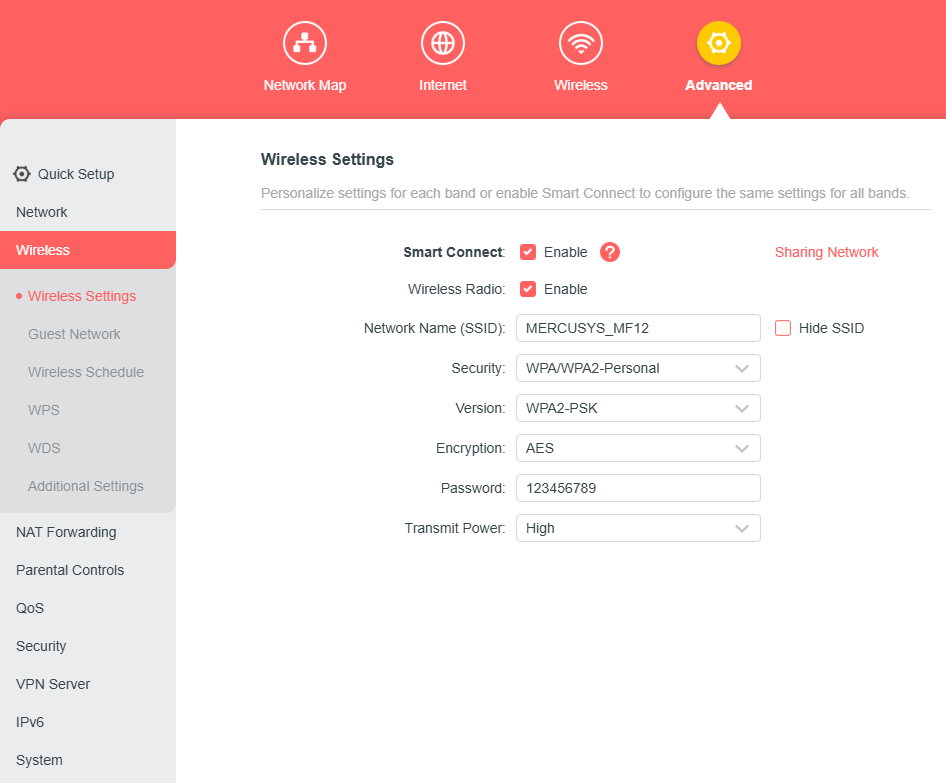
- Open a web browser and enter your router’s IP address (commonly 192.168.1.1 or 192.168.0.1).
- Log in with your router’s admin username and password (if you don’t know it, check the sticker on the router or look up the default credentials).
- Navigate to the Wi-Fi or Wireless settings section. Look for a tab like Wireless Security or WPA Pre-Shared Key.
- The password will be displayed in a field (often masked; you may need to click a checkbox to show it). Copy or note it down.
Common Pitfalls
- 📌 You didn’t run the command as administrator on Windows. Without admin rights, the
key=clearparameter won’t work, and you’ll see only asterisks. Always right-click and select “Run as administrator”. - 📌 Keychain on macOS asks for a password you don’t have. If the Mac is managed by an organization or you’re not an admin, you can’t show the password without the admin’s credentials. Try the router method instead.
- 📌 Linux config file permissions. The
/etc/NetworkManager/system-connections/folder is typically only readable by root. Usingsudo catsolves this, but if you forgetsudo, you’ll get a permission denied error.
Where to Next
Now that you’ve scored your WiFi password, don’t stop there. Consider backing up your saved passwords so you never get stuck again — check out our guide on backup wifi passwords windows for an easy script that exports everything. If you also want to recover passwords on your phone or tablet, see our wifi password recovery command line post for cross-platform methods. And remember: sharing passwords securely is just as important as recovering them. Stay connected!



