You just got a new device or a friend asks for the WiFi password, and your mind goes blank. It happens to all of us. But before you call your ISP or reset the router, there’s a dead-simple way to retrieve that password using nothing more than a web browser. This guide is for anyone with a computer or smartphone that’s currently connected to the network – or even if you’re not connected but have the router nearby.
By the end of this tutorial, you’ll have your WiFi password in plain text, ready to share or save. We’ll walk through finding your router’s IP address, logging into the admin panel, and locating the wireless security settings. No command line, no extra software – just a browser and a few clicks. Let’s get started.
What You’ll Need
- A computer or smartphone with a web browser (Chrome, Firefox, Safari, etc.)
- The router’s IP address (usually 192.168.1.1, 192.168.0.1, or 10.0.0.1)
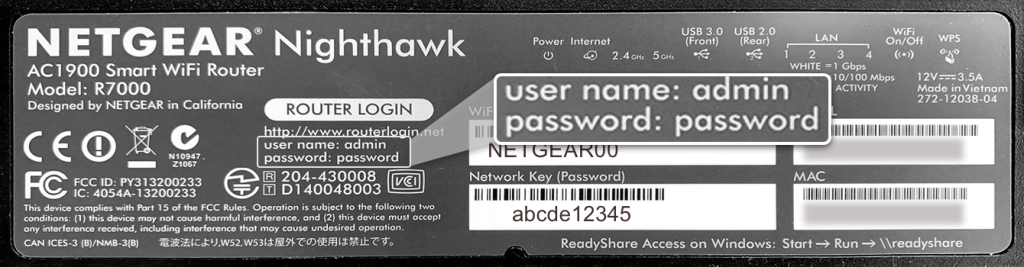
- The router’s admin username and password (often printed on a sticker on the router)
- Optional: A connected device to find the router IP if you don’t have it
If you don’t have the admin credentials, check the router’s label or look up the default login for your router model online. Many manufacturers use “admin” for both username and password.
Step 1: Find Your Router’s IP Address
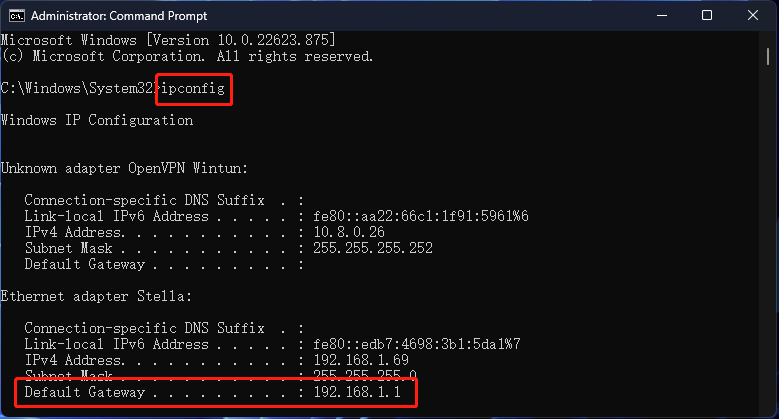
Open your browser and head to a search engine – but we need the router’s IP first. If you’re on a Windows PC, open Command Prompt and type ipconfig. Look for the “Default Gateway” under your active network adapter. That’s your router’s IP. On macOS, go to System Settings > Network > Wi-Fi > Details and find the Router. On Android, go to Settings > Wi-Fi, tap your network, and look for “Gateway” or “Router”. On an iPhone, tap the blue i icon next to your network and find “Router”.
Common IPs are 192.168.1.1, 192.168.0.1, or 10.0.0.1. Write it down.
Step 2: Log Into Your Router
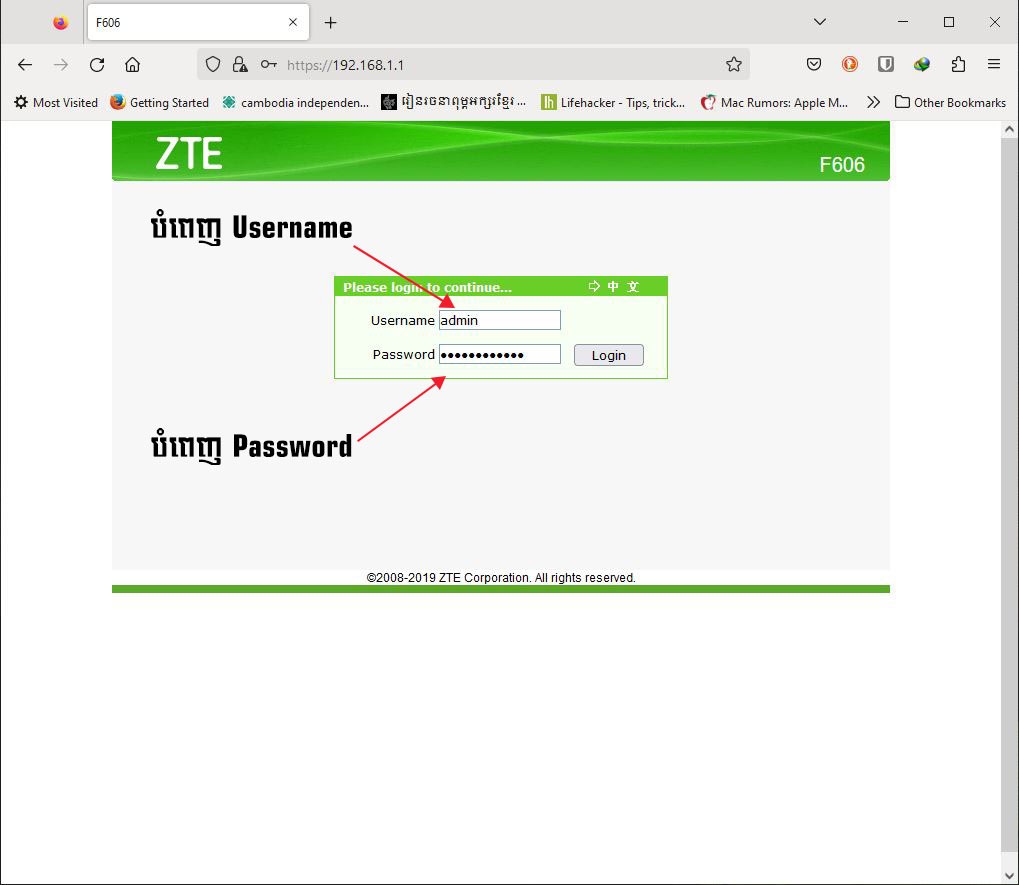
Open your web browser and type the router’s IP address into the address bar. Press Enter. A login page should appear. If nothing happens, try adding http:// before the IP (e.g., http://192.168.1.1). Enter the admin username and password. If you’ve never changed them, check the sticker on the router or the manual. Common defaults are username: admin, password: admin or password.
Once logged in, you’ll be in the router’s admin panel. The interface varies by brand (TP-Link, Netgear, Linksys, etc.), but the core options are similar.
Step 3: Locate the Wireless Settings
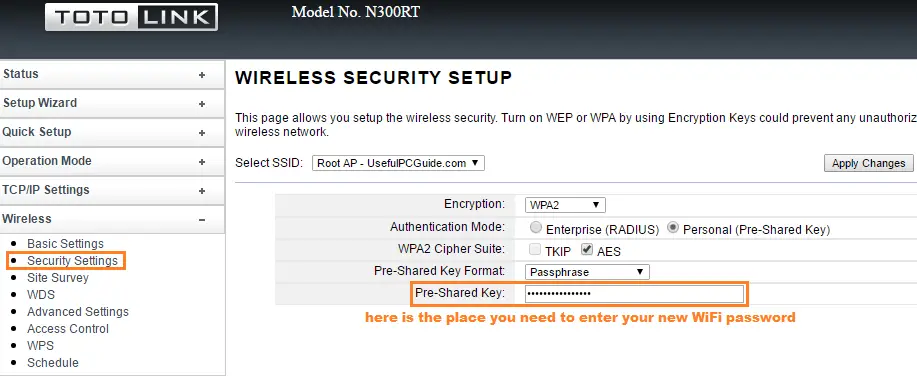
Look for a section called “Wireless”, “Wi-Fi”, “Wireless Settings”, or “Network”. It’s usually in the main menu or under an advanced tab. Click on it. You may need to expand a submenu like “Security” or “Wireless Security”. If you’re unsure, look for any option labeled “Wireless” first.
Once inside, you’ll see your network name (SSID) and the encryption type (WPA2, WPA3, etc.). The password field may be hidden behind asterisks or dots.
Step 4: Reveal the Password
Look for a checkbox or eye icon labeled “Show Password”, “Reveal”, or “Unmask”. Click it to display the password in plain text. If there’s no such option, the password might already be visible as plain text next to “Pre-Shared Key” or “Passphrase”. If not, you may need to temporarily change the password (write down the old one first) or use another method.
Some routers require you to click on the password field to reveal it. On modern firmware like TP-Link’s, there’s usually a small eye icon on the right side of the input field. Tap or click it to show the characters.
Step 5: Save or Share the Password
Once you have the password, copy it to a text file, write it down, or share it securely with guests. If you’re concerned about security, consider changing the password after you’ve recovered it. You can also use this opportunity to review your wireless settings for other issues.
For extra safety, consider backing up your router settings or using the recovery tips from our related articles. If you need to access the password later without logging into the router, try the saved profile method on your computer.
Common Pitfalls
- Default credentials don’t work: Many routers allow you to change the admin password. If you don’t remember it, you may need to reset the router to factory defaults (by holding the reset button for 10 seconds). This will also reset your WiFi password, so only do that as a last resort.
- Password field is blank or not showing: Some routers hide the password by default and don’t have a show button. Try checking the password length – if it’s the right number of characters, the field might be masked but you can copy it anyway. Alternatively, view the page source to find the password value.
- Wrong router IP: If you enter the IP and get an error or a search page, you might have the wrong address. Make sure you’re using the correct Default Gateway. Also try typing exactly the IP with dots, no spaces. If all else fails, refer to the recover from modem guide for alternative approaches.
Where to Next
Now that you’ve recovered your password, it’s a good idea to save it somewhere safe. Check out our safest method for password storage, or learn how to recover from modem if you ever need a backup approach. If you’re managing multiple networks, our recovery tips category has more advanced tricks. Happy surfing!