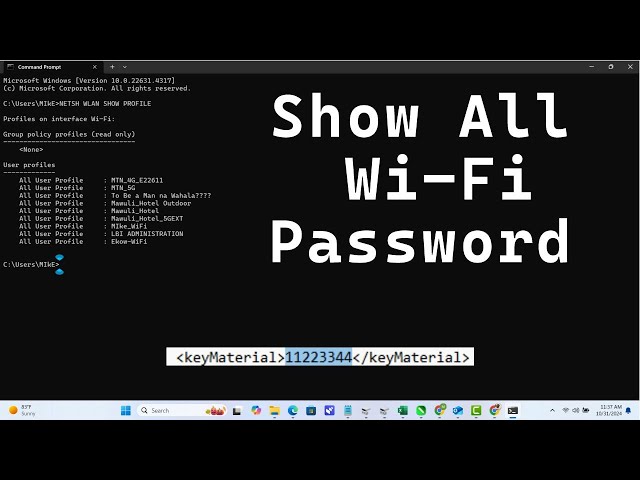
Ever been stuck trying to connect a new device to your WiFi, only to realize you’ve completely forgotten the password? You’re not alone. This tutorial is for anyone who has a Windows PC that’s already connected to the network (or was in the past) and wants to retrieve that password without downloading any extra software. By the end, you’ll know exactly how to pull up any saved WiFi password using the Command Prompt — it’s faster than digging through router settings.
We’ll use a built-in Windows tool called netsh (Network Shell). It’s already on your computer, so no downloads needed. All you have to do is run a couple of commands. Whether you need the password for your home network, a guest network, or even a hidden network, this method works. Let’s get started.
What You’ll Need
- A Windows PC (Windows 7, 8, 10, or 11) that is currently connected to the WiFi network whose password you want, or has connected to it in the past.
- Administrator privileges on that computer (you’ll need to open Command Prompt as admin).
- The exact name (SSID) of the WiFi network — you can find it in the list of available networks if you’re unsure.
That’s it. No third-party tools, no router admin login, no resets.
Step 1: Open Command Prompt as Administrator
First, you need to open the Command Prompt with admin rights. Click the Start button, type cmd in the search bar, then right-click on “Command Prompt” and select “Run as administrator.” If you see a User Account Control prompt asking for permission, click “Yes.”
A black window with white text will appear. That’s the Command Prompt. You’re ready to type commands.
Step 2: List All Saved WiFi Networks
Type the following command and press Enter:
This will display a list of all WiFi networks your computer has ever connected to and saved. Look for the exact network name (SSID) you want the password for. If you have many, note it down exactly as it appears (case-sensitive).
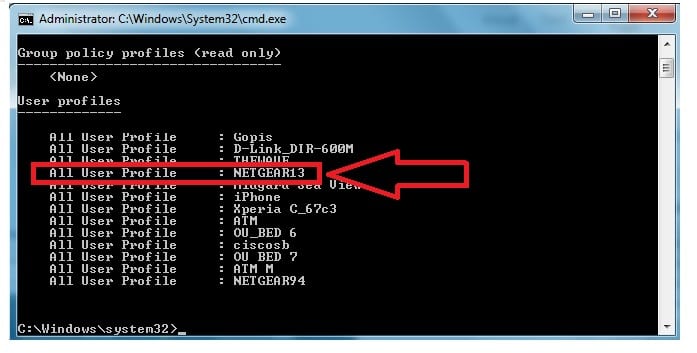
Step 3: Retrieve the Password for a Specific Network
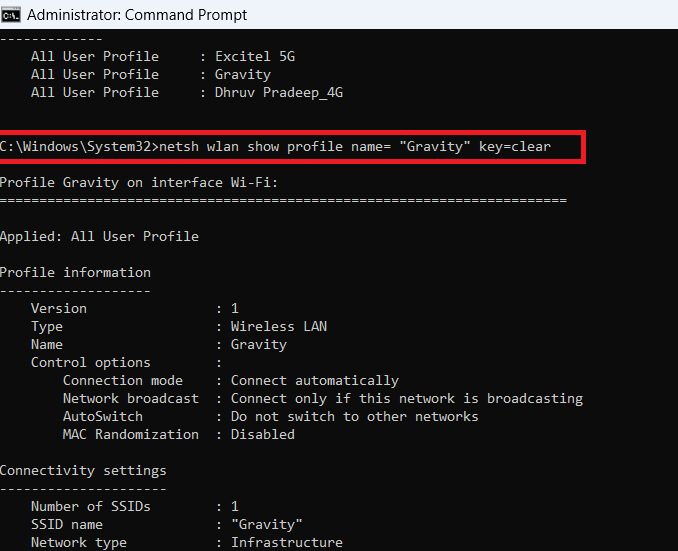
Now replace NETWORK_NAME with your actual SSID (keep the quotes if your SSID has spaces) and run:
Scroll down the output until you see a section called “Security settings.” Next to “Key Content,” you’ll find your WiFi password in plain text.
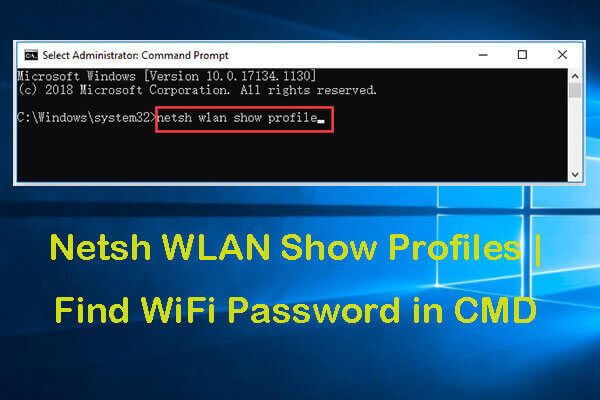
For example, if your network name is “HomeWiFi”, you’d type: netsh wlan show profile name="HomeWiFi" key=clear. The password appears after “Key Content”.
Step 4: Copy the Password (Optional)
You can write it down manually, but it’s easier to copy it. Right-click anywhere on the Command Prompt title bar, select “Edit,” then “Mark.” Highlight the password, press Enter to copy. Then paste it into a text file or directly into your device’s WiFi settings.
Common Pitfalls
- Running Command Prompt without admin rights: If you get a message like “You do not have sufficient privileges” or the key content is blank, close and reopen Command Prompt as administrator.
- Spaces in the network name: If you forget the quotes around a network name that contains spaces, you’ll see an error. Always enclose the name in double quotes.
- Network not in the profile list: Your computer must have connected to that network at least once. If it’s not listed, use another method like router login or check other devices. For offline recovery, see our offline wifi password recovery solutions.
Where to Next
Now that you’ve recovered your WiFi password, consider backing them up so you never lose them again. Check out our guide on backup wifi passwords before formatting. If you’re on a Mac, we also have a method to find saved wifi password from keychain. And if you need to recover passwords from a router that’s no longer connected, our free wifi password recovery software article has other options. Happy connecting!



