If you’ve just set up a new conference room or someone changed the WiFi without telling anyone, you’re in the right place. This guide is for small business owners, office managers, and employees who need to recover a business WiFi password without calling IT. By the end, you’ll have the password in hand using methods that work on any network.
We’ll cover everything from physically checking the router to digging into saved credentials on Windows, Mac, and Android devices. If you’re the admin, you can also log into the router’s settings. Worst case, we’ll show you how to reset the router (and why that’s a last resort). For even more depth, check out our collection of wifi password recovery tips.
What you’ll need
- Physical access to the router or business access point
- A computer or phone already connected to the WiFi (or a way to connect temporarily)
- Router admin credentials (usually on a sticker or provided by IT)
- For reset: a paperclip or pin to press the reset button
- Optional: administrative credentials for your computer (Windows/Mac admin password)
Step 1: Check the router sticker first
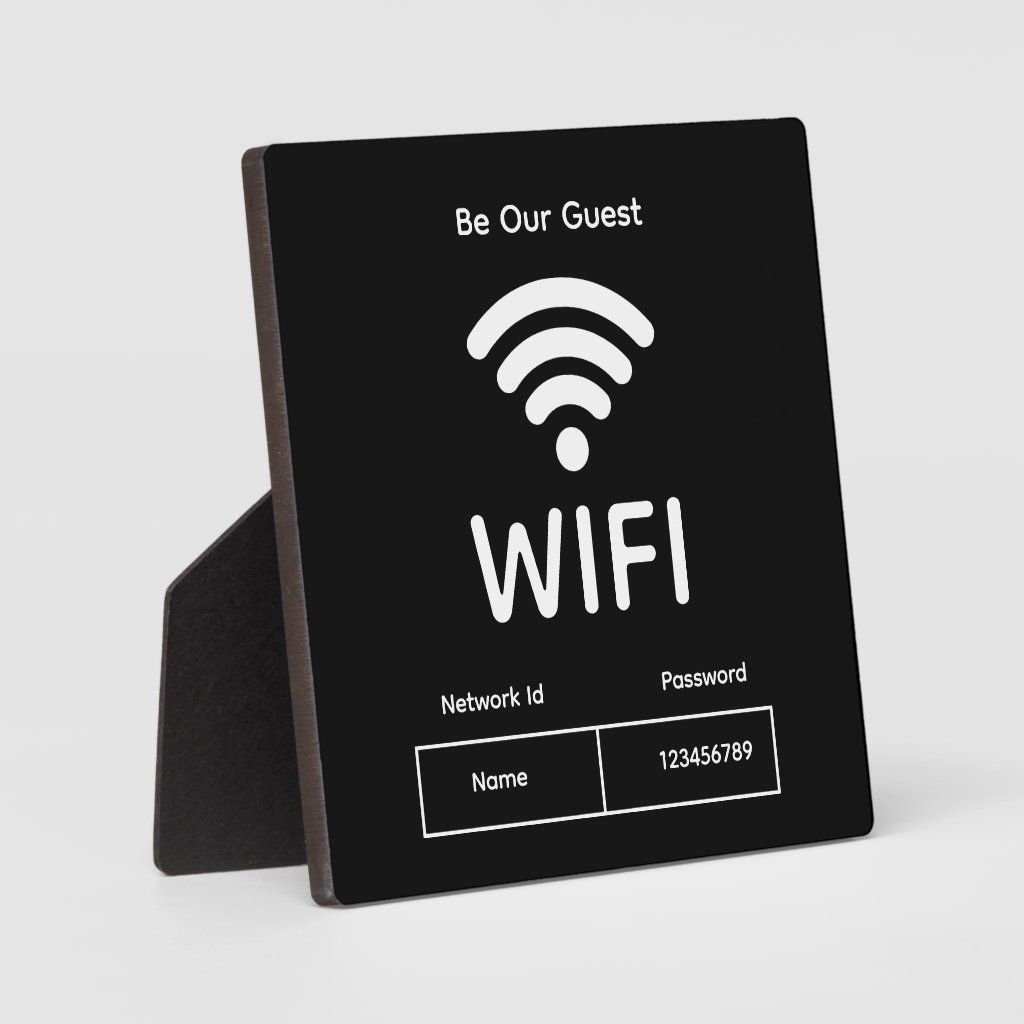
Most business routers still have a sticker on the bottom or back that lists the default WiFi network name (SSID) and password. If the network was never changed from the default, you’re done. Look for a small label that says “Wireless Password”, “WPA Key”, or “Network Key”. If the sticker is missing or faded, move to the next step.
Step 2: Access the router’s web interface
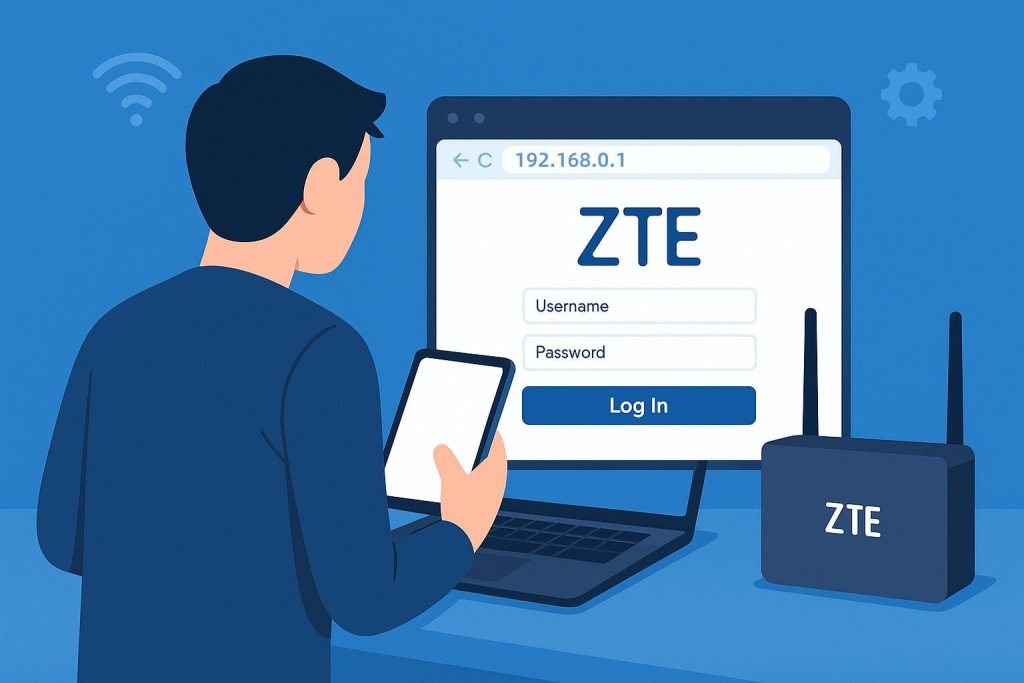
If you have the admin login password (or it’s still default), open a browser and type the router’s IP address — commonly 192.168.1.1, 192.168.0.1, or 10.0.0.1. Log in with the admin credentials (often “admin/admin” or on the sticker). Once inside, look for a section labeled “Wireless”, “WiFi”, or “Security”. There you’ll see the current password. Write it down or change it to something you’ll remember. This is often the safest method to recover your WiFi password because you’re seeing it directly from the source.
Step 3: Find saved password on a Windows computer
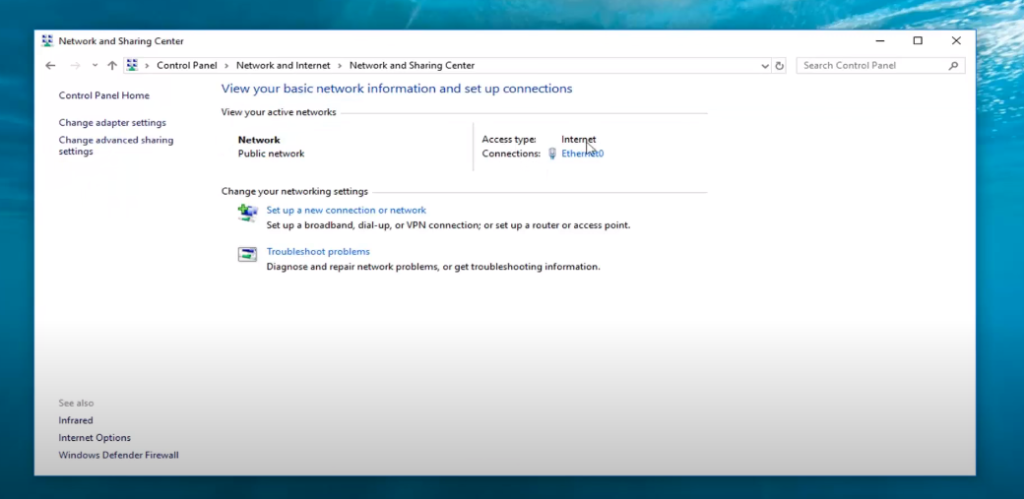
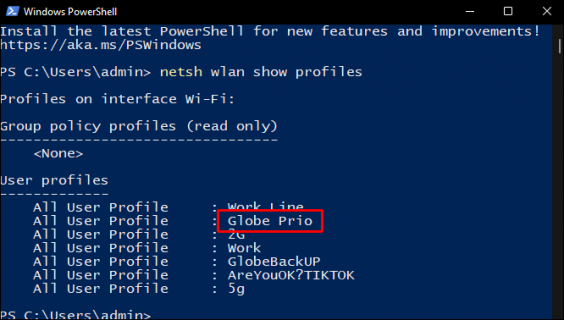
If you have a Windows laptop that’s already connected to the business WiFi, follow these steps: Go to Settings > Network & Internet > Status > Network and Sharing Center. Click on the WiFi network name next to “Connections”, then click “Wireless Properties”. Go to the “Security” tab and check “Show characters”. The password will appear in the “Network security key” field. For a full walkthrough, see our guide on wireless password recovery on Windows.
Step 4: Recover from a Mac using Keychain
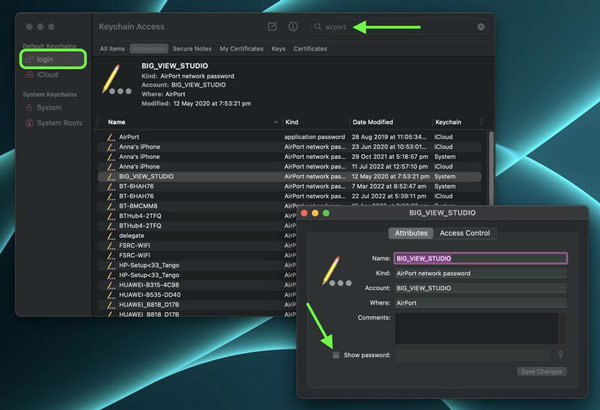
On a Mac that’s connected to the network, open Applications > Utilities > Keychain Access. In the search bar, type the name of your WiFi network. Double-click the entry, then check “Show password”. You’ll need your Mac’s admin username and password to reveal it. This method is quick and reliable. For more details, check out how to find saved WiFi password from Keychain.
Step 5: Use an Android phone (QR code or settings)
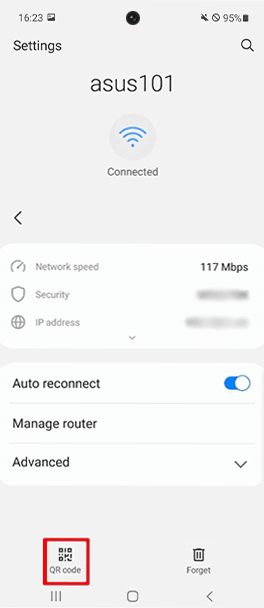
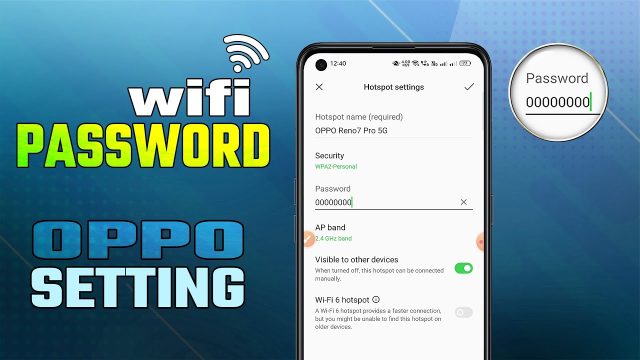
If you have an Android phone connected to the business WiFi, go to Settings > Network & Internet > WiFi. Tap the gear icon next to the connected network. Some phones show the password directly; others require tapping “Share” to generate a QR code that contains the password. You can scan that QR code with another device or read the password below the code. Learn more about this in our tutorial to show WiFi password on Android.
Step 6: Restore from a backup (if you have one)
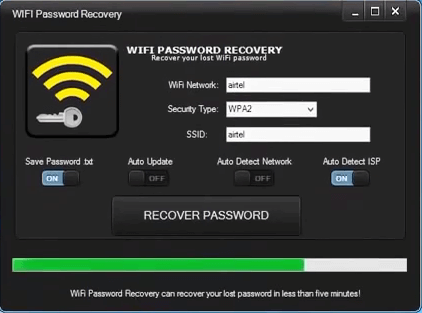
If your business regularly backs up devices or router configurations, you may have a saved copy of the WiFi password. This is common with cloud backup services or IT management tools. Check your backup repository for a file named “WiFi profiles” or “network settings”. For step-by-step instructions, see our guide on how to restore WiFi passwords from backup.
Common pitfalls
- Default admin credentials were changed and not documented. If the sticker doesn’t work and you never changed the admin password, try common defaults. Otherwise, you’ll need to reset the router (see below).
- Guest network isolation. If you’re on a guest network, you might not be able to access the router admin page or see the main network password. Make sure you’re connected to the primary business network.
- Router IP address issues. The default IP might have been changed, or the router might use a different subnet. Check your computer’s default gateway (ipconfig on Windows, netstat -nr on Mac) to find the correct address.
Where to next
Now that you have your business WiFi password back, consider saving it in a secure password manager so this doesn’t happen again. If you need to share the password with employees, create a QR code poster for the break room. For more advanced recovery scenarios, like after a router replacement or firmware update, browse our complete library of wifi password recovery tips.