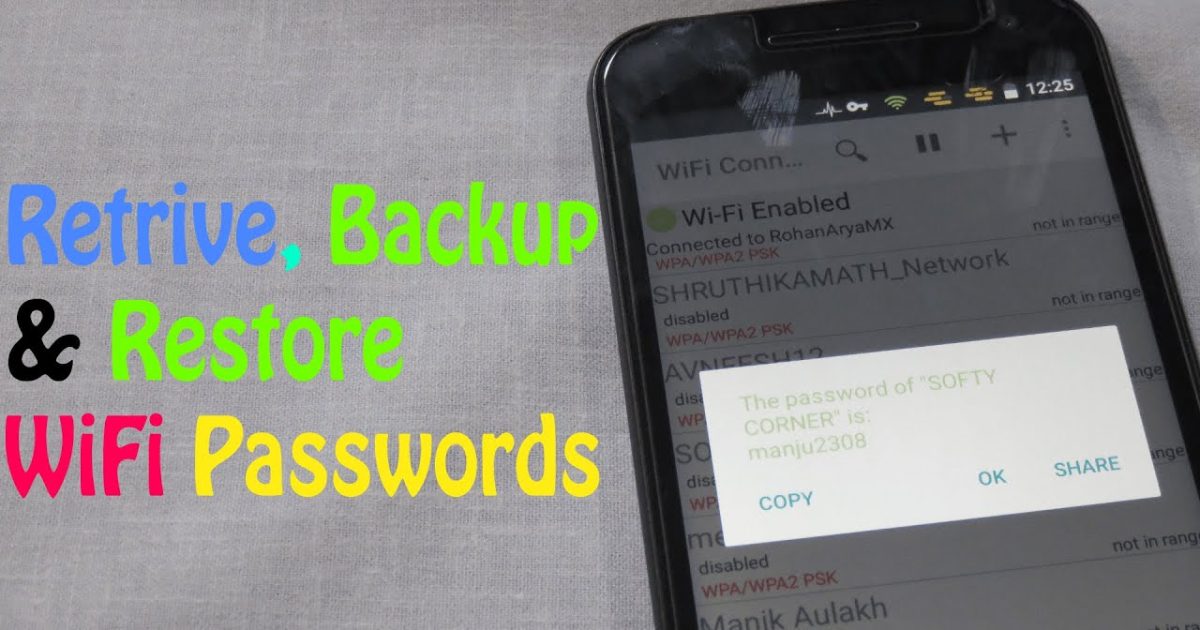
If you’ve just restored your computer or phone from a backup and realized all your WiFi passwords are gone, don’t panic. This guide is for anyone who needs to get back their saved network keys after a system restore, upgrade, or migration. By the end, you’ll have all your old WiFi passwords restored and ready to use.
We’ll cover three major platforms: Windows, Mac, and Android. Whether you have a full system image backup, a Time Machine backup, or a Google cloud backup, there’s a way to extract those passwords. Let’s dive in.
What You’ll Need
- Access to your backup (external drive, cloud account, or system image)
- Administrative privileges on your computer or phone
- A USB drive or external storage if you need to transfer files
- Optional: a free wifi password recovery software tool for bulk extraction
Step 1: Restore WiFi Passwords from Windows Backup
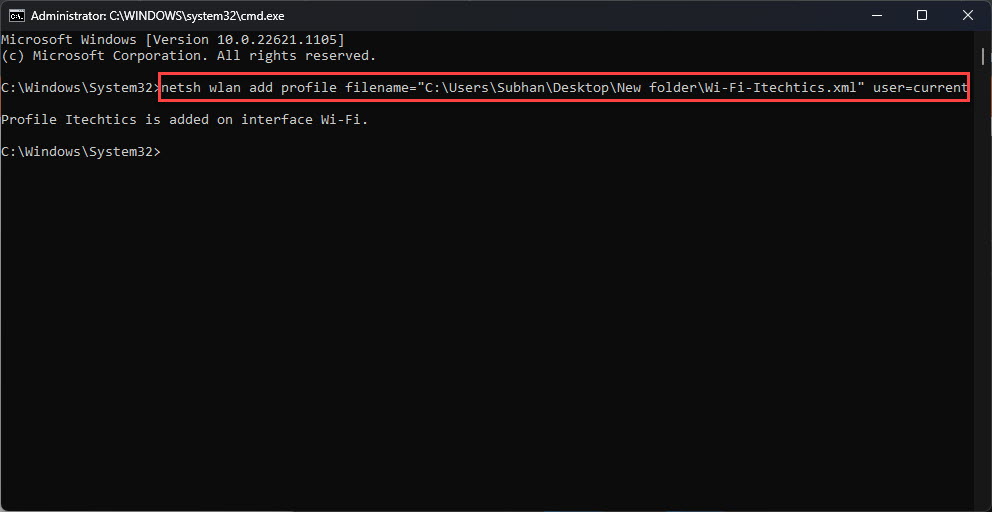
If you have a Windows system backup (like a File History or system image), you can restore the WiFi profiles manually. First, locate the backup drive and find the folder C:ProgramDataMicrosoftWlansvcProfilesInterfaces. Copy all .xml files from that folder. Then, on your current Windows install, navigate to the same path (you may need to show hidden files) and paste the XML files. Each file contains one network profile including the password. Alternatively, use the netsh command to export profiles from a backup environment. For a more automated approach, check out this guide on the wifi password recovery command from profiles.
If you’re comfortable with the command line, you can also recover forgotten wifi password using cmd directly from your current system if the backup is just a file copy. But the XML method works best for full backups.
Step 2: Restore WiFi Passwords from Mac Backup
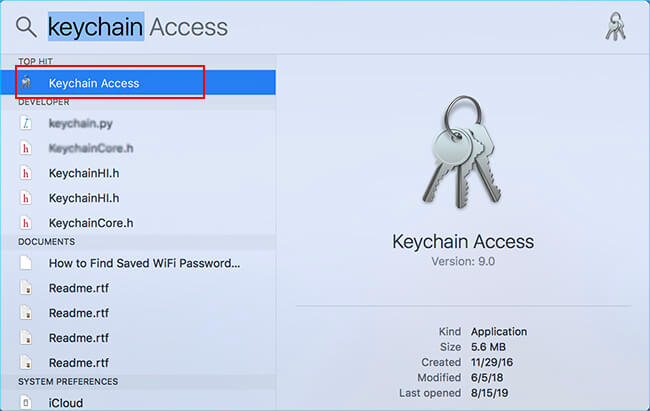
On a Mac, WiFi passwords are stored in the Keychain app. If you have a Time Machine backup, you can restore the entire Keychain or specific entries. Open Keychain Access from Applications > Utilities. Go to File > Import Items and select the Keychain backup file (usually located in /Library/Keychains/ on your backup drive). Alternatively, use the security command in Terminal to extract passwords. For a full walkthrough, see our dedicated guide on how to restore wifi passwords mac.
Step 3: Restore WiFi Passwords from Android Backup
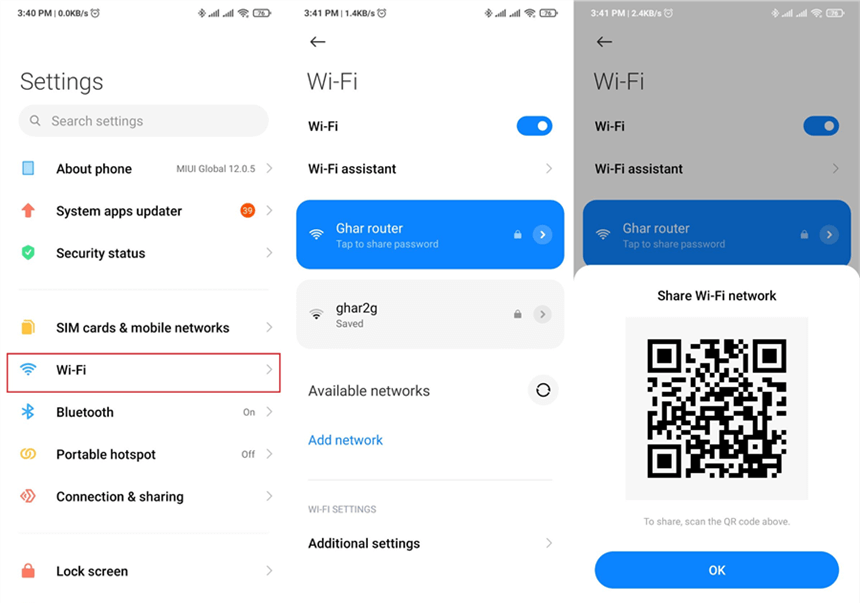
On Android, WiFi passwords are backed up if you have Google Backup enabled. After a factory reset or new device, they should automatically restore when you sign into your Google account. If not, go to Settings > Network & Internet > Internet > Saved networks. If your backup file is local (e.g., from a previous root backup), you can restore via a file manager. For more details on this process, check out our article on wifi password recovery after android update.
Step 4: Use Third-Party Tools for Bulk Restore
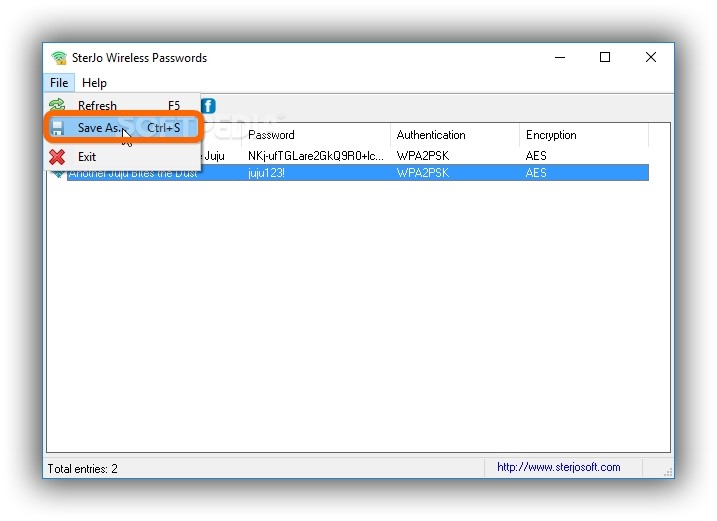
If you have many networks or want a simpler process, consider using a dedicated tool. A free wifi password recovery software can scan your backup files or current system and export all passwords to a readable format. Some tools even work across platforms. For a list of reliable options, see our guide on the wifi password recovery powershell tutorial (Windows) or other utilities.
Common Pitfalls
- Backup file corruption: If your backup is damaged, you may not be able to extract any passwords. Always verify backup integrity before relying on it.
- Permission issues: On Windows and Mac, you need admin rights to access system folders and the Keychain. Without those, the restore will fail.
- Version incompatibility: WiFi profiles from an older Windows version may not work on a newer one. Try deleting and reimporting using netsh if profiles don’t appear.
Where to Next
Now you know how to restore your WiFi passwords from backup. If you ever need to recover passwords without a backup, check out our free wifi password recovery software guide for other methods. For Mac users, the restore wifi passwords mac article has additional tips. And if you’re on Windows, the recover forgotten wifi password using cmd guide is a handy reference.



