
We’ve all been there: a friend comes over and asks for the WiFi password, and you can’t remember it because it’s been saved on your laptop for ages. Or maybe you just set up a new device and need to connect, but that sticky note with the password is long gone. If you’re running Windows, there’s a quick and free way to retrieve that forgotten password using the Command Prompt. No third-party software needed.
By the end of this tutorial, you’ll be able to dig up your WiFi password from any network your Windows PC has ever connected to. We’ll walk through the exact commands to run, explain what each one does, and point out common hiccups. If you prefer a graphical approach, check out our guide on how to show wifi password windows via Settings. But if you’re comfortable with a few lines of text, CMD is the fastest route.
What You’ll Need
- A Windows PC (Windows 7, 8, 10, or 11) that is currently connected or has previously connected to the WiFi network.
- Administrator access to the computer (you need to be able to run Command Prompt as admin).
- The WiFi network name (SSID) you want the password for. If you don’t remember it exactly, we’ll show how to list all saved profiles.
Step 1: Open Command Prompt as Administrator
First, you need to launch Command Prompt with elevated privileges. Click the Start button, type cmd in the search bar, then right-click on “Command Prompt” and select “Run as administrator”. If you see a User Account Control prompt, click “Yes” to allow. This step is crucial because standard user mode won’t let you view network passwords. For a more modern alternative, you can also try the wifi password recovery powershell tutorial, but CMD works perfectly fine.
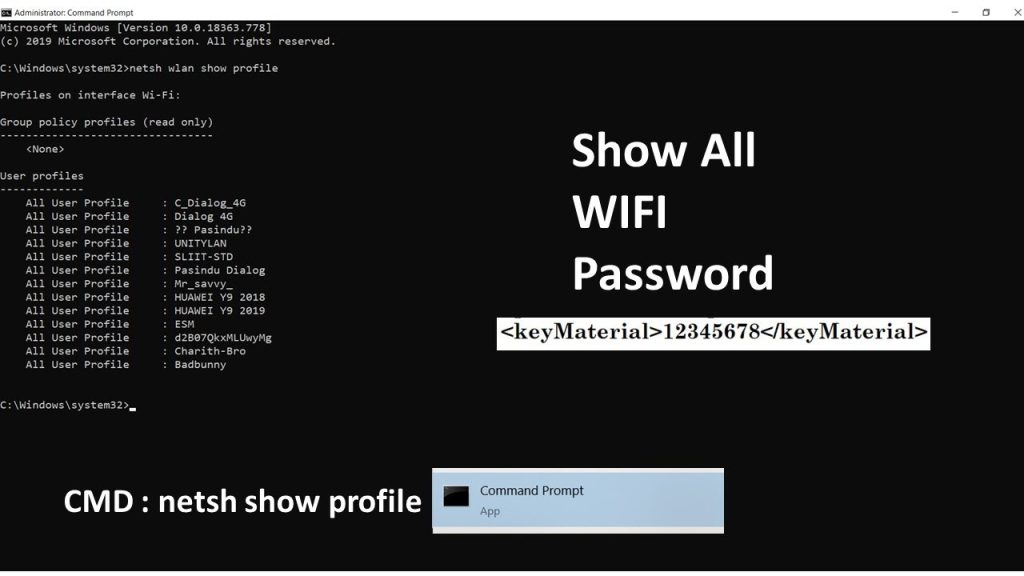
Step 2: View All Saved WiFi Profiles
In the Command Prompt window, type the following command and press Enter: netsh wlan show profiles. This command displays a list of every WiFi network your computer has ever connected to and saved. Look for the network name (SSID) you want the password for. If you have many profiles, you can scroll back through the output. If you’re brand new to this, our beginner wifi password recovery tutorial covers basic concepts in more detail.
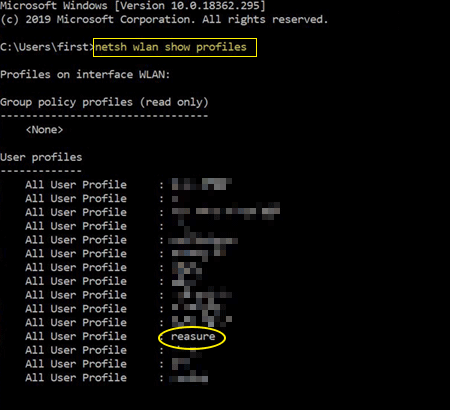
Step 3: Retrieve the Password for a Specific Profile
Once you have the exact profile name (copy it or type it carefully), run this command: netsh wlan show profile name="YOUR-NETWORK-NAME" key=clear. Replace YOUR-NETWORK-NAME with the actual SSID from Step 2. Look for the line that says “Key Content” — the text next to it is your WiFi password. For example, if the network is called “HomeWiFi”, you’d type netsh wlan show profile name="HomeWiFi" key=clear. This method is one of the simplest for wifi password recovery from saved network.
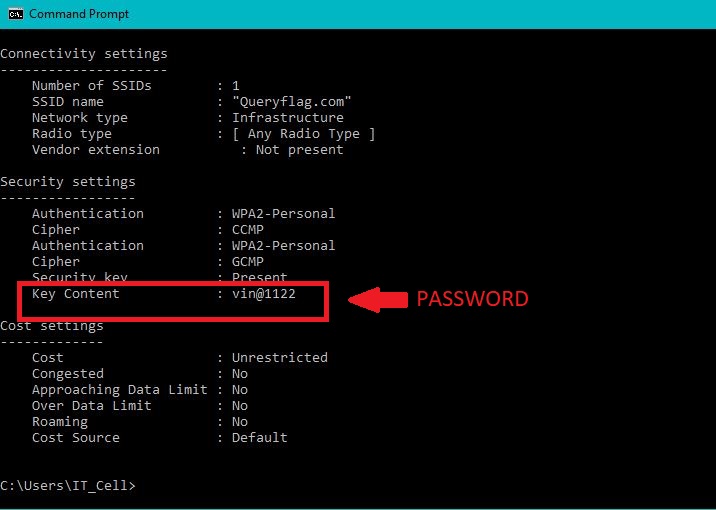
Common Pitfalls
- Profile name doesn’t match exactly. The SSID is case-sensitive and must include any spaces. If you get an error like “Profile is not found”, go back to Step 2 and double-check the exact name. You can also copy-paste the name from the list by right-clicking in the Command Prompt (select Mark, then highlight text, then right-click again to copy).
- Command Prompt not running as administrator. If you see “Access Denied” or the Key Content field is blank, make sure you launched CMD as administrator. Without admin rights, the command won’t reveal the password.
- You’re looking at the wrong network. If the password shown doesn’t work, you may have connected to a different network with a similar name. Use
netsh wlan show profilesto verify all saved networks. Alternatively, you can export wifi passwords to csv to keep a backup of all your profiles.
Where to Next
Now you’ve got your WiFi password back! Write it down somewhere safe or use a password manager to avoid this hassle again. If you manage multiple networks or need to recover passwords for work, our wifi password recovery for network admins guide has advanced tips. And if CMD isn’t your style, remember you can also retrieve passwords through Windows Settings or PowerShell. Stay connected!



