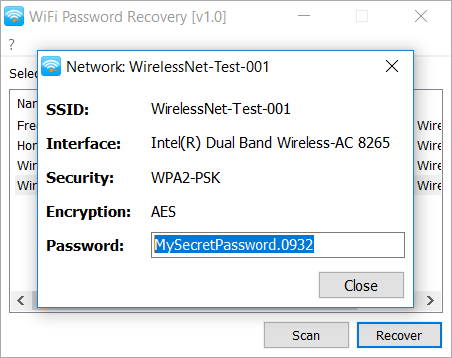
Ever been in a situation where a user forgot the office WiFi password, or you need to reconnect a device but can’t find that sticky note? As a network admin, you’re the go-to person for WiFi recovery. This guide walks you through recovering saved WiFi passwords on Windows, macOS, and Linux using built-in tools—no third-party software required. By the end, you’ll be able to pull passwords from command line, keychain, and router interfaces in minutes.
We’ll cover the most common scenarios: Windows with PowerShell or netsh, macOS with Keychain Access, and Linux with nmcli or /etc/NetworkManager/system-connections. Plus, we’ll touch on accessing the router’s admin panel as a fallback. Whether you’re managing a small office or a corporate network, these methods are safe, fast, and don’t require extra permissions beyond admin rights.
What You’ll Need
- Administrator access on the computer (local admin on Windows, sudo on macOS/Linux)
- A terminal or command prompt (PowerShell for Windows, Terminal for macOS/Linux)
- Optional: router login credentials (admin username/password) if accessing the router directly
- Patience—some steps require typing commands exactly as shown
Step 1: Recover WiFi Password on Windows Using PowerShell

Open PowerShell as Administrator (right-click Start > Windows PowerShell (Admin)). Then run the following command to list all saved WiFi profiles:
netsh wlan show profiles
Command to list all WiFi profiles
Note the profile name (e.g., ‘OfficeWiFi’). To view the password for that profile, run:
netsh wlan show profile name=”OfficeWiFi” key=clear
Command to show WiFi password
Look for the ‘Key Content’ field under Security settings—that’s your password. This is the same underlying method as the PowerShell method we covered in a previous guide, but using netsh directly gives you a quick glance without scripting.
If you need to recover multiple passwords or automate the process, consider using a script to export WiFi passwords to CSV. That way you can document all networks in one spreadsheet.
Step 2: Recover WiFi Password on macOS Using Keychain Access

On macOS, saved WiFi passwords are stored in the Keychain. Open Keychain Access from Applications > Utilities (or Spotlight search). In the search bar, type the name of the WiFi network. Double-click the entry for that network. Check the box ‘Show password’—you’ll be prompted for your Mac’s administrator username and password. After authenticating, the password will be displayed. This is the same interface used in the via Settings method, but Keychain Access is faster for power users.
If you’re managing multiple Macs, you can also use the command line: security find-generic-password -ga “NetworkName” | grep “password:” . This prints the password directly in the terminal.
Step 3: Recover WiFi Password on Linux Using nmcli

On most modern Linux distributions with NetworkManager, use nmcli. First, list saved connections:
nmcli connection show
List all connections
Find the connection name (e.g., ‘HomeWiFi’). Then view its details:
nmcli connection show ‘HomeWiFi’ | grep 802-11-wireless-security.psk
Show WiFi password
The password appears after the equal sign. If nmcli is not installed, you can also check the plain-text config files in /etc/NetworkManager/system-connections/ (requires sudo). Each file contains a psk= line with the password. This works on Debian and Ubuntu systems—see our dedicated guide to recover WiFi password on Debian for more details.
For headless servers, you can also find saved WiFi password on Linux by grepping the configuration files directly. This is especially useful for remote administration.
Step 4: Fallback – Access the Router’s Web Interface

If you can’t recover the password from a computer, log into the router’s admin panel. Open a browser and enter the router’s IP (often 192.168.1.1 or 192.168.0.1). Log in with the admin credentials (defaults are often printed on the router sticker). Then navigate to the Wireless or WiFi settings page. The password is usually shown as a plain-text field or can be revealed by clicking ‘Show Password’. This method always works as long as you have router access. For a more detailed walkthrough, check our beginner tutorial.
Common Pitfalls
- Typing commands incorrectly: Even a missing space can cause errors. Copy-paste commands from this guide when possible. For example, netsh commands are case-insensitive but require correct quotation marks around profile names.
- Running without administrator privileges: On Windows, PowerShell must be run ‘as Administrator’. On macOS/Linux, commands need sudo. If you skip this, you’ll get access denied errors.
- Forgetting that some networks use enterprise authentication (PEAP, EAP): These methods don’t store a simple password but certificates or user credentials. The steps above work only for personal (WPA2-PSK) networks.
Where to Next?
Now you’ve got the basics down. For deeper dives, explore our guides on the PowerShell method for scripting, via Settings for GUI lovers, and recovers for specific OS versions. Also check out how to export WiFi passwords to CSV to keep an inventory. Stay secure—always document passwords in a password manager instead of sticky notes!



