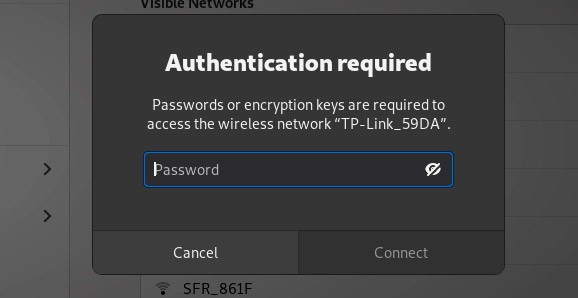
So you’ve forgotten your WiFi password, but your Debian machine is still connected. No problem—Debian stores your saved WiFi credentials right on the system. Whether you’re a Linux newbie or a seasoned sysadmin, this guide will show you a couple of dead-simple ways to dig up that password using built-in tools. By the end, you’ll have the password in plain text, ready to share with friends or type into your phone.
We’ll cover both the terminal method (fast and universal) and a graphical approach for those who prefer clicking. If you’re coming from another OS, you might already know how to recover wifi password on desktop—but on Debian it’s a bit different. Let’s dive in.
What you’ll need
- A Debian system (any version) with a saved WiFi network
- Root/administrator access (sudo privileges)
- NetworkManager installed (default on most Debian desktops)
- Optionally: GNOME’s network settings or nm-connection-editor
Step 1: Open a Terminal
Press Ctrl+Alt+T or search for “Terminal” in your application menu. You’ll need this to run commands as a normal user—we’ll escalate privileges when needed.

Step 2: List Saved WiFi Connections
First, let’s see which networks your computer remembers. Run this command:
You’ll see a list of connection names (usually the SSID). Make a note of the exact name of the network you want the password for.

Step 3: Extract the WiFi Password (Terminal Method)
Now for the main event. The password is stored in a configuration file under /etc/NetworkManager/system-connections/. Replace MyWiFi with your actual connection name:
Look for the line that starts with psk= — that’s your password. If you prefer a more filtered output, use:
This prints only the pre-shared key. Note that the password is case-sensitive and includes all special characters. If you also use Windows on the same network, you might find the wifi password recovery using cmd method handy, but on Debian this is all you need.

Step 4: Alternative GUI Method (If You Prefer Clicking)
If the command line isn’t your thing, you can use the graphical network editor. Install it if missing:
Then launch it from the terminal or application menu. Select your WiFi connection, click the gear icon, go to the Wi‑Fi Security tab, and check “Show password”. The password appears in plain text. This is a great way to follow a secure wifi password recovery process without typing commands.

Common pitfalls
- **Wrong connection name**: The name is case-sensitive and may include spaces. Use quotes if needed, e.g., “My Home Network”. Check the exact name with nmcli.
- **No sudo access**: You need root privileges to read the .nmconnection files. If you get “Permission denied”, run the command with sudo or ask your admin.
- **NetworkManager not used**: Some Debian setups use wpa_supplicant directly. In that case, the password may be in /etc/wpa_supplicant/wpa_supplicant.conf. Look for psk= there.
Where to next
Now that you’ve recovered your password, consider backing it up for future use. You can backup wifi passwords automatically on Debian with simple scripts. If you travel a lot, grab a free wifi password recovery portable tool to keep on a USB drive. And for other platforms, check out how to recover wifi password on desktop or view saved wifi password using powershell on Windows. Stay connected!



