If you’ve ever locked yourself out of your own WiFi network because you forgot the password, you know the pain. Maybe you set it up years ago and the sticker on the router faded, or you changed it once and never wrote it down. Whatever the reason, recovering that password from your MikroTik router is surprisingly easy — and you don’t need to reset anything or call your ISP.
This guide is for anyone with a MikroTik router running RouterOS (versions 6.x or 7.x). By the end, you’ll have the exact WiFi password in plain text, whether you access the router via WinBox, WebFig, or the command line. We’ll also cover a few pitfalls so you don’t get stuck. Let’s get that password back.
What You’ll Need
- A Windows, macOS, or Linux computer (or a smartphone with a web browser)
- Connection to the same MikroTik router (via Ethernet or WiFi — if you’re already disconnected, plug in via Ethernet)
- WinBox utility (free, downloadable from MikroTik’s site) OR a web browser for WebFig OR SSH/Telnet client for CLI
- Router login credentials (default: admin and blank password, or whatever you set)
- Basic familiarity with clicking around a router interface
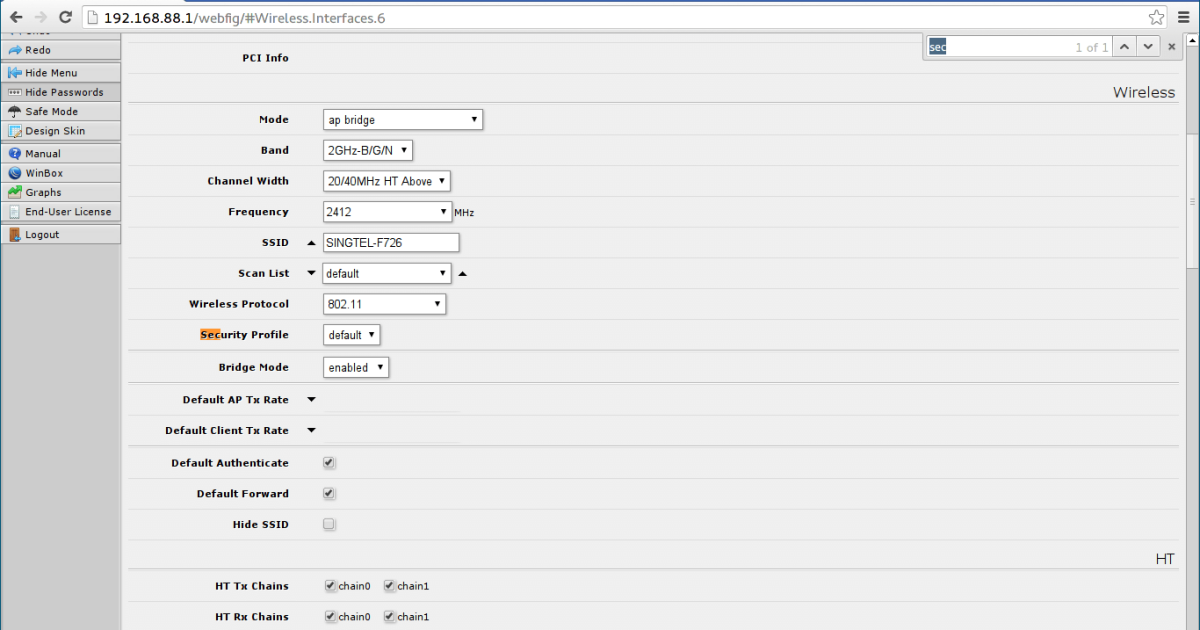
If you don’t have WinBox yet, you can grab it from MikroTik’s downloads page. It’s a small portable app, so no installation required. For a quick alternative, you can also use any web browser to access the router’s IP (usually 192.168.88.1) — that’s WebFig. Both methods work fine. If you’re more comfortable with command line, SSH in and use the terminal.
Step 1: Connect to Your MikroTik Router
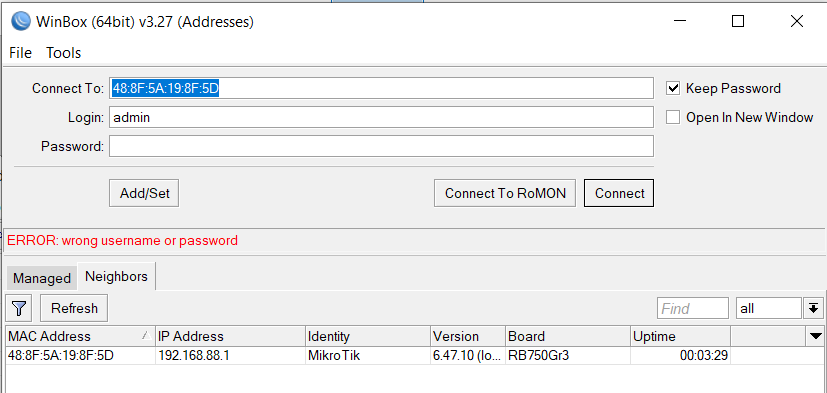
First, make sure your computer is on the same network as the router. If you can’t connect via WiFi because you forgot the password, use an Ethernet cable to plug directly into one of the LAN ports. Once connected, open WinBox. It will scan for MikroTik devices on your network. Click on the router’s MAC address or IP address (e.g., 192.168.88.1) and log in with your username and password.
Alternatively, open a browser and go to the router’s IP address. You’ll see the WebFig login page. Enter your credentials and click Login. If you don’t know the IP, check your computer’s network settings — the default gateway is usually the router’s IP.
Step 2: Navigate to the Wireless Interface
Once logged in, look for the menu on the left. Under “Wireless” or “Interfaces”, you’ll see a list of wireless interfaces (e.g., wlan1). Click on it to open the wireless configuration. If you have multiple radios (2.4 GHz and 5 GHz), you may see multiple entries. The password is usually the same for both, but you can check each.
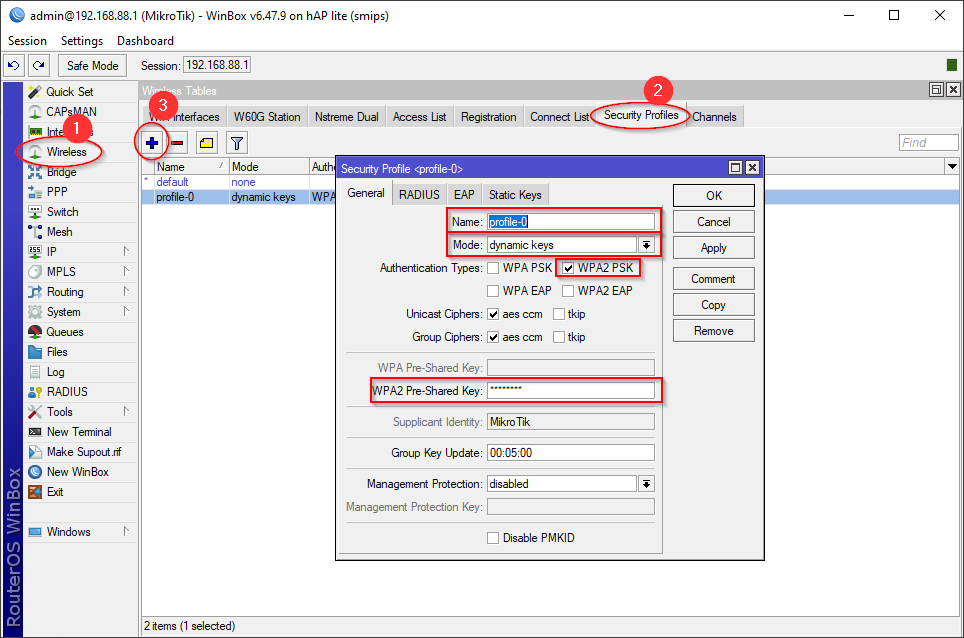
In WinBox, the Wireless menu is under the “Wireless” tab — click it. In WebFig, go to “Wireless” > “WiFi Interfaces”. Select the interface that is serving your network (likely “wlan1” or “wlan2”). A configuration window will open.
Step 3: Find the Security Profile
In the wireless interface settings, look for the “Security Profile” field. It shows the name of the security profile currently applied (e.g., “default” or “myprofile”). Click on the profile name — it’s a link or a button that opens the security profile settings.
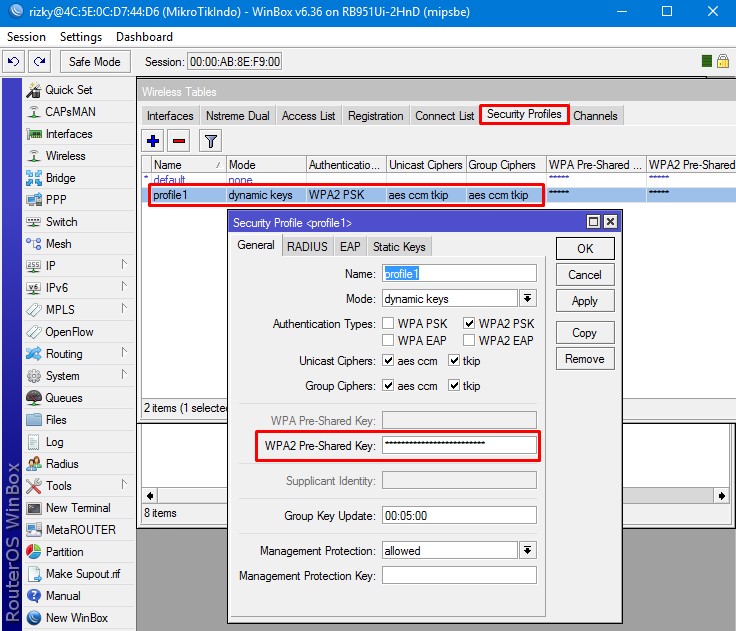
In WebFig, after clicking the interface, scroll down to “Security Profile” and click the “…” button next to it. This will open the security profile editor. In WinBox, double-click the security profile name in the list.
Step 4: Reveal the WiFi Password
Inside the security profile, you’ll see a field called “WPA Pre-Shared Key” or simply “Key”. By default, the password is masked with asterisks. To reveal it, click the eye icon or check the box that says “Show Password”. In WinBox, there’s a small checkbox next to the key field. In WebFig, look for a visibility toggle. If you’re using CLI, type: /interface wireless security-profiles print and look for the line with your profile — the key will be shown in plain text if you have permission.
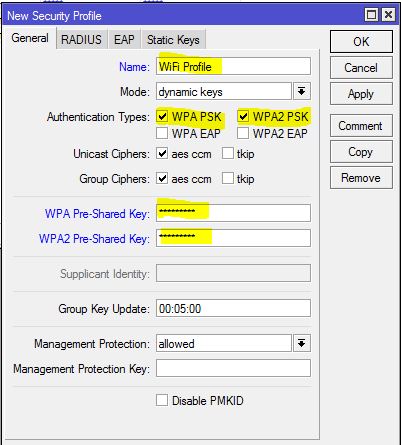
Once you check the box, the actual WiFi password appears. Write it down or type it into your device. That’s it! You’ve successfully recovered your MikroTik WiFi password. If you need to recover passwords from other routers or access points, check out this guide on wifi password recovery on access point for similar steps.
Alternative Method: Using the Terminal (CLI)
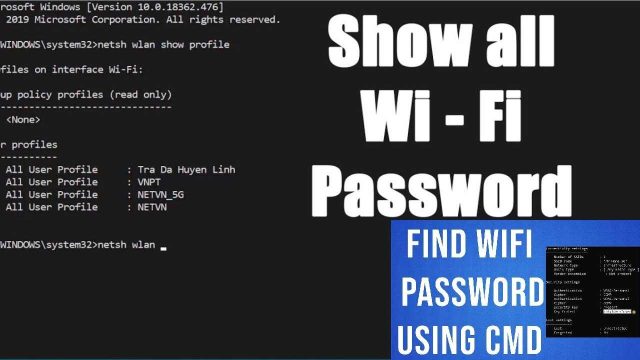
If you prefer command line, SSH into your MikroTik router (or use the terminal in WinBox/WebFig). Run the following commands:
/interface wireless security-profiles print— lists all security profiles with the key (if you have write access, the key is shown in plain text).- If the key shows “0x” or is hashed, you may need to run:
/interface wireless security-profiles export file=myprofilesand then view the exported file with/file printor download it.
The exported file will contain the plain-text password. This method is especially useful if you’re doing remote recovery and only have command-line access. For more CLI-based approaches, see wifi password recovery command from profiles.
Common Pitfalls
- Forgot the router login credentials? If you never changed the login, try admin with no password. If that doesn’t work, you might need to do a hardware reset (hold the reset button while powering on) — but that will erase all settings, including the WiFi password you’re trying to recover. Save that as a last resort.
- Password still shows as asterisks? Make sure you’re looking at the right security profile. Sometimes routers have multiple profiles, and the one applied to the wireless interface might not be the one you think. Double-check the interface’s Security Profile field.
- Using an older RouterOS version? On very old versions (pre-6.x), the password might be stored as a hex hash instead of plain text. In that case, you may need to update RouterOS or use a free wifi password recovery utility to decode it. Alternatively, you can set a new password directly.
Where to Next
Now that you’ve recovered your MikroTik WiFi password, consider backing it up so this never happens again. You can use the built-in backup feature in RouterOS or manually note it down. For offline recovery situations, check out offline wifi password recovery solutions. And if you want to keep your credentials safe, explore secure wifi password recovery tools. Finally, if you ever need to restore passwords after a reset, learn how to restore wifi passwords from backup. Happy browsing!