
Ever been stuck when a friend asks for the WiFi password and you can’t remember it? Or maybe you just formatted your PC and want to reconnect without calling your ISP. A free WiFi password recovery utility is your best friend in these moments. This guide is for anyone who has ever saved a WiFi network on their computer and wants to view that password again — no advanced tech skills required. By the end, you’ll have the tools and know-how to recover any saved WiFi password on Windows, macOS, or Linux, all for free.
We’ll walk through three separate methods using dedicated free utilities, built-in OS tools, and command-line tricks. Whether you need to recover a forgotten network key for your home, office, or a guest network, these steps have you covered. Plus, we’ll point you to other resources like free wifi password recovery software and secure wifi password recovery tools if you want to dive deeper.
What You’ll Need
- A Windows PC, Mac, or Linux computer with at least one saved WiFi network
- Administrator or root access on the machine (for some methods)
- For Windows: download WirelessKeyView (free) from Nirsoft or use built-in netsh command
- For macOS: access to Keychain Access (built-in)
- For Linux: terminal access with nmcli or wpa_supplicant tools
- Optional: a USB drive if you want to run portable tools
Step 1: Download and Run WirelessKeyView on Windows
WirelessKeyView is a tiny, portable utility that scans your Windows registry and reveals every saved WiFi network’s SSID and password in a clean table. No installation needed — just download, extract, and run as administrator. This is hands-down the easiest method for Windows users, and it’s one of the best wifi password recovery software options available.
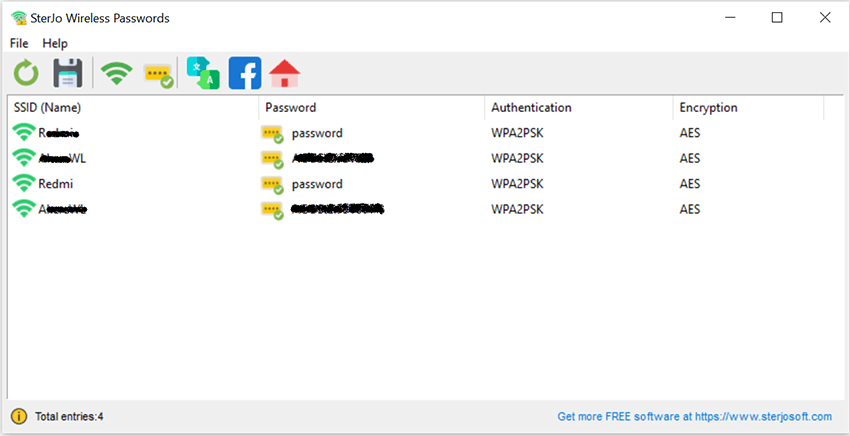
Go to the Nirsoft website and download WirelessKeyView for your Windows version (32-bit or 64-bit). Extract the ZIP file to any folder. Right-click the executable (WirelessKeyView.exe) and select “Run as administrator”. The program will instantly display all saved wireless profiles. Look for the SSID (network name) you need; the password is in the “Key (Ascii)” column. You can double-click any entry to copy the key or export the entire list.
Step 2: Use Command Line (netsh) if You Prefer No Third-Party Tools
If you’re wary of downloading utilities, Windows has a built-in command-line method using netsh. This is also useful for scripting or remote recovery. It’s a form of wifi password recovery command from profiles that works on all modern Windows versions.
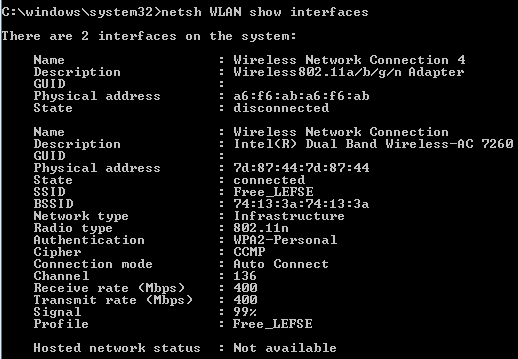
Open Command Prompt as administrator (search for “cmd”, right-click, “Run as administrator”). Type “netsh wlan show profiles” to list all saved networks. Find the SSID you want, then type “netsh wlan show profile name=”YourSSID” key=clear”. Replace YourSSID with the actual network name. Scroll through the output — the password appears next to “Key Content”. Copy it down carefully.
Step 3: Recover Saved WiFi Passwords on macOS Using Keychain Access
Mac users can easily retrieve saved WiFi passwords through the built-in Keychain Access app. No extra downloads required. This method is straightforward and secure, and it’s part of the restore wifi passwords mac workflow many users rely on.
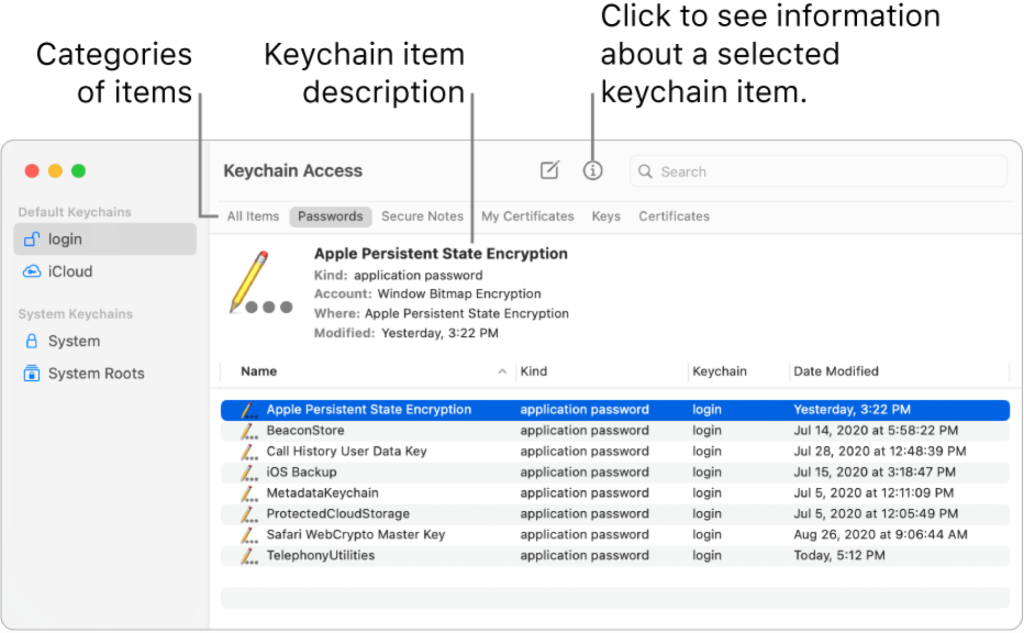
Open Keychain Access from Applications > Utilities. In the search bar, type the name of the WiFi network (SSID). Look for an entry named after the network, usually with a small Wi‑Fi icon. Double-click that entry. In the pop-up, check the box “Show password”. You’ll need to enter your Mac admin username and password. Once verified, the password will be revealed in plain text.
Step 4: Extract WiFi Passwords on Linux Using nmcli or wpa_supplicant
Linux users can recover saved WiFi passwords from the terminal. The most common way is with nmcli (NetworkManager) or by reading the wpa_supplicant configuration file. If you want to show wifi password linux systems, this step is for you.
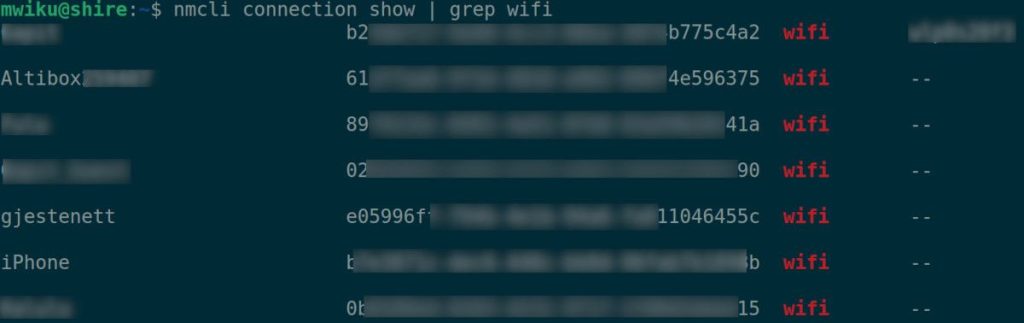
Open a terminal. If your system uses NetworkManager (Ubuntu, Fedora, etc.), type “nmcli device wifi show-password” — this lists all saved networks with their passwords. If that fails, try “sudo cat /etc/NetworkManager/system-connections/YourSSID | grep psk=”. Replace YourSSID with the network name. The password appears after “psk=” in plain text. For systems using wpa_supplicant, check /etc/wpa_supplicant/wpa_supplicant.conf.
Step 5: Recover Passwords for Guest or Hidden Networks
Guest networks and hidden SSIDs require a slightly different approach. For guest networks, the same tools work — just look for the guest SSID. For hidden networks, the tools still find them because the network profiles are stored. If you’ve connected before, the password is recoverable. Check our guide on wifi password recovery on guest network for more details. For hidden networks, see our post on wifi password recovery for hidden network.
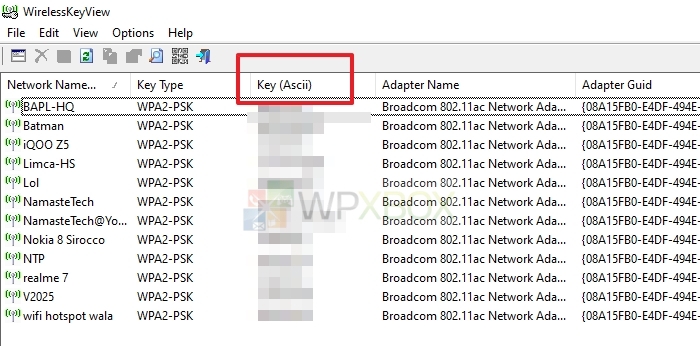
When you run WirelessKeyView or netsh, hidden networks appear just like any other saved profile. The only difference is that the SSID might be a random string if the network was configured to hide its name, but the password will still be there. If you’re dealing with a guest network, simply locate the guest SSID in the list.
Common Pitfalls
- Running the utility without administrator rights: Most recovery tools require elevated privileges. If you see an empty list or an error, right-click and run as administrator (Windows) or use sudo (Linux/macOS).
- Using an outdated version of WirelessKeyView: Old versions may not support newer Windows updates or WPA3 networks. Always download the latest from Nirsoft’s site.
- Forgetting to check the correct profile name: When using netsh or nmcli, a typo in the SSID will yield no results. Double‑check the exact network name from the profiles list.
Where to Next
Now you’ve got the tools to recover any saved WiFi password for free. If you ever lose access due to a format or system reset, check out our guide on how to recover wifi password after format. For situations with no internet, offline wifi password recovery solutions can save the day. And if you want a comprehensive comparison, our list of best wifi password recovery software covers all platforms. Happy recovering!



