If you’ve ever connected to a hidden WiFi network (one that doesn’t broadcast its SSID), you know it’s a pain to re-enter the password—especially when you’ve forgotten it. But don’t worry: your device already saved that password, and recovering it is totally doable. This guide is for anyone who’s used a hidden network on Windows, Mac, or Android and needs to pull the password back out. By the end, you’ll have the key in hand without any expensive tools.
We’ll cover built‑in methods for each major OS, plus a quick way to export the password if you need it on another device. No hacking or guesswork—just straightforward steps that work even when the network’s SSID is invisible.
What You’ll Need
- A computer or phone that has previously connected to the hidden WiFi network.
- Administrator or root access (for Windows and Mac).
- About 10 minutes of your time.
Step 1: Recover the Password on Windows
Windows stores all saved WiFi profiles—even hidden ones—in plain text (after you retrieve them). Open Command Prompt as Administrator and run a few netsh commands. This process is exactly the same as regular wireless password recovery windows, but with a twist: because the network is hidden, you need to know its exact SSID. If you don’t remember the SSID, check your list of saved networks first.
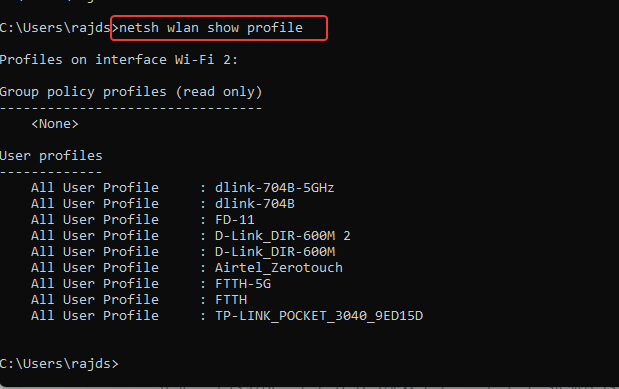
First, type netsh wlan show profiles to list all saved profiles. Look for the hidden network’s SSID (it will still appear in the list, even if hidden). Then run netsh wlan show profile name="YourSSID" key=clear. Look for the “Key Content” line—that’s your password. If you want a fully automated approach, check out our guide on wifi password recovery command from profiles.
Step 2: Recover the Password on macOS
Macs store WiFi passwords in the Keychain. Open Keychain Access from Applications > Utilities. Search for the hidden network’s SSID in the search bar. Double‑click the entry, check “Show password”, and enter your Mac’s admin password. That’s it! For more details, see our article on how to restore wifi passwords mac.
Step 3: Recover the Password on Android
On Android (9 and later), you can view saved network passwords directly. Go to Settings > Network & Internet > WiFi. Tap the gear icon next to the hidden network (you might need to tap “Saved networks” first). Select “Share” and authenticate with your fingerprint or PIN. A QR code will appear—the password is shown below it. Scan that code to share the password easily. If the network isn’t shown, you may need to manually add it again, but the password is already saved elsewhere.

Step 4: Alternative – Use Third‑Party Tools
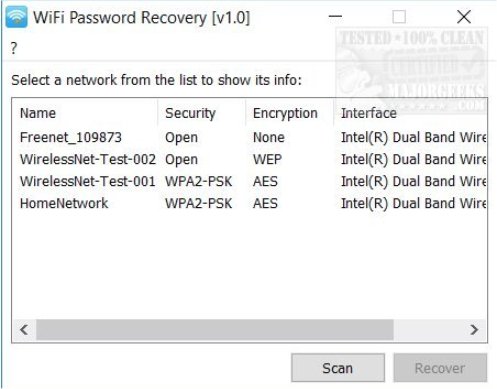
If the built‑in methods don’t work (or you want a graphical option), third‑party utilities can pull saved passwords across systems. For a curated list, check out our best wifi password recovery software recommendations. These tools are especially handy if you’re dealing with offline scenarios—see our offline wifi password recovery solutions and wifi password recovery no internet required guides for more.

Common Pitfalls
- The hidden network isn’t saved on your device. If you’ve never connected to it, there’s no password to recover—you’ll need to ask the network owner or reset the router.
- You don’t remember the exact SSID. Hidden networks still save the profile by SSID, but if it’s something generic like “HiddenNet”, it might be hard to identify. Scan the list of saved profiles carefully.
- Keychain or admin password required. On Mac, you must know your admin password to reveal the WiFi key. On Windows, you need admin rights in Command Prompt.
Where to Next
Now that you’ve got your hidden network password back, you might want to check out our other guides: learn how to recover passwords from a guest network, or how to recover after formatting your computer. And if you ever need to share that password securely, use the QR code method on Android or a simple text message. Happy surfing!



