
Ever been locked out of your own WiFi because you forgot the password and can’t connect to the internet to look it up? Don’t worry — your saved password is still on your device, and you can dig it out without any internet connection. This guide is for anyone who needs to recover a WiFi password offline: maybe you formatted your computer, your phone updated, or you just want to share the network with a friend without guessing.
By the end of this tutorial, you’ll have the tools to extract saved WiFi passwords from Windows, Mac, Linux, and Android — all completely offline. No sketchy third-party apps needed, just built-in utilities and a few commands. Let’s get your network key back.
What You’ll Need
- A computer or device that has previously connected to the WiFi network
- Administrator/root access on that device (you’ll need to run commands as admin)
- For Android: a file manager that can access root folders (if not rooted, see method below)
- Patience — typing commands carefully is key
Step 1: Recover WiFi Password on Windows Using CMD
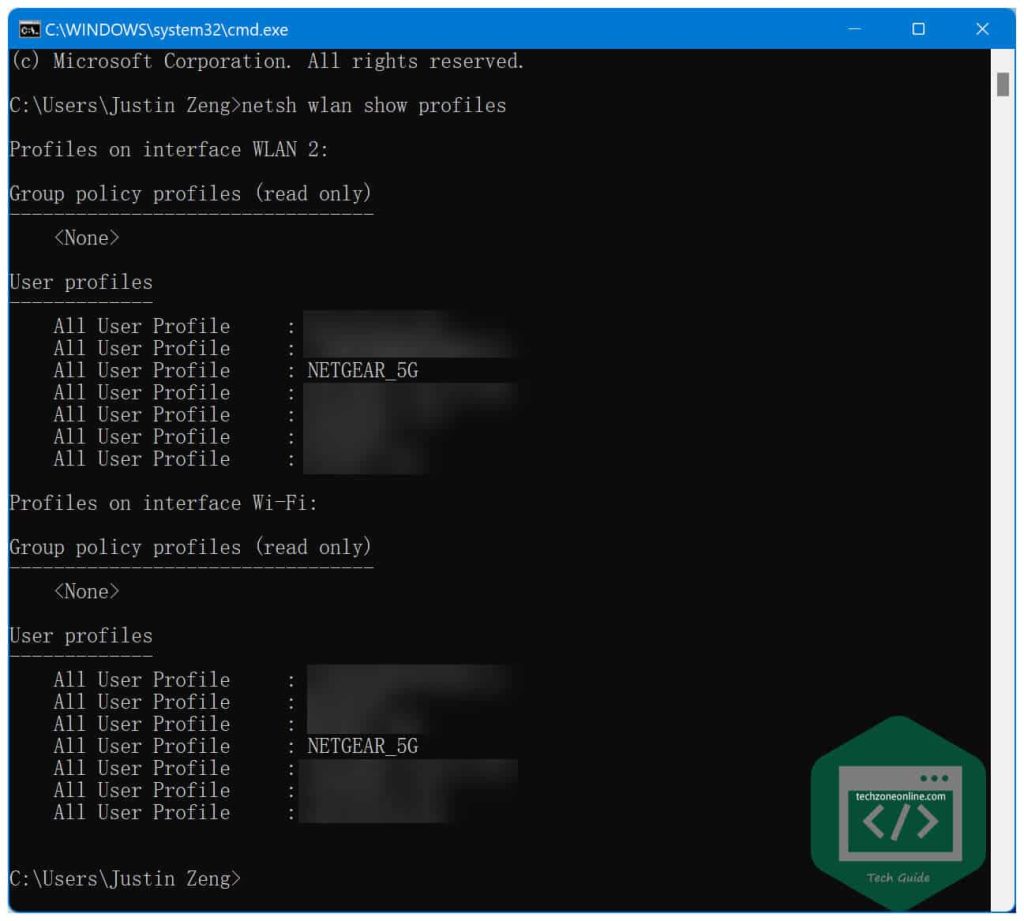
Windows stores every WiFi profile with its password in plain text (encrypted, but accessible to admins). Open Command Prompt as Administrator — press Win+R, type cmd, then Ctrl+Shift+Enter. Run:
This lists all saved networks. Note the exact profile name (e.g., “HomeWiFi”). Then run:
Look for “Key Content” — that’s your password. You can also export all profiles to an XML file with:
This creates XML files containing passwords — useful for backup. For more methods, check out our guide on recover forgotten wifi password using cmd.
Step 2: Find WiFi Password on macOS via Keychain
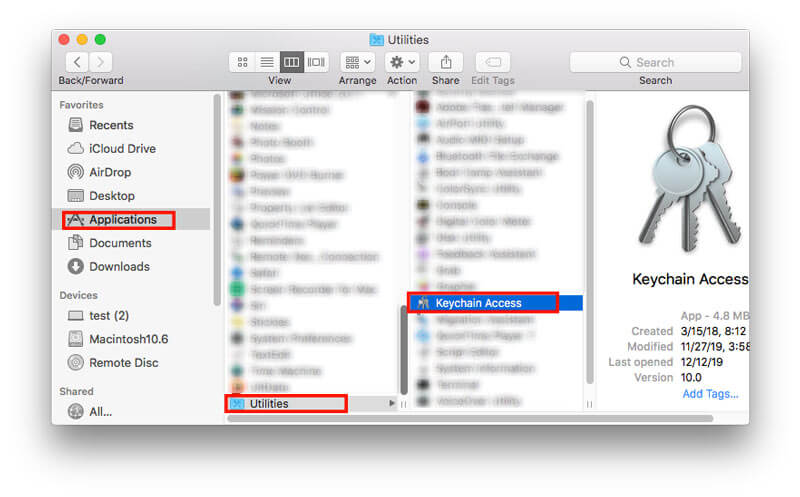
Macs store WiFi passwords in the Keychain app. Open Keychain Access from Applications > Utilities. In the search bar, type the WiFi network name. Double-click the entry, then check “Show password”. You’ll need your Mac’s admin password to reveal it. If you want a terminal approach, open Terminal and run:
Replace NetworkName with your SSID. This prints the password directly. For a deeper dive, see our article on restore wifi passwords mac.
Step 3: Extract WiFi Password on Linux (Ubuntu/Debian)
Linux stores network configs in /etc/NetworkManager/system-connections/. Open a terminal and view the file for your network:
Look for the line starting with psk= — that’s your password. If you use wpa_supplicant, check /etc/wpa_supplicant/wpa_supplicant.conf. For a GUI method, go to Settings > Wi-Fi, click the gear icon next to your network, and select “Show password”. More details in our guide on show wifi password linux.

Step 4: Retrieve WiFi Password on Android (No Root)
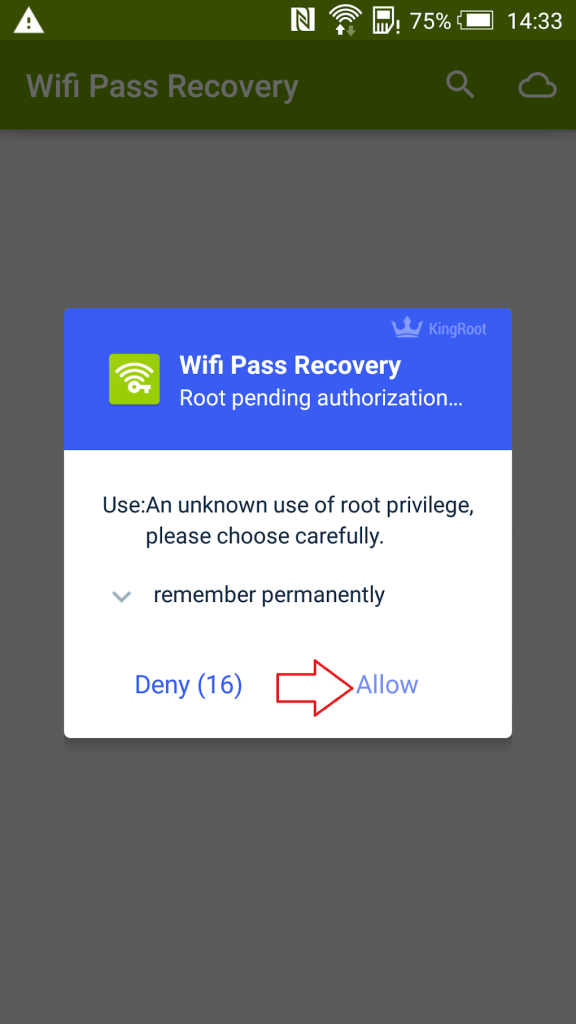
On Android 10 and later, you can view the saved WiFi password without root. Go to Settings > Network & Internet > Wi-Fi. Tap the gear icon next to your connected network, then tap the share button (or QR code icon). Authenticate with your PIN, fingerprint, or pattern. The password appears below the QR code. On older Android versions or if you need a file method, you can use a QR scanner app to decode the saved QR from the Wi-Fi settings. For rooted devices, navigate to /data/misc/wifi/wpa_supplicant.conf or /data/misc/wifi/WifiConfigStore.xml and open it with a text editor — look for psk or PreSharedKey. Our article on wifi password recovery no internet required covers more options.
Common Pitfalls
- **Typo in network name**: WiFi names are case-sensitive. If you don’t see your network in the list, double-check the exact SSID (look at other connected devices).
- **Permission issues**: On Windows, you must run CMD as Administrator; on Mac, you need your login password; on Linux, use sudo. Skip this and you’ll get errors or empty output.
- **Android version differences**: On Android 9 and below, the built-in settings don’t show the password. You’ll need root or a third-party QR scanner that reads the saved network QR code (if you previously shared it).
Where to Next
Now that you’ve recovered your WiFi password offline, consider backing it up for future use. Check out our guides on restore wifi passwords from backup and free wifi password recovery software for automated solutions. If you ever need to recover passwords from a formatted drive, our article on how to recover wifi password after format can help. And if you’re managing multiple networks, the wifi password recovery command from profiles method is a lifesaver for IT pros.



