So you’re staring at a login screen for your own WiFi, and you have no clue what the password is. Worse, you don’t have internet access to look it up on another device or reset it through your router’s web interface. Don’t panic. If you have any computer or phone that’s already connected to that network, you can pull the password out of its memory without needing a single byte of internet. By the end of this guide, you’ll have your WiFi password in plain text, ready to share or type in again.
We’ll cover the three most common devices: Windows laptops, Macs, and Android phones. All methods work offline because they read saved credentials from your system. Just follow the steps for your device, and you’ll be back online in minutes.
What You’ll Need
- A Windows, Mac, or Android device that is already connected to the WiFi network.
- Administrator or root access (usually you’re the owner, so no worry).
- For Android: a file manager app (if using QR code method) or USB debugging enabled (if using ADB).
- Optional: a second device to note down the password.
Step 1: Recover WiFi Password on Windows Using Command Prompt
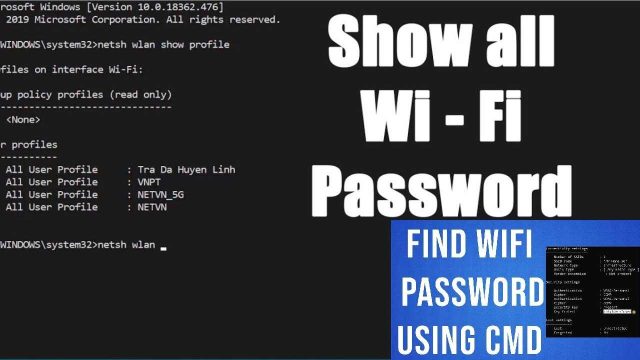
Windows stores all saved WiFi profiles in plain text, accessible through the command prompt. You don’t need any third-party tools. First, open Command Prompt as Administrator: click Start, type “cmd”, right-click and choose “Run as administrator”. If you prefer a graphical method, you can also use PowerShell, but CMD is simpler for this. For a deeper dive, check out our recover forgotten wifi password using cmd guide.
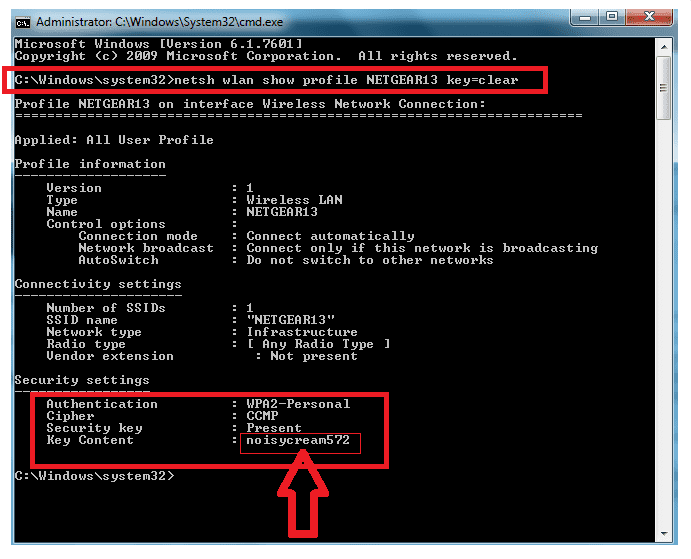
Now type the following command and press Enter: netsh wlan show profiles. This lists every WiFi network you’ve ever connected to. Find your network name (SSID) from the list. Then, run this command, replacing “YourSSID” with the actual name: netsh wlan show profile name=”YourSSID” key=clear. Look for the line labeled “Key Content” – that’s your WiFi password. Write it down.
For a more automated approach, you can use PowerShell. Our wifi password recovery powershell tutorial shows how to export all passwords at once.
Step 2: Recover WiFi Password on Mac Using Keychain Access
On a Mac, saved WiFi passwords are stored in the Keychain app. Open Keychain Access (go to Applications > Utilities > Keychain Access). In the search bar, type your network name. Double-click the entry (it might be called “AirPort network password” or similar). Check the box “Show password”. You’ll be prompted for your Mac’s admin username and password – enter them. The password will appear in the field. This method works offline and is super quick. For terminal lovers, see our wifi password recovery command for mac guide.

Step 3: Recover WiFi Password on Android (Without Root)
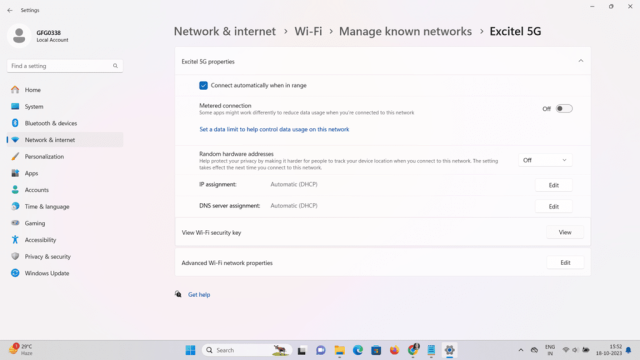
Android 10 and later have a built-in QR code feature. Go to Settings > Network & Internet > WiFi. Tap the gear icon next to your connected network. Tap “Share” or the QR code icon. You’ll be asked to verify your lock screen PIN, pattern, or password. Once done, a QR code appears. You can scan that with another phone to connect, or look for the password below the code (on some devices it shows as a string of characters). If your phone doesn’t show the text, you can screenshot the QR code and use a QR reader to decode it. For Xiaomi phones specifically, we have a dedicated wifi password recovery app for xiaomi article.

Step 4 (Bonus): Recover WiFi Password on Linux Using Terminal
If you’re on Linux, open a terminal and run sudo cat /etc/NetworkManager/system-connections/YourSSID. Replace “YourSSID” with the network name. Look for the line starting with psk= – that’s your password. If the file doesn’t exist, try checking /etc/wpa_supplicant/wpa_supplicant.conf. For more details, check out our show wifi password linux guide.
Common Pitfalls
- Not running Command Prompt as Administrator: On Windows, you must use “Run as administrator”, otherwise the key=clear flag won’t work and you’ll get an error. Always right-click and select that option.
- Android version too old: The QR code method only works on Android 10+. For older versions, you may need to root the phone or use ADB. Not all manufacturers support it, so check first.
- Typos in the network name: WiFi names are case-sensitive. If you mistype the SSID in the netsh command or in the Linux terminal, you’ll get “Profile not found”. Copy the exact name from the list.
Where to Next
Now that you have your password, you might want to back it up so this never happens again. Learn how to restore wifi passwords from backup for peace of mind. Or, if you ever need to recover the password directly from the router itself, see our wifi password recovery on access point guide. Stay connected!