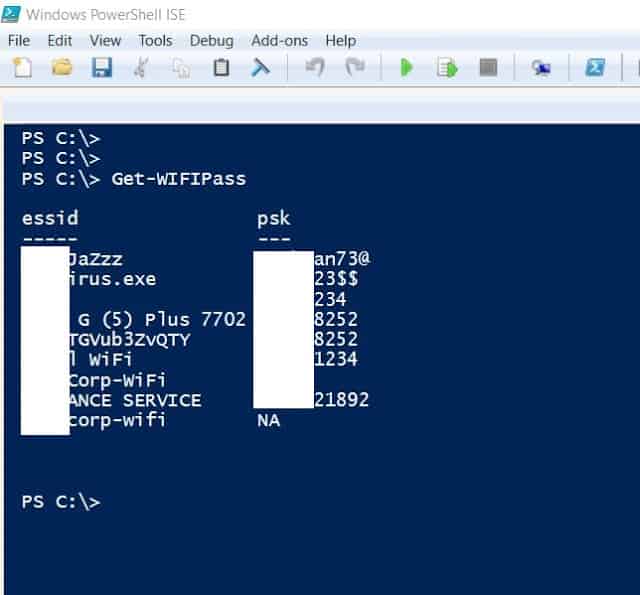
Ever needed to connect a new device to your WiFi but couldn’t remember the password? You’re not alone. This tutorial is for Windows users who want to recover saved WiFi passwords using PowerShell—no third-party software required. By the end, you’ll know how to list every WiFi network your PC has ever connected to, view the password for any of them, and even export all passwords to a CSV file for safekeeping.
PowerShell is built into Windows, so there’s nothing to install. The commands we’ll use rely on `netsh`, a networking utility that’s been around for ages. Whether you’re a beginner or a seasoned admin, these steps are simple and effective. Let’s dive in.
What You’ll Need
- A Windows PC (Windows 10 or 11 recommended)
- Administrator access (you’ll need to run PowerShell as admin)
- At least one saved WiFi network on your PC
- Basic familiarity with copy-pasting commands
Step 1: Open PowerShell as Administrator
First, you need to open PowerShell with admin rights. Click the Start button, type “PowerShell”, right-click on “Windows PowerShell” in the results, and select “Run as administrator”. A User Account Control prompt may appear—click “Yes” to continue.
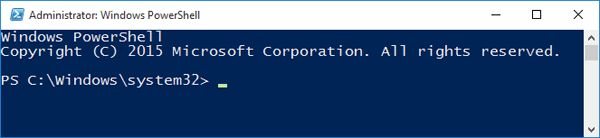
Once the blue PowerShell window opens, you’re ready for the next step.
Step 2: List All WiFi Profiles
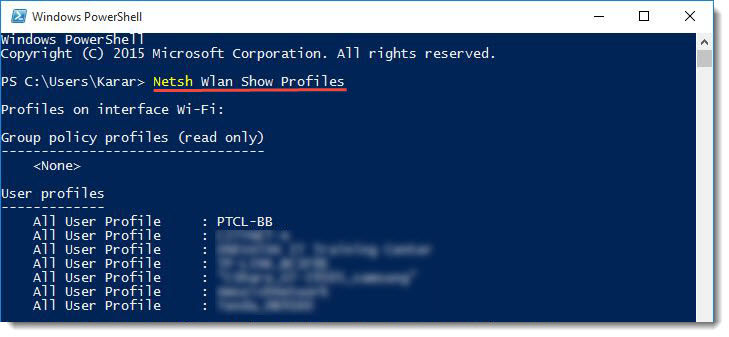
Type the following command and press Enter:
netsh wlan show profiles
This will display a list of all WiFi networks your PC has connected to. Look for the “User profiles” section—each profile name corresponds to a network name (SSID). Note the exact name of the network whose password you want to recover.
Step 3: Show Password for a Specific Profile
Now, run the following command, replacing “ProfileName” with the actual profile name from Step 2 (keep the quotes):
netsh wlan show profile name=”ProfileName” key=clear
Scroll down to the “Security settings” section. You’ll see a field called “Key Content”. That’s your WiFi password in plain text. If you need to recover multiple passwords, repeat this for each profile.

Step 4: Export All Passwords to CSV (Optional)
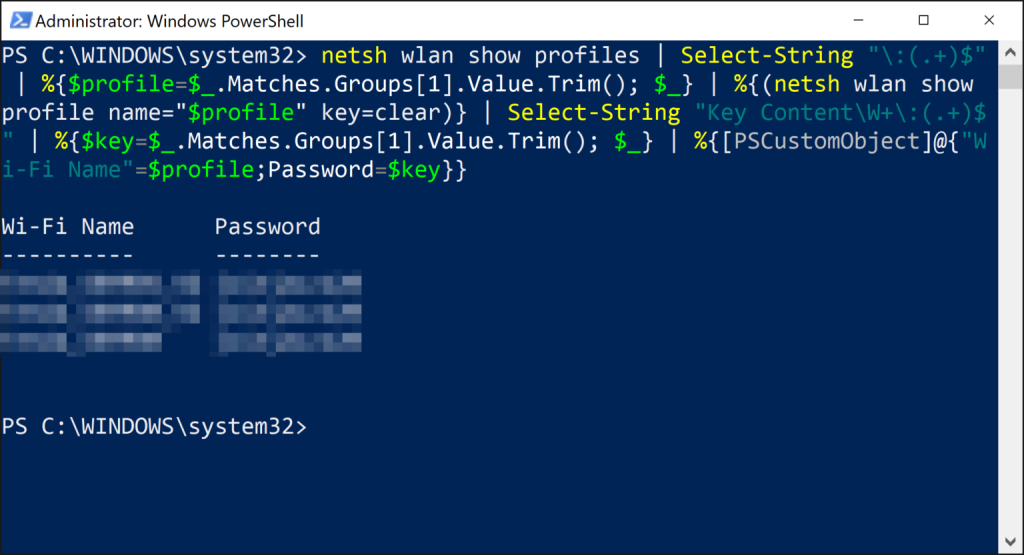
If you have many saved networks or want a backup, you can export all passwords to a CSV file. Run this single command (copy and paste the entire block):
(netsh wlan show profiles) | Select-String “:s+(.+)$” | %{$_.Matches.Groups[1].Value.Trim()} | ForEach-Object { $profile = $_; $details = netsh wlan show profile name=”$profile” key=clear; $password = ($details | Select-String “Key Contents+:s+(.+)”).Matches.Groups[1].Value; [PSCustomObject]@{Profile = $profile; Password = $password } } | Export-Csv -Path “$env:USERPROFILEDesktopwifi_passwords.csv” -NoTypeInformation
After running, a file named `wifi_passwords.csv` will be created on your Desktop. Open it with Excel or Notepad to see all your saved WiFi network names and passwords. This is super handy for network admins or if you need to recover after a reinstall—check out our guide on how to recover wifi password after reinstall for more tips.
Step 5: Use the Exported File (Optional)
Open the CSV file on your Desktop. You’ll see two columns: Profile and Password. The password might be blank for networks that don’t have a saved key (like public WiFi). Keep this file safe—it contains sensitive info. You can export wifi passwords to csv regularly to maintain a backup.
Common Pitfalls
- **Forgetting to run as admin**: If you get an “Access denied” error, close PowerShell and reopen with admin rights (Step 1). Non-admin mode cannot show passwords.
- **Profile name with spaces or special characters**: If the profile name contains spaces, enclose it in double quotes in the command. For example, “My Home WiFi”.
- **Empty key content**: If “Key Content” is blank, that network may be using Windows credential-based authentication (like a work/school account) or is an open network. PowerShell can’t recover those passwords.
Where to Next
Now you can recover any saved WiFi password in seconds. If you’re new to this, our beginner wifi password recovery tutorial covers alternative methods. For those managing multiple networks, the powerShell for admins guide has advanced techniques. Also, if you just need to show wifi password windows quickly, check out that article.



