Ever been in that awkward spot where a friend asks for your WiFi password and you draw a blank? Or maybe you just set up a new device and can’t find the sticker on the router. Don’t worry — if you have physical access to the access point (the router itself), you can recover the password by logging into its admin panel. This works for any brand: TP-Link, Netgear, ASUS, Linksys, or even ISP-provided gear. By the end of this guide, you’ll have your WiFi key back in your hands, no software downloads needed.
This method is perfect for anyone who owns or manages their own network. If you’re using a school or office router, you’ll need admin credentials — but for home setups, the default login info is often printed on the router. We’ll walk through finding the router’s IP address, logging in, and locating the password (or resetting it if necessary). Let’s dive in.
What you’ll need
- A computer or phone connected to the same WiFi network (or an Ethernet cable connected to the router).
- The router’s admin username and password. Check the sticker on the router or its box.
- A web browser (Chrome, Firefox, Safari, Edge).
- Optional: a paperclip to reset the router if you can’t log in.
Step 1: Find your router’s IP address
Your router’s admin panel lives at a specific IP address on your local network. Common ones are 192.168.0.1, 192.168.1.1, or 10.0.0.1. Here’s how to find it on different devices:
- Windows: Open Command Prompt and type
ipconfig. Look for ‘Default Gateway’ under your active network adapter. - macOS: Go to System Settings > Network > Wi-Fi > Details > Router.
- Android: Go to Settings > WiFi > tap your network > Advanced > Gateway.
- iPhone: Go to Settings > WiFi > tap the (i) icon next to your network > Router.
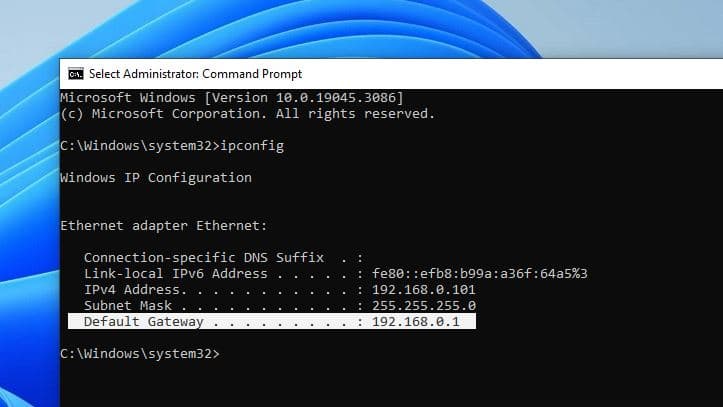
Once you have the IP, type it into your browser’s address bar and press Enter. You’ll see a login page.
Step 2: Log into the router
You’ll need the router’s admin username and password. If you’ve never changed them, they’re usually on a sticker on the router itself — look for ‘Admin’ and a password like ‘admin’ or ‘password’. Common defaults are admin/admin, admin/password, or admin/1234. If you changed them and forgot, you’ll have to reset the router (see pitfalls below).
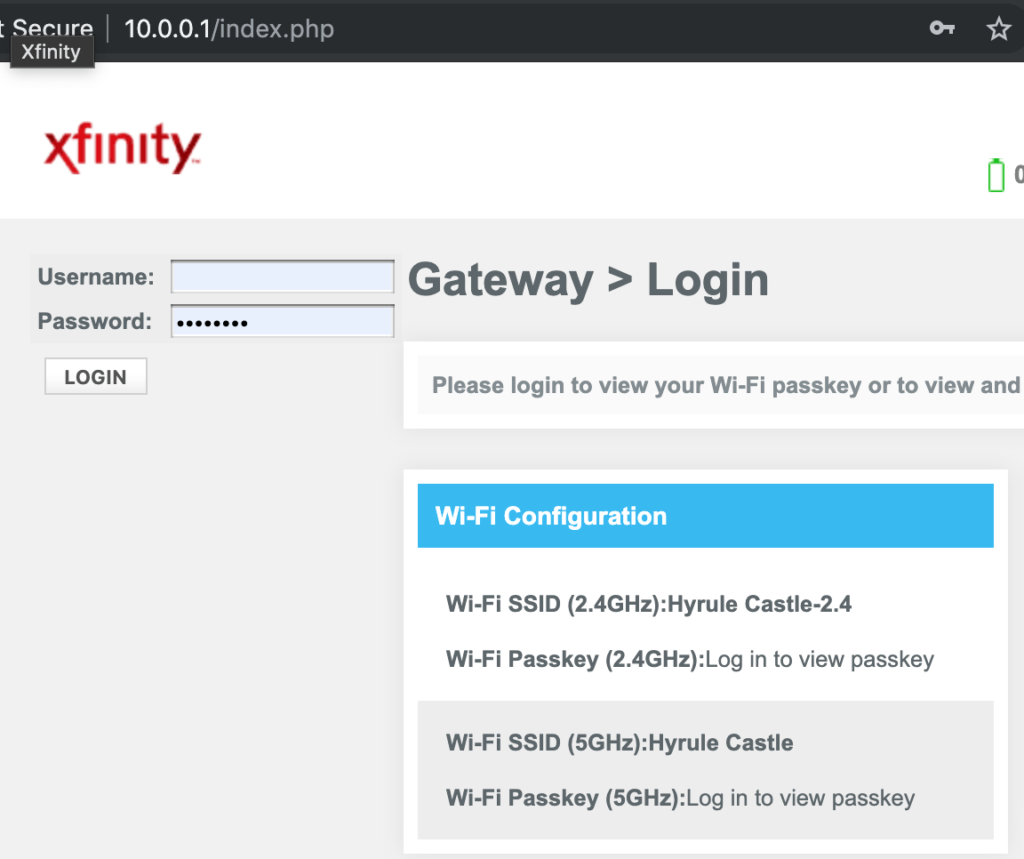
Enter the credentials and click Login. If successful, you’ll land on the router’s dashboard.
Step 3: Navigate to wireless settings
Every router interface is a little different, but you’re looking for a section labeled ‘Wireless’, ‘WiFi’, or ‘Wireless Settings’. On Netgear routers it’s often under ‘Wireless’ > ‘Basic’ or ‘Security’. On TP-Link, look for ‘Wireless’ > ‘Wireless Security’. On ASUS, it’s ‘Wireless’ > ‘General’.

If you can’t find it, look for a menu item that says ‘Security’ or ‘WiFi Password’ — the password might be called ‘Pre-Shared Key’, ‘Network Key’, or ‘Passphrase’.
Step 4: Recover the WiFi password
Once you’re in the right section, you’ll see the current WiFi password. It might be shown as plain text, or hidden behind dots with a ‘Show’ checkbox. If it’s hidden, check the box to reveal it. Write it down or take a photo.
If you want to change it to something you’ll remember, type a new password in the field and hit ‘Apply’ or ‘Save’. Be sure to reconnect your devices with the new key.
Common pitfalls
- Default credentials don’t work: Many ISP routers have unique passwords printed on the sticker. If you still can’t log in, try searching online for your router model’s default login or reset the router by holding the reset button with a paperclip for 10 seconds.
- Can’t find the router IP: Make sure you’re connected to the WiFi. If you’re using a VPN, disconnect it temporarily. On Windows, the default gateway may show 0.0.0.0 if you’re not connected. Use an Ethernet cable if possible.
- Password field is empty or grayed out: Some routers hide the password for security. Look for a ‘Show’ link or a separate tab. If you still can’t see it, you can change the password — just make sure you note the new one.
Where to next
Now that you’ve recovered your WiFi password, you might want to check out other ways to manage your network. If you prefer command-line methods for Windows, try our wifi password recovery command from profiles guide. For a quick recap of options on Windows, see show wifi password windows. If you’re using Linux, we have a dedicated wifi password recovery via network manager tutorial. For specific router brands, check out recover wifi password from netgear router or find saved wifi password android if you need to pull it from a phone instead.



