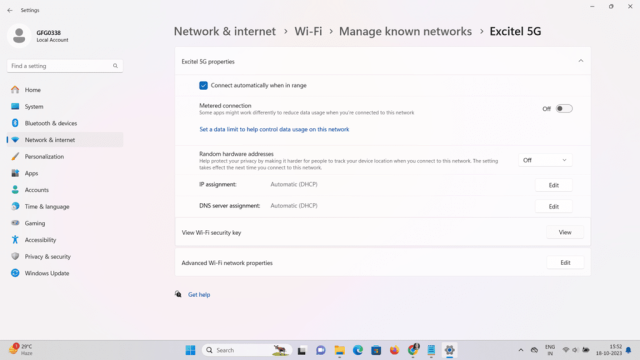
Ever been at a friend’s place, your phone automatically connected to their WiFi, but you can’t remember the password to share it? Or maybe you just reset your router and need the old key for a device that’s still connected. Don’t worry—you don’t need to call your ISP or reset everything. With the right WiFi password recovery software, you can pull saved network keys from your computer or phone in minutes. This guide walks you through the best tools for Windows, macOS, and Linux, so you can get back online without the headache.
By the end of this tutorial, you’ll know exactly which software to use for your operating system, how to recover passwords from saved networks, and how to avoid common mistakes that lock you out. Whether you’re using a built-in command-line tool or a third-party utility, we’ve got you covered.
What You’ll Need
- A Windows, macOS, or Linux computer with administrative access (you’ll need to run the software as admin).
- A saved WiFi network on that computer (the password is already stored somewhere).
- Optional: a USB drive to save recovered passwords if you’re not writing them down.
- Patience—some tools flag false positives from antivirus software, but they’re safe.
Step 1: Understand Your Operating System’s Built-in Options
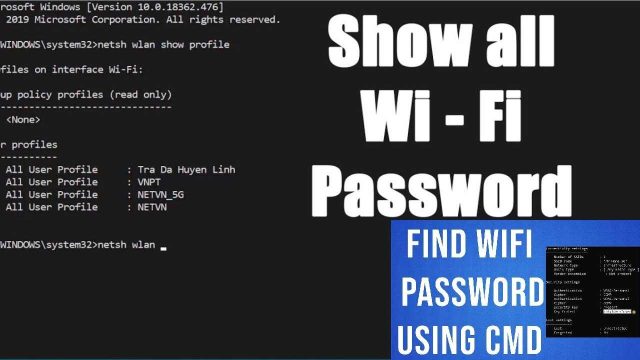
Before downloading third-party software, check if your OS can already show saved passwords. For Windows, you can use Command Prompt or PowerShell to export network profiles. For macOS, the Keychain app stores all saved passwords. Linux users can view them via terminal commands. If these methods work, you might not need extra tools. For a quick Windows solution, try the recover forgotten wifi password using cmd method.
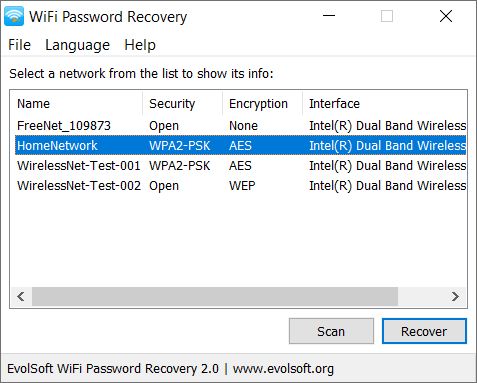
However, if you want a user-friendly interface or need to recover passwords from multiple devices, dedicated recovery software is the way to go.
Step 2: Choose the Best WiFi Password Recovery Software for Your Platform
Here are the top picks for each OS:
- Windows: WirelessKeyView (free, lightweight, shows all saved SSIDs and keys).
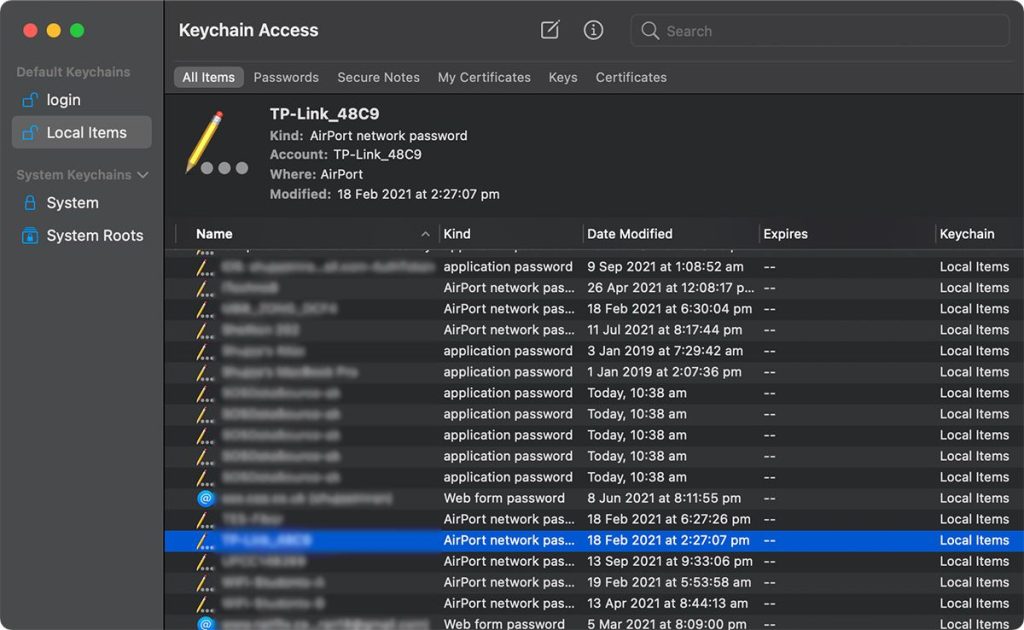
- macOS: Keychain Access (built-in) or Magical Jelly Bean WiFi Password Revealer (free).
- Linux: wpa_supplicant.conf file or ‘nmcli’ command (built-in).
- Cross-platform: Aircrack-ng (advanced, not for beginners).
For a detailed breakdown, check out our wifi password recovery software comparison to see which tool fits your needs.
Step 3: Download and Install the Recovery Software
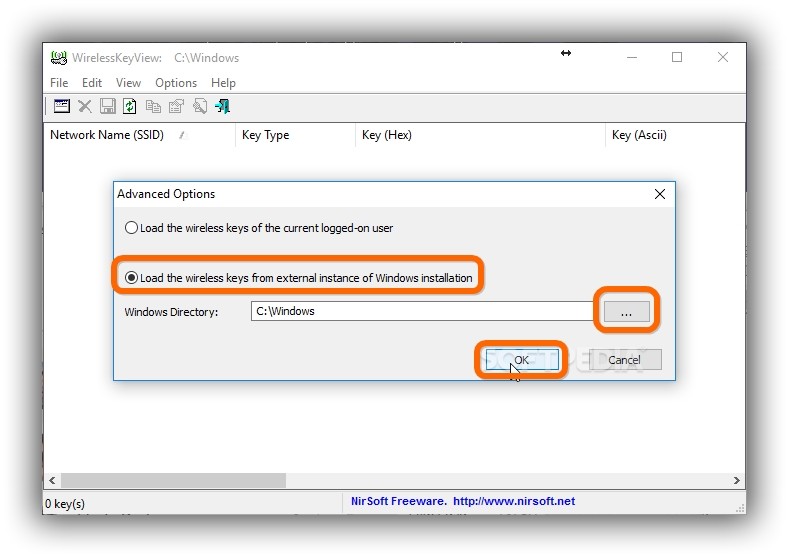
Stick to official sources. For WirelessKeyView, download from NirSoft’s website. On macOS, Keychain Access is already in Applications > Utilities. For Linux, open a terminal—no installation needed. Avoid sketchy download sites that bundle malware.
If you’re on Windows, right-click the downloaded .exe and select ‘Run as administrator’. Some antivirus programs may flag it as a potential threat because it accesses stored passwords—that’s normal. Just add an exception if needed.
Step 4: Run the Software and Scan Saved Networks
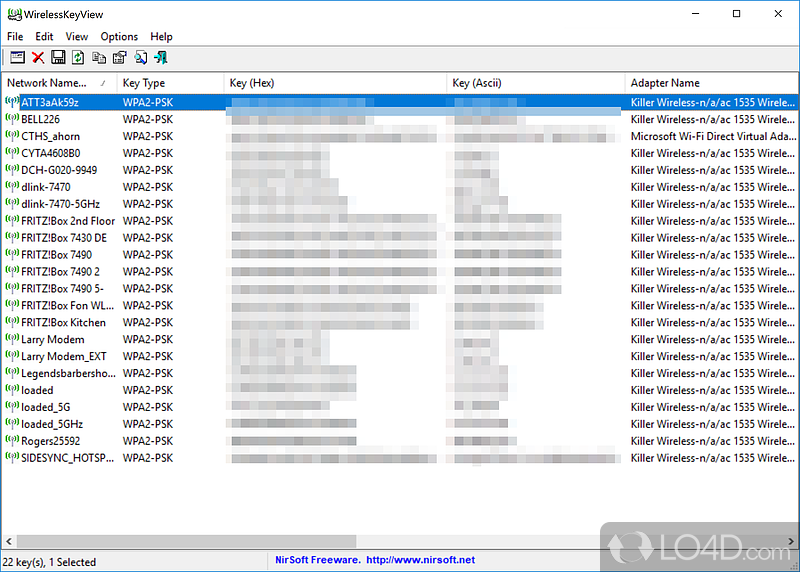
WirelessKeyView will immediately list all WiFi networks your computer has connected to, along with their keys (passwords). On macOS, open Keychain Access, search for ‘AirPort’ or your network name, and check ‘Show password’. On Linux, use the show wifi password linux method via terminal.
For Windows, if you prefer command-line tools, the wifi password recovery powershell tutorial is a powerful alternative to GUI software.
Step 5: Extract and Save the Passwords
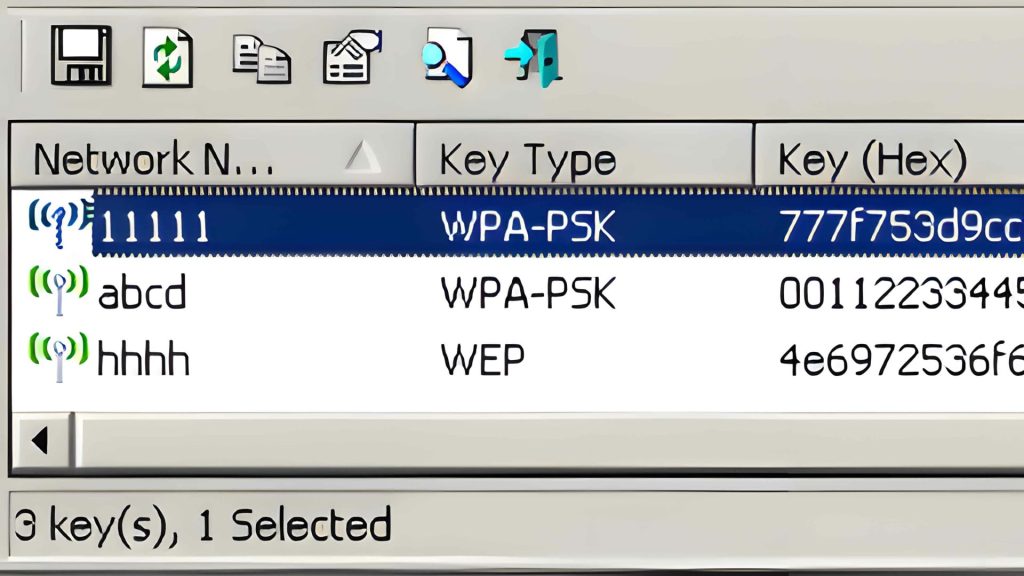
Select all entries (Ctrl+A) and export them to a text file or HTML report. On macOS, you can copy the password directly. On Linux, output the details to a file. All recovered passwords are visible in plain text, so save them somewhere secure—preferably a password manager.
If you need to recover passwords on a Mac specifically, the wifi password recovery command for mac is a quick terminal-based solution.
Common Pitfalls
- Antivirus blocks the software: Many WiFi password recovery tools are flagged by security suites because they access sensitive data. Whitelist the tool temporarily or use a built-in method like netsh in Windows ( show wifi password windows ).
- Forgetting to run as administrator: On Windows, if you don’t right-click and run as admin, the software won’t have access to the stored network profiles. Always elevate permissions.
- Trying to recover a password that was never saved: These tools only work for networks that your computer has connected to before. If you’ve never logged in, you’ll need to reset the router.
Where to Next
Once you’ve recovered your WiFi passwords, consider updating your router’s admin credentials too. If you’re on an Android phone, check out our guide on wifi password recovery from saved network for mobile devices. For enterprise setups, you might need a more robust solution like a network manager. Stay safe and never share your passwords over unencrypted channels.