
You’re at a coffee shop, at work, or just lounging at home when a friend asks for your WiFi password. You know it’s saved on your laptop, but you haven’t typed it in years. No worries — every major operating system stores that info in its network manager, and pulling it out takes just a few clicks (or commands). This guide walks you through recovering passwords on Windows, macOS, and Linux using only built-in tools. If you’re looking for a broader overview, check out our beginner wifi password recovery tutorial.
By the end of this post, you’ll have the password in hand — no third-party software, no rooting around in router settings. Whether you need it for a new device or to share with someone, these methods work as long as you have a computer that’s already connected to the network.
What You’ll Need
- A Windows, macOS, or Linux computer that is already connected to the WiFi network whose password you want.
- Administrator access on that computer (for Windows and some Linux methods).
- Basic familiarity with clicking menus or opening a terminal (we’ll keep it simple).
Step 1: Recover WiFi Password on Windows
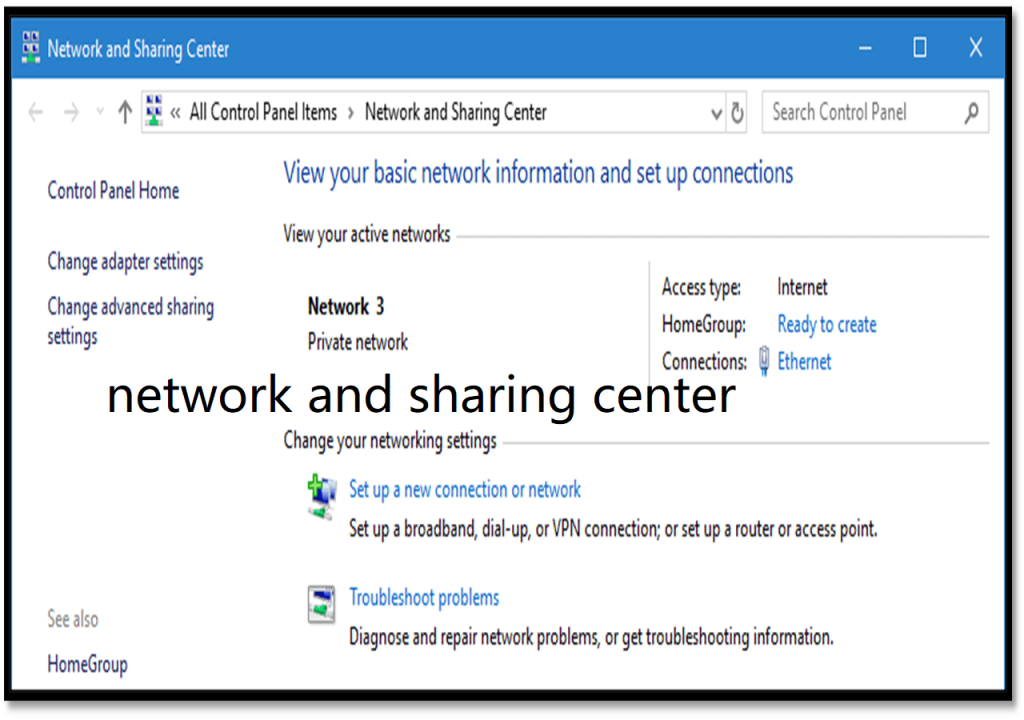
Windows makes it easy to view your saved WiFi password through the GUI. First, open the Control Panel and go to “Network and Internet” > “Network and Sharing Center”. Click on your active WiFi network name (the one next to “Connections”). In the pop-up, click “Wireless Properties”, then switch to the “Security” tab. Check the box that says “Show characters” and voilà — your password appears in the “Network security key” field. That’s the quickest way to show wifi password windows style.
If you prefer the command line, open Command Prompt as Administrator and run: netsh wlan show profile name="YourSSID" key=clear. Look for the “Key Content” line under Security settings. This method is great for scripting or when you need to export wifi passwords to csv later.
Step 2: Recover WiFi Password on macOS
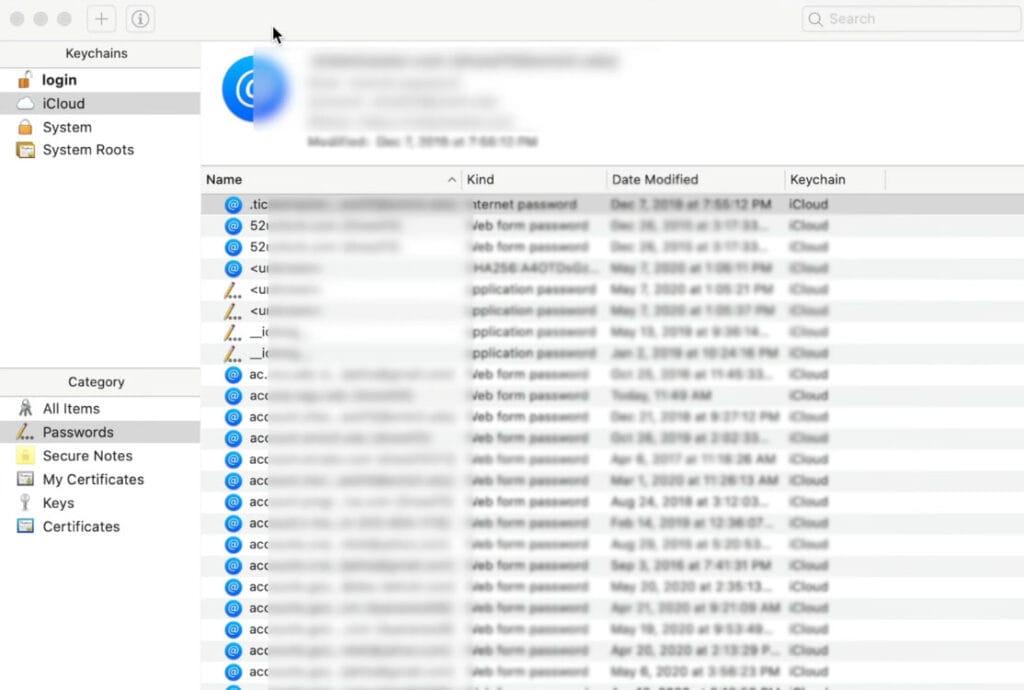
On a Mac, all saved passwords live in the Keychain app. Open Keychain Access from Applications > Utilities (or use Spotlight). In the default “login” keychain, search for your WiFi network name (SSID). Double-click the entry, then check the box “Show password”. You’ll be prompted for your Mac’s admin username and password — enter them, and the password is revealed. This is the standard wifi password recovery from saved network method on macOS.
For terminal enthusiasts, you can also use the security command: security find-generic-password -ga "YourSSID" | grep "password:". This is a handy trick for wifi password recovery using terminal and can be automated. Note that you’ll still need your admin credentials.
Step 3: Recover WiFi Password on Linux (Using NetworkManager)
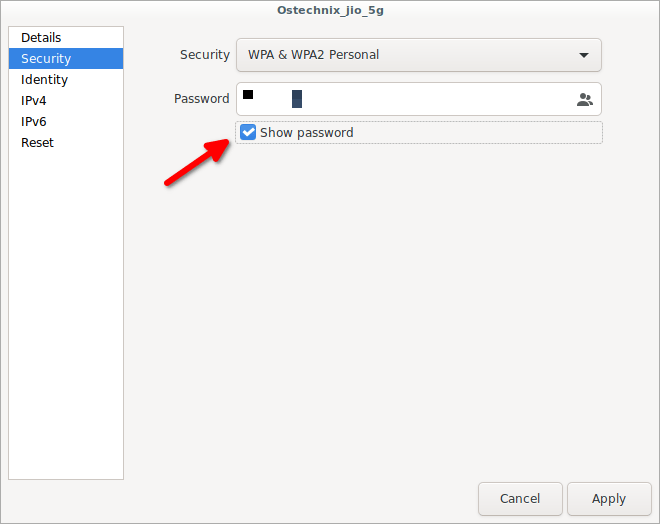
Most Linux desktops use NetworkManager, and you can recover your password through the GUI or command line. In GNOME, open Settings > Wi-Fi, click the gear icon next to your connected network, then go to the “Security” tab. The password may be hidden behind dots, but you can usually click an eye icon or a “Show password” checkbox. In KDE Plasma, right-click the network icon, choose “Configure Network”, select your network, and look under “Wi-Fi Security”.
If you prefer the terminal (and have sudo access), NetworkManager stores connection profiles in /etc/NetworkManager/system-connections/. List them with ls /etc/NetworkManager/system-connections/, then read the file for your network: sudo cat /etc/NetworkManager/system-connections/YourSSID. Look for the line starting with psk=. This is a solid method for wifi password recovery for network admins or anyone comfortable with the command line.
Common Pitfalls
- Not connected to the network: If your computer isn’t actively connected to that WiFi, the password won’t appear in the network manager’s GUI. You’ll need to use the command line or recover it from another device.
- Missing admin rights: On Windows, you need administrator privileges to see the password via GUI or command line. On macOS and Linux, you’ll need your user password (or sudo) to access keychain or system files.
- Wrong network name (SSID): Make sure you’re looking at the correct network name. Spaces and case matter, so double-check the exact SSID. On Windows, the
netshcommand lists all profiles, but you need the exact name.
Where to Next
Now that you’ve recovered your WiFi password, you might want to back it up or share it across devices. For bulk exports, check out our guide to export wifi passwords to csv. If you’re an admin managing multiple networks, our wifi password recovery for network admins tutorial covers advanced scripting. And if you ever need to recover a password from a router directly, we have guides for that too. Happy surfing!



