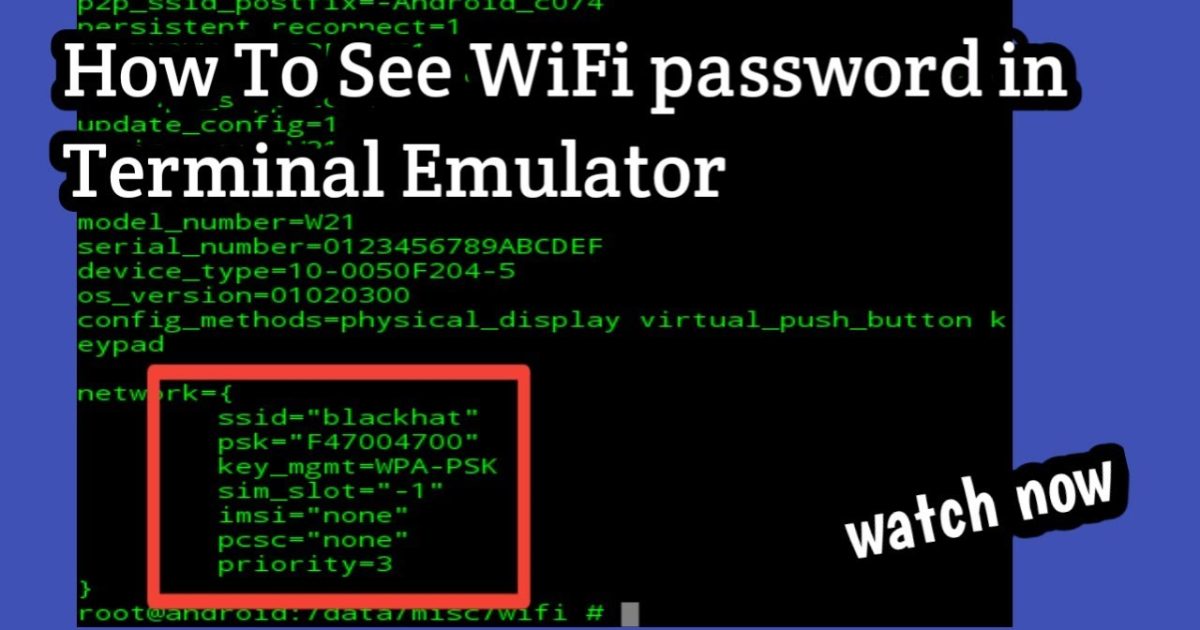
So you need to connect a new device to your WiFi, but you’ve completely forgotten the password. It happens to the best of us. Luckily, if you’ve got a Mac or Linux machine that’s already connected to that network, the password is stored somewhere on your system. In this guide, I’ll show you how to pull that password out using nothing but your terminal. No third-party apps, no sketchy software. Just a few commands and you’ll have your WiFi key in no time.
By the end of this tutorial, you’ll be able to recover any saved WiFi password on macOS or Linux using the command line. You’ll also learn a few extra tricks for exporting passwords and troubleshooting common issues. Whether you’re a beginner looking for a simple method or a power user wanting to flex your terminal skills, this guide has you covered.
What You’ll Need
- A Mac running macOS (any recent version) or a Linux distribution (Ubuntu, Fedora, etc.)
- Your computer needs to have connected to the WiFi network at least once (the password must be saved in your system)
- Basic comfort using the terminal (you just need to type commands, nothing scary)
- Optional: sudo/admin access (required for Linux, not needed on macOS for your own network)
Step 1: Open Your Terminal
First things first, fire up your terminal. On macOS, you can find it in Applications > Utilities > Terminal, or just search for ‘Terminal’ in Spotlight. On Linux, hit Ctrl+Alt+T or find it in your app menu. This is your command central.
Step 2: List Your Saved WiFi Networks (macOS)
On macOS, you can use the `networksetup` command to list all known networks. Type this and hit Enter:
`networksetup -listallhardwareports`
That shows all network services. To see preferred networks for Wi-Fi, use:
`networksetup -listpreferredwirelessnetworks en0` (replace en0 with your Wi-Fi interface name if different). This will list every network your Mac remembers. Make a note of the exact SSID you want to recover.
Step 3: Extract the Password on macOS
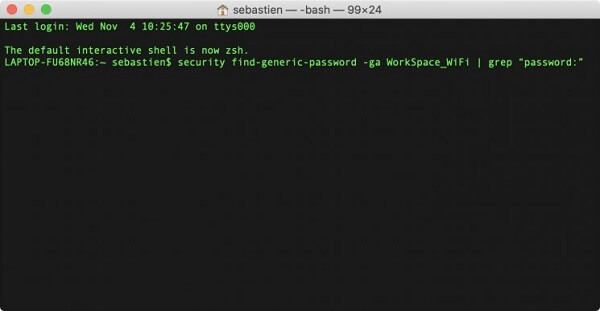
Now for the magic. The `security` command can retrieve passwords from your keychain. Run:
`security find-generic-password -wa “Your-Network-Name”`
Replace “Your-Network-Name” with the SSID from step 2. A dialog may pop up asking for permission – click Allow. The password will appear in the terminal. If you get an error, try using `sudo` first: `sudo security find-generic-password -wa “Your-Network-Name”`.
Step 4: List Saved WiFi Networks on Linux
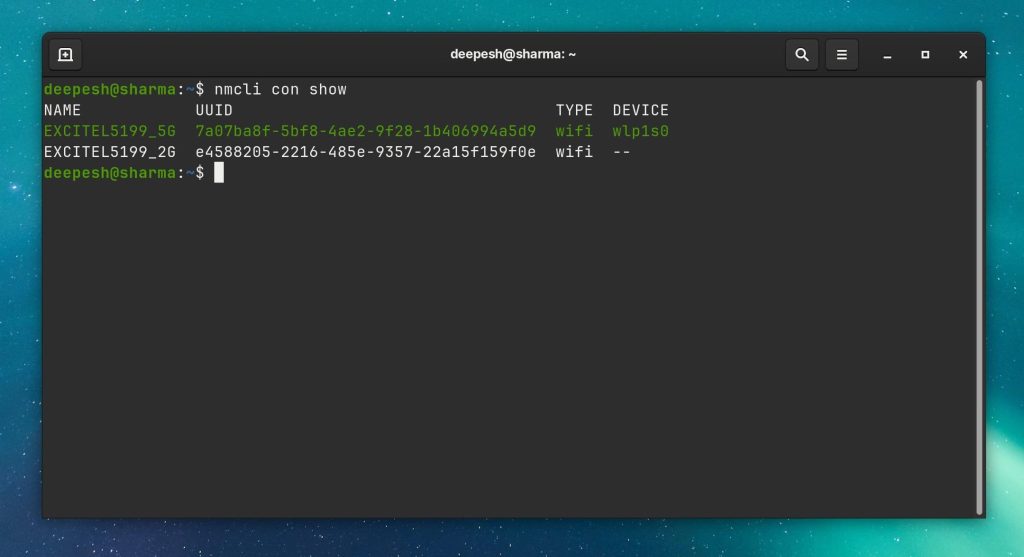
On Linux, the method depends on your network manager. Most modern distros use NetworkManager. First, list your saved connections:
`nmcli connection show`
This shows all connections, including Wi-Fi. Note the exact connection name (usually the SSID).
Step 5: Extract the Password on Linux
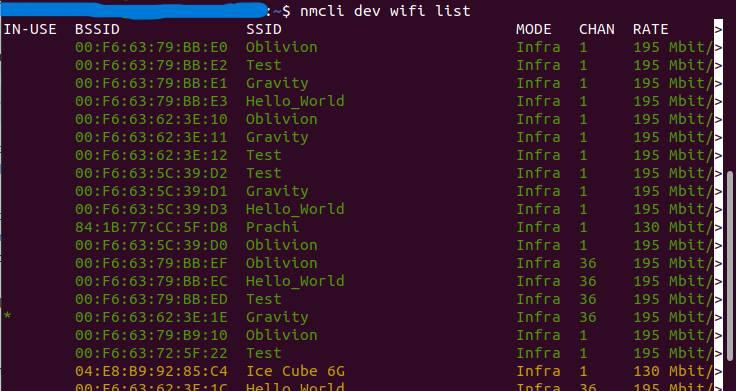
To get the password for a Wi-Fi network, use:
`nmcli -s connection show “Your-SSID” | grep 802-11-wireless-security.psk`
If that doesn’t work, you can peek directly at the configuration file: `sudo cat /etc/NetworkManager/system-connections/”Your-SSID”.nmconnection`. Look for the line starting with `psk=`. That’s your password.
Step 6: Additional Tips (Optional)
If you want to export all your saved WiFi passwords at once, check out our guide on exporting to CSV. For those using Windows, we also have a separate beginner tutorial using the GUI. And if you’re looking for open source tools, we’ve covered some great options for more advanced recovery.
Common Pitfalls
- **Forgetting `sudo` on Linux**: Many commands require root access. If you get a permission denied error, prepend `sudo` to the command.
- **SSID is case-sensitive**: “HomeWiFi” is not the same as “homewifi”. Type the exact name as shown in the list.
- **The network isn’t saved**: If you’ve never connected to that network from this computer, the password won’t be stored. You’ll need to use other methods like recovery via settings or asking the router admin.
Where to Next
Now that you’ve got your WiFi password back, you might want to explore more: check out our beginner tutorial for a broader view, learn about recovering from saved networks on other devices, or dive into open source tools for network pros. Happy surfing!



