We’ve all been there: you’re at a friend’s place, or you just reset your router, and suddenly you need the WiFi password for your iPhone. You know it’s saved somewhere on the device, but iOS doesn’t let you view it directly. That’s where this guide comes in. Whether you’re a casual user or a tech enthusiast, by the end of this tutorial you’ll have your WiFi password in hand using one of several proven methods.
This guide is specifically for recovering passwords from networks your iPhone has already connected to. We’ll cover methods using a Mac (if you have one), your router’s admin panel, and even a clever trick with another iOS device. No jailbreak or shady software required. Let’s dive in!
What You’ll Need
- Your iPhone (with WiFi turned on, connected to the network you want the password for)
- A Mac computer logged into the same iCloud account (for the Keychain method)
- Access to your router’s admin page (username and password, typically printed on the router)
- Another iOS device that’s already connected to the same WiFi network (optional, for QR code sharing)
- Patience – some methods are quicker than others
Step 1: Use iCloud Keychain on a Mac
If you have a Mac and both devices use the same Apple ID, iCloud Keychain syncs your saved WiFi passwords. This is the easiest method because it doesn’t require touching the router.
Here’s how to recover wifi password on iphone via Mac:
- On your Mac, open the Keychain Access app (search for it in Spotlight or find it in Applications > Utilities).
- In the search bar, type the name of your WiFi network (SSID).
- Double-click the network entry. A window will pop up. Check the box that says “Show password.”
- Enter your Mac’s admin username and password when prompted.
- The WiFi password will appear in the “Show password” field. Write it down or copy it.

Make sure iCloud Keychain is enabled on both devices: go to System Preferences > Apple ID > iCloud on your Mac, and Settings > [Your Name] > iCloud > Keychain on your iPhone. If it’s not, the password won’t sync.
Step 2: Use Another iOS Device That’s Already Connected
If you have a friend or family member whose iPhone or iPad is already connected to the same WiFi network, you can share the password without revealing it. This works on iOS 11 and later.
- Make sure both devices have Bluetooth and WiFi turned on, and are nearby.
- On the device that knows the password, go to Settings > WiFi and tap the network name (the i icon).
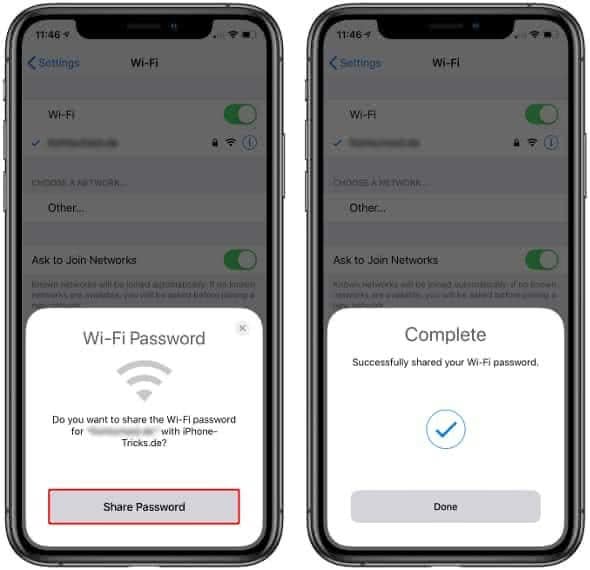
- Tap “Share Password” on the connected device. A prompt will appear on your iPhone.
- Tap “Share Password” on your iPhone to accept. The password will be automatically entered, and your iPhone will connect.
Step 3: Check the Router’s Admin Page
Every router has a web interface where you can view or reset the WiFi password. You’ll need the router’s admin credentials (often found on a sticker).
- Connect your iPhone to the WiFi network you want to recover the password for.
- Open Safari and type your router’s IP address (usually 192.168.0.1, 192.168.1.1, or 10.0.0.1 – check the sticker).
- Log in with the admin username and password (e.g., admin/admin, or the printed credentials).
- Navigate to the Wireless or WiFi settings section. Look for “Security” or “Password” field.
- The password will be displayed (sometimes obscured with dots, but there’s often a show/hide toggle).

If you never changed the admin password, the default is usually printed on the router. If you changed it and forgot, you’ll need to reset the router to factory settings (hold the reset button for 10 seconds).
Step 4: Use a Third-Party Tool (Last Resort)
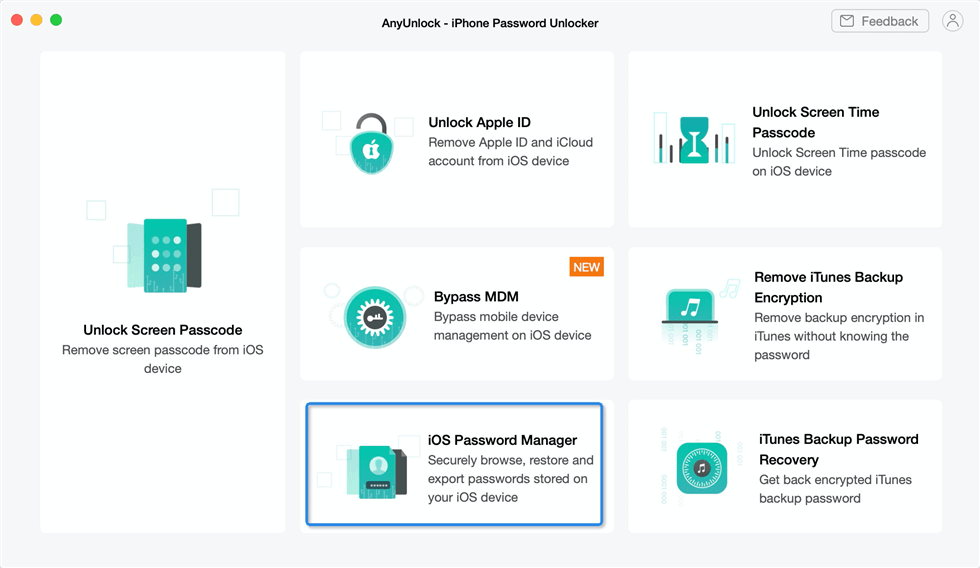
There are apps like WiFi Password Recovery (for jailbroken iPhones) or desktop tools that can extract passwords from iTunes backups. However, these are riskier and not recommended for most users. If you’re an advanced user, you can try a wifi password recovery via settings using a backup extractor on your computer. But for 99% of users, the methods above will work.
Common Pitfalls
- **Keychain Not Syncing**: If you don’t see the WiFi password in Keychain Access, ensure iCloud Keychain is enabled on both devices and that both are logged into the same Apple ID. Sometimes turning Keychain off and on again fixes sync issues.
- **Router Login Fails**: You might not know the router’s admin password. If it’s been changed and forgotten, a factory reset is the only option. Note that this will also reset all your custom settings.
- **WiFi Network Not in Keychain**: iCloud Keychain only syncs networks you’ve joined while Keychain was enabled. If you joined the network before enabling Keychain, it won’t be there. In that case, use the router method.
Where to Next
Now that you’ve recovered your WiFi password, consider checking out our beginner wifi password recovery tutorial for other devices, or learn how to export all your saved passwords for backup. If you’re a network admin, our wifi password recovery via settings guide might come in handy. Stay connected and never get locked out again!



