
If you own a Vivo smartphone and have ever connected to a WiFi network, you’ve likely encountered the moment when you need that password again — for a friend’s device, a new tablet, or just to remember it yourself. Vivo’s Funtouch OS, based on Android, hides your saved WiFi passwords by default, but don’t worry: there’s a straightforward way to retrieve them without root or technical wizardry. This guide is for any Vivo user who wants to recover a WiFi password they’ve already entered, using nothing more than the phone’s built-in tools.
By the end of this tutorial, you’ll have the password either displayed on screen (in some versions) or encoded in a QR code that you can scan to share the connection. No third-party apps required, and no complicated commands. Whether you’re using a Vivo Y series, X series, or V series, the steps remain virtually identical across Funtouch OS 11, 12, and 13. Let’s get started.
What You’ll Need
- Your Vivo phone (must be currently connected to the WiFi network or have it saved)
- Access to the Settings app
- A QR code scanner app (or a second phone with a camera) — optional, but useful if your phone doesn’t show plain text
Step 1: Open WiFi Settings
Unlock your Vivo phone and go to Settings. Scroll down until you see WiFi (sometimes labeled WLAN). Tap on it. You’ll see a list of all available networks, and the one you’re currently connected to will have a checkmark or be highlighted.

Step 2: Access Network Details
Tap on the name (SSID) of the network you want to recover the password for. This opens the network details page. Look for a QR code icon — it’s usually a small square with dots in the corner, often labeled “Share” or “QR Code”. Tap that icon.
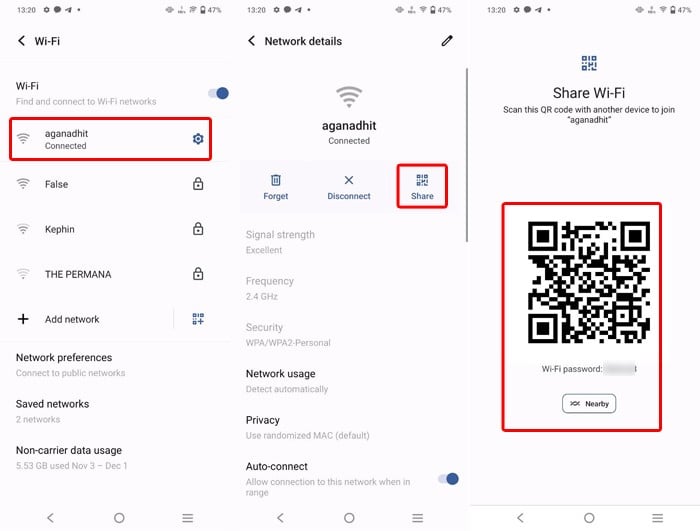
On some Vivo models running Funtouch OS 12 or 13, tapping the WiFi network name immediately shows the QR code without an extra button. If you see the QR code right away, you’re already at the sharing screen.
Step 3: Reveal or Scan the Password
Now you have two options to actually see the password:
- Option A (Plain text): On some Funtouch OS versions, below the QR code you’ll see the password written in plain text. If you see it, just copy it down or share it directly.
- Option B (QR code only): If no plain text is shown, take a screenshot of the QR code or point another phone’s camera at it. Most camera apps on Android can read QR codes automatically — a notification will pop up with the network name and password. Alternatively, use a free QR scanner app or an online decoder (like zxing.org) to extract the password.

Step 4: (Optional) Use a Root Method
If your Vivo is rooted, you can also recover the password by browsing the system file /data/misc/wifi/wpa_supplicant.conf using a root file explorer. This file contains all saved WiFi networks in plain text. However, for most users, the QR code method above is sufficient and safer — it requires no root and works on any Vivo phone. For a no-root approach, check out our guide on how to recover wifi password without root.

Common Pitfalls
- Network not saved: If you’ve never connected to the network or your phone forgot it, you won’t see a QR code. You must reconnect manually or ask the router owner for the password.
- Phone not connected: The QR code option only appears for the network your phone is currently connected to. Make sure WiFi is on and you’re actively connected to that network.
- Funtouch OS version differences: Some older Vivo models (Funtouch OS 10 or earlier) may not have the QR code feature. In that case, consider using the wifi password recovery from saved network method via a computer or ADB.
Where to Next
Now that you’ve recovered your WiFi password, you might want to save it securely or share it with others. For a deeper dive into password recovery on other devices, check out our beginner wifi password recovery tutorial or our specific guide to find saved wifi password android. Also, if you ever need to recover a password through the phone’s settings menu, our wifi password recovery via settings article covers that in detail. Happy surfing!



