
Ever been locked out of your own WiFi network because you forgot the password? You’re not alone. Whether you need to connect a new device or just want to share the password with a friend, recovering it without root access is totally doable. This guide is for anyone who uses Windows, Mac, or Android and doesn’t want to mess with system-level permissions. By the end, you’ll have your WiFi password back in plain sight using built-in tools.
No special apps or hacking skills required. We’ll cover methods for each major platform, so you can follow along regardless of what device you have. Let’s dive in and get you connected.
What You’ll Need
- A computer or phone that is already connected to the WiFi network (or has been connected in the past).
- Administrator access on Windows (no root required, just a regular admin account).
- Your Mac login credentials (to unlock Keychain Access).
- For Android: a phone running Android 10 or later with QR code sharing capability.
Step 1: Recover WiFi Password on Windows via Wireless Properties
This is the easiest method for Windows users. It works if your PC is currently connected to the network.
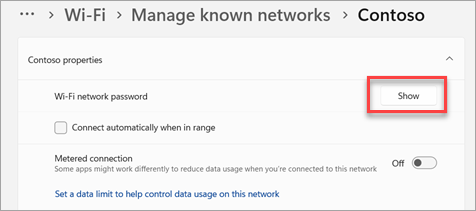
- Click the WiFi icon in the system tray (bottom-right corner) and select “Network & Internet settings”.
- Click “Status” on the left, then “Network and Sharing Center” (or just search for it in the Start menu).
- Click on your WiFi network name next to “Connections”.
- In the new window, click “Wireless Properties”.
- Go to the “Security” tab and check the box “Show characters” next to “Network security key”.
- Your WiFi password will appear in the field. Write it down or take a screenshot.
That’s it! If this method didn’t work (e.g., you’re not currently connected), try the next step using Command Prompt. For a more detailed walkthrough, check out our WiFi password recovery tutorial for Windows 10.
Step 2: Recover WiFi Password on Windows via Command Prompt
This method works for any WiFi network your computer has ever connected to, even if you’re not currently online.

- Press the Windows key, type “cmd”, right-click “Command Prompt”, and select “Run as administrator”.
- Type the following command and press Enter:
netsh wlan show profiles. This lists all saved networks. - Find the network you want the password for (e.g., “MyWiFi”). Then type:
netsh wlan show profile name="MyWiFi" key=clear(replace “MyWiFi” with your network name). - Look for the line “Key Content” under “Security settings”. That’s your password.
If you prefer a GUI tool, you can also view saved WiFi passwords using PowerShell, but Command Prompt is just as fast.
Step 3: Recover WiFi Password on Mac
On a Mac, your WiFi passwords are stored in the Keychain. You’ll need your Mac’s admin password to view them.

- Open “Keychain Access” from Applications > Utilities (or use Spotlight to search for it).
- In the search bar, type the name of your WiFi network.
- Double-click the entry for your network (it will be under “System” or “Login” keychains).
- Check the box “Show password” and enter your Mac’s admin username and password when prompted.
- The WiFi password will be displayed in the field.
If you’re having trouble, our detailed WiFi password recovery on Mac guide can help you out.
Step 4: Recover WiFi Password on Android (No Root)
On Android 10 and later, you can generate a QR code that reveals the WiFi password. This works only if the phone is currently connected to the network.

- Open “Settings” and go to “Network & Internet” (or “Connections” on Samsung devices).
- Tap “WiFi” and then tap the gear icon next to your connected network.
- Tap “Share” or “QR code” (look for a QR icon). You may need to verify your identity with a fingerprint or PIN.
- A QR code will appear. Below the code, (on some phones) the password is shown in plain text. If not, use another phone to scan the QR code — the password will be embedded in the scanned text.
- Write down the password from the QR code text (the part after “P:”).
For older Android versions without this feature, you’ll unfortunately need to use one of the computer methods above, as recovering WiFi password without root requires access to saved configurations that are normally locked. If you have a Xiaomi Redmi, we have a dedicated guide for WiFi password recovery for Xiaomi Redmi.
Common Pitfalls
- Not running as administrator on Windows: If you skip step and don’t run Command Prompt as admin, you’ll get an error. Always right-click and select “Run as administrator”.
- Mac Keychain password required: If you don’t remember your Mac login password, you won’t be able to reveal the WiFi password. Try resetting your Mac password first.
- QR code not showing password text: Some Android skins (like Xiaomi MIUI) hide the password after scanning. Use a QR scanner app that shows the raw text, or manually inspect the QR code data.
Where to Next
Now that you’ve recovered your WiFi password, you might also want to check out our wifi password recovery guide for more advanced scenarios, like recovering a lost password without internet connection. If you need to recover a password on an iPhone without jailbreak, we have that covered too. Happy surfing!



