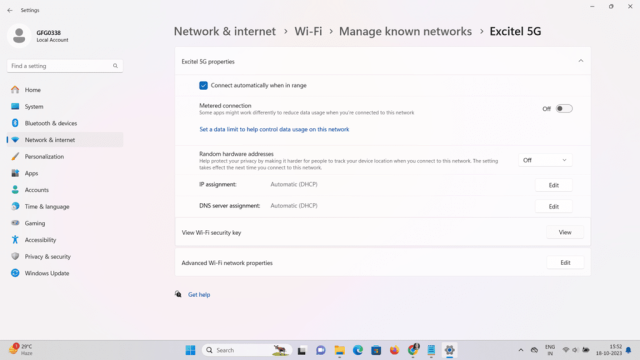
We’ve all been there: you come home, your phone automatically connects, but a friend asks for the WiFi password and your mind goes blank. Or maybe you just got a new device and can’t remember that random string of numbers and letters you set years ago. This guide is for you—a busy person who just wants to get back online without digging through old paperwork or calling your ISP. By the end, you’ll know exactly how to fish out that lost password from any device that’s already connected, plus a few backup methods in case nothing is connected.
We’ll cover Windows, Mac, Android (with and without root), and iOS (with and without Keychain). No complex tools required—just a few clicks or taps. Along the way, I’ll point you to specific deeper guides if you want more detail on a particular platform, like the complete wifi password recovery tutorial windows 10 or the wifi password recovery mac walkthrough. Let’s dive in.
What You’ll Need
- A computer or phone that is already connected to the WiFi network (or was connected in the past).
- Administrator access on Windows (or sudo on Mac/Linux).
- For Android: a file manager app if using root method, or a QR code scanner if using non-root method.
- For iOS: a Mac with your iCloud Keychain synced, or the router’s admin password.
- Optional: a forgotten wifi password recovery tool like WirelessKeyView or WiFi Password Revealer (but we’ll show manual ways first).
Step 1: Recover WiFi Password on Windows 10/11
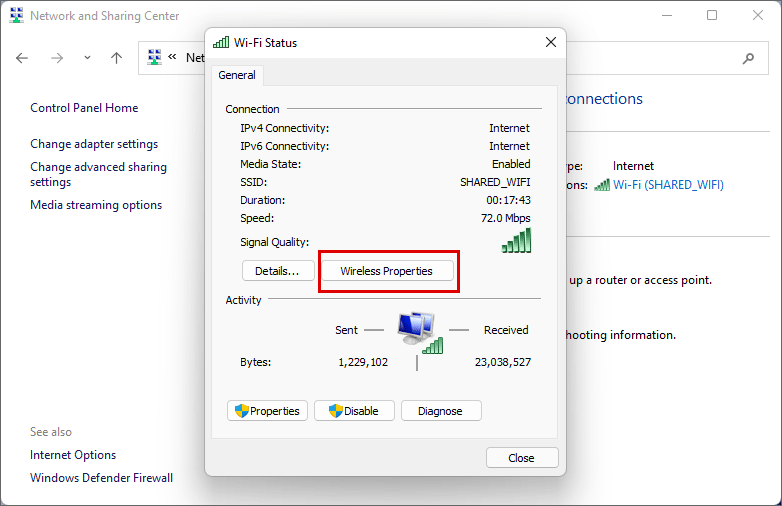
Windows stores saved WiFi passwords in the Network and Sharing Center. Here’s how to grab yours:
1. Open Control Panel (press Windows + R, type ‘control’, hit Enter).
2. Go to ‘Network and Internet’ > ‘Network and Sharing Center’.
3. Click on your current WiFi network name next to ‘Connections’.
4. In the pop-up, click ‘Wireless Properties’.
5. Switch to the ‘Security’ tab.
6. Check the box ‘Show characters’—your password appears in the ‘Network security key’ field.
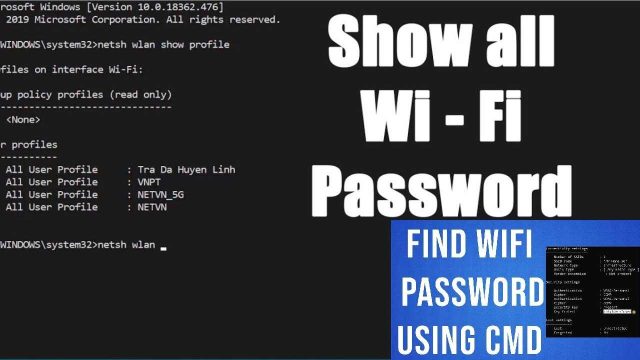
That’s it. If for some reason that doesn’t work (maybe you’re not connected), you can also use Command Prompt. Open CMD as admin and type:netsh wlan show profiles
Find your network name, then type:netsh wlan show profile name="YourNetworkName" key=clear
Look for ‘Key Content’ under Security settings. This command-line method is a popular wifi password recovery using cmd technique, and it works without the graphical interface.
Step 2: Recover WiFi Password on macOS
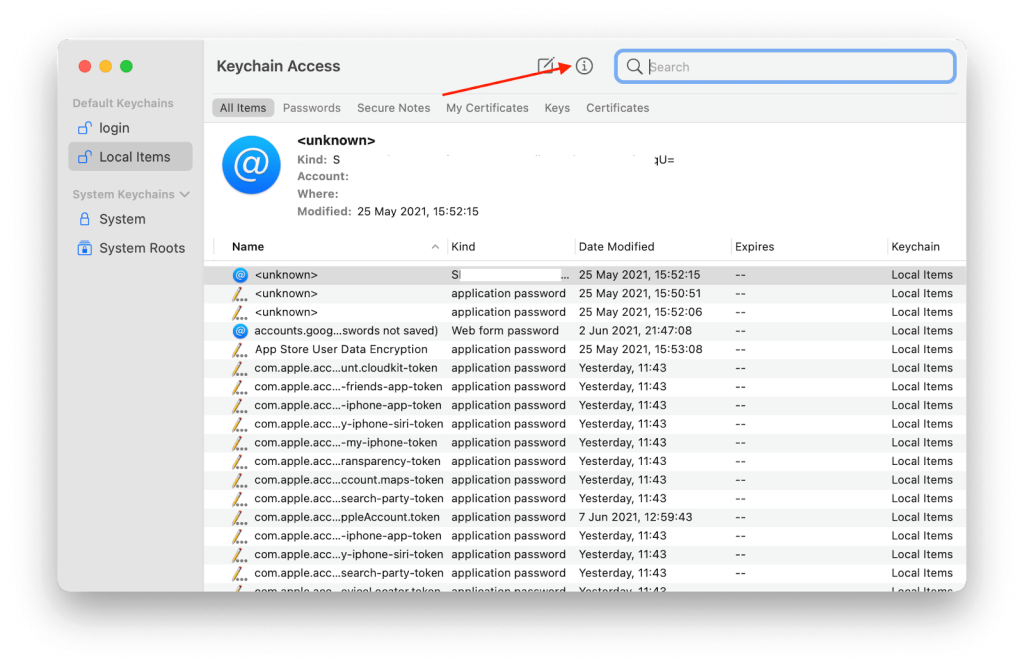
On a Mac, your saved passwords live in the Keychain Access app. Here’s the streamlined way:
1. Open ‘Keychain Access’ (spotlight search it).
2. In the search bar, type your WiFi network name (SSID).
3. Double-click the entry that looks like ‘AirPort network password: YourNetwork’.
4. Check the box ‘Show password’.
5. Enter your Mac’s admin username and password when prompted.
6. Your WiFi password is now visible in the field next to ‘Show password’.
This works for any network your Mac has connected to before. For a full visual walkthrough, check the dedicated wifi password recovery mac guide.
Step 3: Recover WiFi Password on Android (Non-Root & Root)
Android 10 and later allow you to share WiFi passwords via QR code—which also reveals the password. Here’s how:
1. Go to Settings > Network & Internet > WiFi.
2. Tap the gear icon next to your connected network.
3. Tap ‘Share’ (or the QR code icon).
4. Authenticate with your PIN, pattern, or fingerprint.
5. The QR code appears. Below it (on some phones) or after scanning with another device, you’ll see the password text. If not, take a screenshot of the QR code and use a QR scanner that displays the encoded text.
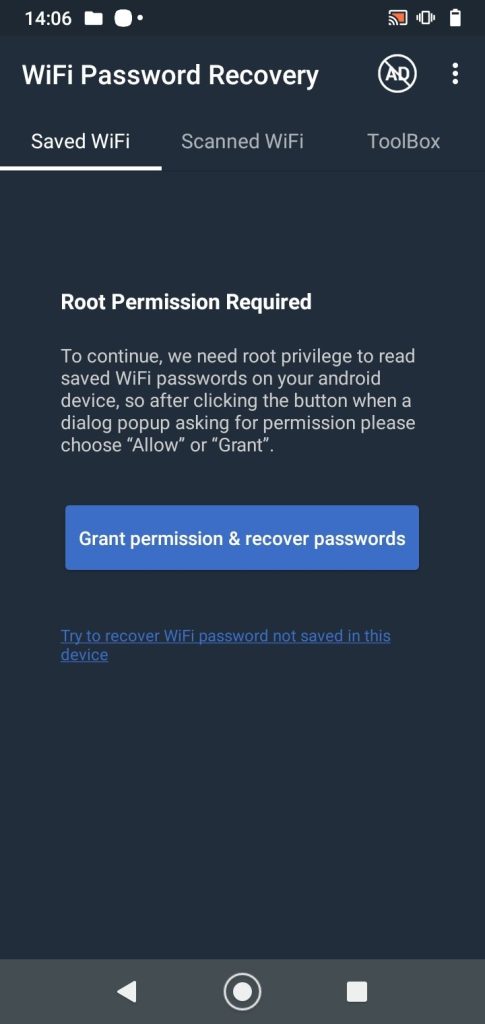
If you have root access, you can view the password directly from the system file. Open a root file explorer, navigate to /data/misc/wifi/, and open wpa_supplicant.conf. Look for your network name; the ‘psk’ field is your password. That’s the wifi password recovery via root explorer method. For non-root phones, the QR trick works on nearly all Android 10+ devices.
Step 4: Recover WiFi Password on iPhone (iOS)
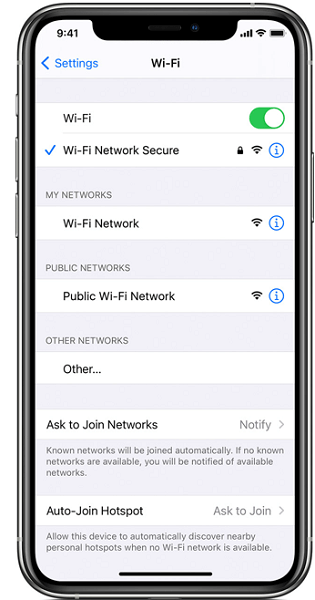
iOS doesn’t show passwords natively, but if you use iCloud Keychain and have a Mac, you can retrieve it from there. Alternatively, if your iPhone is connected and you have a Mac, use the Keychain Access method described in Step 2—your iOS passwords sync to your Mac through iCloud. For a direct iPhone method without a Mac, you’ll need the router’s admin panel (see Step 5). However, there is a way to recover wifi password on iphone using a share password feature with another Apple device if you’re both in contacts. But for actually viewing the stored password, the Mac route is simplest.
Step 5: Router Method (Works for All Devices)
If none of your devices are connected, you can always log into your router’s admin interface and view or reset the WiFi password. This is the universal fallback.
1. Find your router’s IP address (usually 192.168.1.1, 192.168.0.1, or 10.0.0.1). Check the sticker on the router or run ‘ipconfig’ on Windows (look for Default Gateway).
2. Open a browser, type that IP, and log in with the router’s admin credentials (often ‘admin’/’admin’ or ‘admin’/’password’, or printed on the router).
3. Navigate to the Wireless or WiFi settings section.
4. Look for ‘Security’ or ‘Wireless Security’—your current password will be shown (or masked but with a ‘Show password’ option).
5. Write it down or change it to something memorable.
If you can’t remember the router admin password either, you may need to reset the router to factory defaults by holding the reset button for 10+ seconds. Then you’ll set a new WiFi password from scratch. For more details, the secure wifi password recovery process article covers the router method in depth.
Step 6: Use a Forgotten WiFi Password Recovery Tool (Windows)
If the manual steps above feel like too much effort, there are free portable tools that scan your Windows system for stored WiFi passwords. One reliable option is WirelessKeyView from Nirsoft. Download it, run it (as admin), and it instantly lists every saved network with its password in plain text. No installation required. This is a classic forgotten wifi password recovery tool that works on most Windows versions. Similarly, you can view saved wifi password using powershell with a custom script, but the tool is quicker for non-technical users.
Common Pitfalls
- Pitfall: Not having admin rights on the computer you’re using. Without admin access, Windows and Mac will block password viewing. You’ll need to use the router method or an already-connected phone instead.
- Pitfall: Assuming your router’s default IP is always 192.168.1.1. Some routers use different addresses; check your network settings or the router sticker. Also, many modern ISP-provided routers have a custom app that might be easier.
- Pitfall: Forgetting the router admin password. If you can’t log in, a factory reset is the only way, which wipes all custom settings—including your WiFi password. Be sure to back up your router config if possible, or at least write down the admin password after you recover it.
Where to Next
Now that you’ve got your WiFi password back, consider writing it down in a secure password manager so this doesn’t happen again. If you frequently need to recover passwords, check out the advanced wifi password recovery methods guide for command-line tricks and router backdoors. And if you’re helping a friend or family member, the wifi password recovery for students guide offers a straightforward process for sharing access. Stay connected!