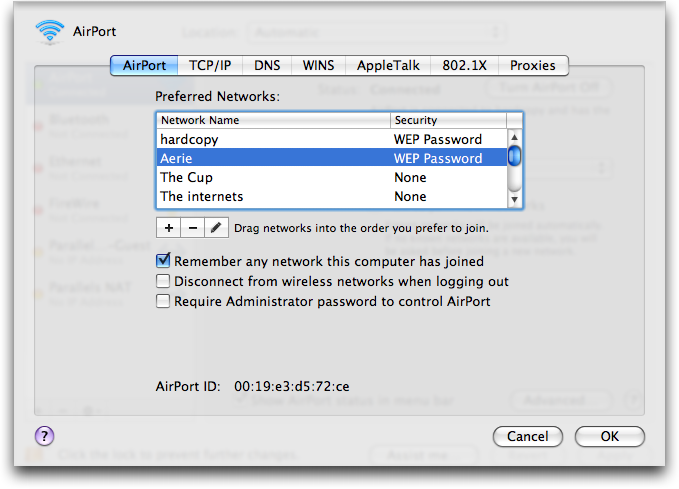
Did you just realize you’ve forgotten the WiFi password for your home network? It happens to the best of us. Maybe a friend came over and you need to share it, or you’re setting up a new device and can’t find the sticker on the router. Don’t panic—your Mac actually remembers every WiFi password you’ve ever connected to. By the end of this guide, you’ll have that password back in your hands using built-in Mac tools. No downloads, no hassle.
This guide is for anyone who uses a Mac and has ever connected to the WiFi network they want to recover. Whether you’re a casual user or a tech newbie, these methods are safe, free, and take just a few minutes. We’ll cover three ways: using Keychain Access (the easiest), using Terminal (if you like command lines), and checking your router (the fail-safe). Let’s get that password.
What You’ll Need
- A Mac running macOS Sierra or later (most steps work on older versions too)
- The WiFi network must have been previously connected on this Mac
- Administrator access to your Mac (you’ll need to enter your Mac’s login password)
- Optional: Router admin credentials (usually printed on the router itself)
Step 1: Open Keychain Access
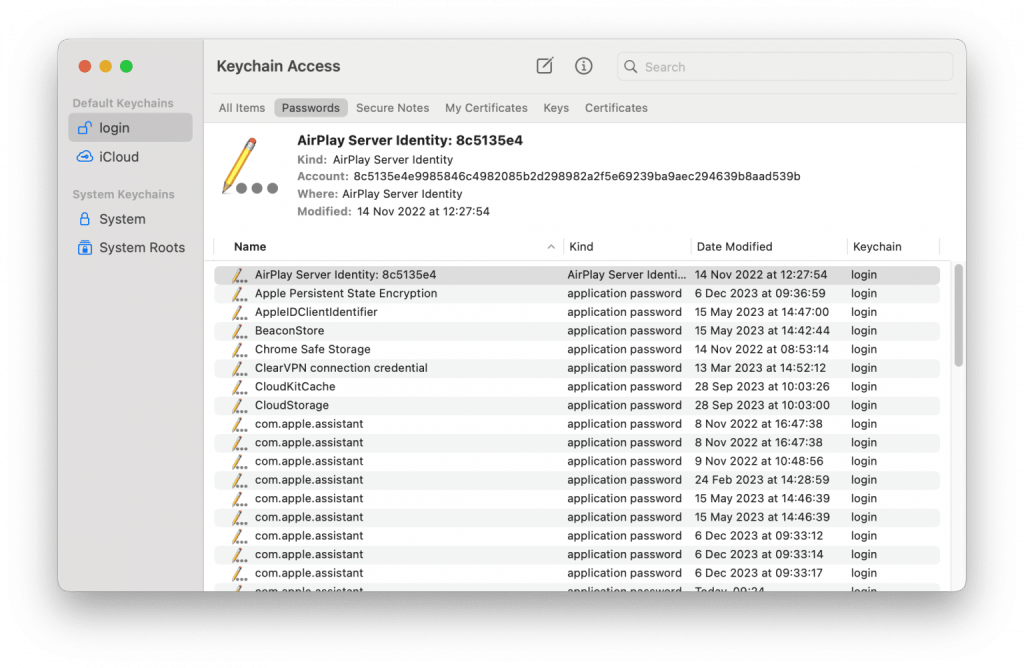
Keychain Access is macOS’s built-in password manager. It stores all sorts of credentials, including WiFi passwords. To open it, click the Finder icon in your Dock, then go to Applications → Utilities → Keychain Access. Alternatively, press Cmd + Space to open Spotlight, type “Keychain Access,” and hit Return. The app will launch showing a list of your keychains.
Step 2: Find Your WiFi Network Name
In Keychain Access, make sure you’re looking at the System keychain (click “System” under Keychains on the left sidebar). Then, in the search box at the top right, type the name of your WiFi network (SSID). The list will filter down to matching entries. Look for the one that says AirPort network password in the Kind column. Double-click that entry to open its details.
Step 3: Show the Password
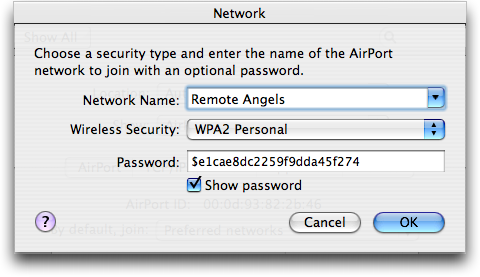
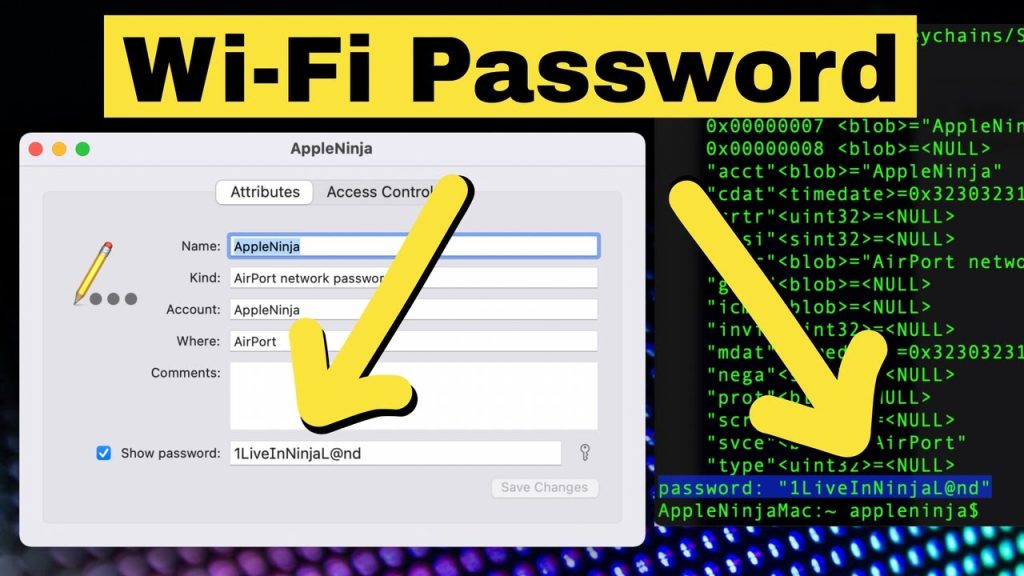
A new window will pop up with information about that network. Check the box that says Show password. macOS will ask for your Mac’s administrator username and password. Enter those and click Allow (or type your password again). The password will appear in the field next to “Show password.” You can now copy it, write it down, or share it. That’s it!
Alternative Method 1: Using Terminal
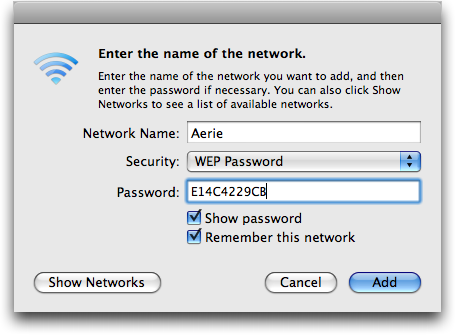
If you prefer the command line, you can use the security command to extract the WiFi password. Open Terminal (from Applications/Utilities or via Spotlight). Paste the following command, replacing YourNetworkName with your actual WiFi name:
security find-generic-password -ga “YourNetworkName” | grep “password:”
Terminal command
Press Return. You’ll be prompted to enter your Mac’s login password (it won’t show as you type, but it’s being accepted). After that, the password will appear after the word “password:” in the output. Note that this method requires you to know the exact network name, including spaces and capitalization.
Alternative Method 2: Check Your Router
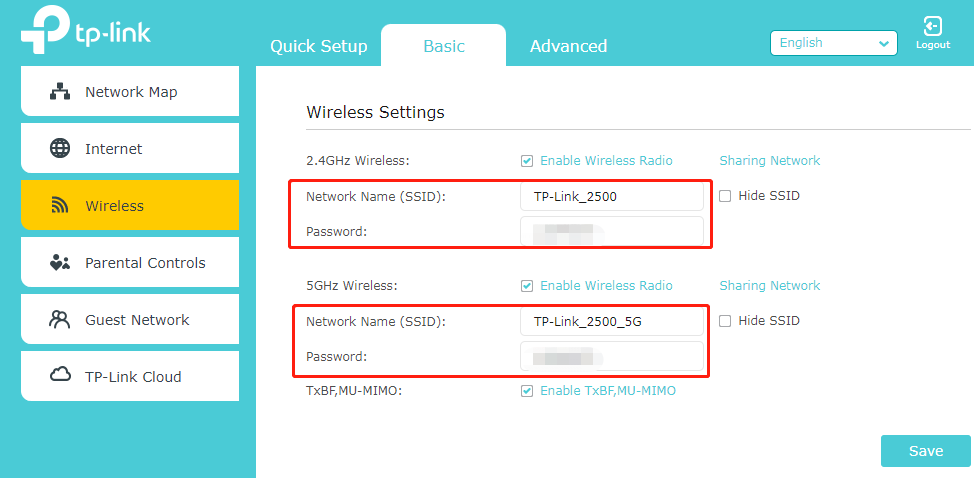
If the above methods don’t work (maybe you’ve never connected this Mac to the network), you can always log into your router’s admin interface. Open a web browser and type your router’s IP address (commonly 192.168.0.1 or 192.168.1.1). Log in with the admin username and password (often “admin” / “admin” or printed on the router). Navigate to the Wireless or WiFi settings section; the password (or pre-shared key) will be displayed there. This method requires physical access to the router and admin credentials.
Common Pitfalls
- Wrong keychain selected: If you don’t see the network entry, make sure you’re looking at the System keychain, not iCloud or Login. WiFi passwords for networks you’ve connected to are stored in System.
- Network name mismatch: The name in Keychain must exactly match the SSID. If your network has special characters or hidden SSID, it might not appear. Try checking your router’s client list to confirm the exact name.
- Permission issues: If the “Show password” checkbox is grayed out or you can’t authenticate, your user account may not have admin rights. Log in with an admin account or ask the computer’s owner.
Where to Next
Now that you’ve recovered your WiFi password, consider backing it up to avoid future headaches. Check out our guide on secure wifi password recovery process to learn best practices. If you’re on Windows too, our wifi password recovery from laptop guide covers both platforms. And for a deep dive into keychain method, see wifi password recovery via keychain. Share this guide with friends who always forget their WiFi passwords!



