
Ever been at a friend’s house, or just reset your phone, and realized you have no idea what the WiFi password is? You’re not alone. This guide is for anyone who has a computer or phone that’s already connected to a network but can’t remember the password. By the end, you’ll have the tools to pull that password out of thin air—using only free, built-in methods or tiny portable software. No sketchy paid apps, no guesswork.
We’ll cover Windows, Mac, and Android, plus a portable USB tool that works on any PC. All you need is a device that’s already saved the network. Let’s dive in and never let a forgotten WiFi password slow you down again.
What You’ll Need
- A Windows, Mac, or Android device already connected to the WiFi network you want to recover
- Administrator or root access (for deeper recovery methods)
- A USB flash drive (if you plan to use a portable recovery tool)
- A few minutes of patience
No additional software purchases are necessary—everything here is either built into your OS or completely free.
Step 1: Recover WiFi Password on Windows Using Command Prompt
Windows saves all your WiFi profiles with passwords, but hides them behind a few command lines. Open Command Prompt as Administrator (right-click Start > Command Prompt (Admin) or Windows PowerShell (Admin)). Then type the following command to see all saved profiles:

netsh wlan show profiles
Command typed at terminal
You’ll see a list of network names. Pick the one you need and run:
netsh wlan show profile name=”YourNetworkName” key=clear
Replace YourNetworkName with actual SSID
Look for the line labeled “Key Content”—that’s your plain-text WiFi password. For a more detailed walkthrough, check out our dedicated guide on wifi password recovery using cmd.
Step 2: Recover WiFi Password on Mac Using Keychain Access
Macs store WiFi passwords in the Keychain app. Open Keychain Access (Finder > Applications > Utilities > Keychain Access). In the top-right search bar, type the name of your WiFi network. Double-click the entry that appears. Check the box “Show password” and enter your Mac’s admin username and password when prompted. The WiFi password will now be visible. For more details, see our full guide on wifi password recovery via keychain.

Step 3: Recover WiFi Password on Android (QR Code or Saved Networks)
Android 10 and later lets you view your current network’s password via a QR code. Go to Settings > Network & Internet > WiFi, tap the gear icon next to your connected network, then tap “Share” or “QR Code”. You can either scan the code with another device or read the password below the code (if you have a rooted device, you can also find it in /data/misc/wifi/wpa_supplicant.conf).
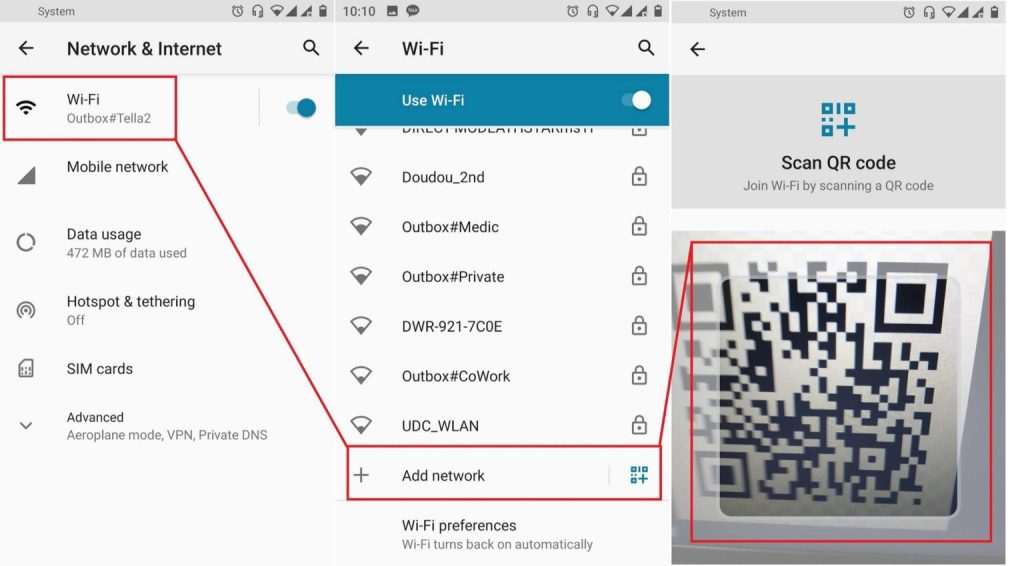
If your device runs an older version or you need to recover multiple passwords, consider using a free third-party app—but be careful about permissions.
Step 4: Use a Portable Free WiFi Password Recovery Tool on Any PC
If you want a tool that doesn’t require installation and can run from a USB drive, try a portable WiFi password recovery utility. Download a trusted free portable tool (like WirelessKeyView) on a clean computer, copy it to a USB flash drive, then plug it into the target PC and run the executable as Administrator. It will instantly display all saved WiFi passwords. Our guide on free wifi password recovery portable covers how to set up and use these portable tools safely.

Common Pitfalls
- Need Admin/Root Access: Many recovery methods require administrator privileges. On a locked-down work or school computer, you may be blocked. If that’s the case, our secure wifi password recovery process guide offers alternative approaches.
- Enterprise Networks: Some corporate or university WiFi networks use certificates or 802.1X authentication, which do not store a simple password. These methods won’t work—you’ll need to contact IT.
- Antivirus May Flag Portable Tools: Some portable password recovery tools are falsely detected as malware because they access system-level data. Always download from official sources and temporarily disable antivirus only if you’re sure the file is safe.
Where to Next
Now that you’ve recovered your WiFi password, don’t lose it again. Consider using a password manager to store all your network credentials securely. You can also learn how to backup wifi passwords automatically on your devices so you’ll never be locked out again. Happy surfing!



