Ever had that moment where a friend asks for your WiFi password, and you stare blankly at the router sticker hoping it hasn’t faded? Or maybe you just set up a new device and can’t remember the password you typed in months ago. This guide is for anyone who’s locked out of their own network or needs to retrieve a saved password safely. By the end, you’ll know how to recover your WiFi password on Windows, Mac, Android, and even directly from your router—without resorting to shady third-party software.
We’re focusing on the safest methods here. That means using built-in operating system tools, the router’s web interface, and official app features. No risky downloads, no sketchy ‘free wifi password recovery utility‘ that might steal your data. These steps are tested and work on the latest versions of Windows 10/11, macOS Ventura and newer, Android 12+, and most home routers.
What You’ll Need
- A computer or phone that is currently connected to the WiFi network (or has connected before).
- Administrator access on your computer (for Windows and Mac).
- The router’s IP address and admin login credentials (if you plan to log into the router).
- An Android phone with the WiFi network saved (optional, but handy).
- Patience—some methods require a few clicks, but nothing complicated.
Step 1: Recover WiFi Password on Windows
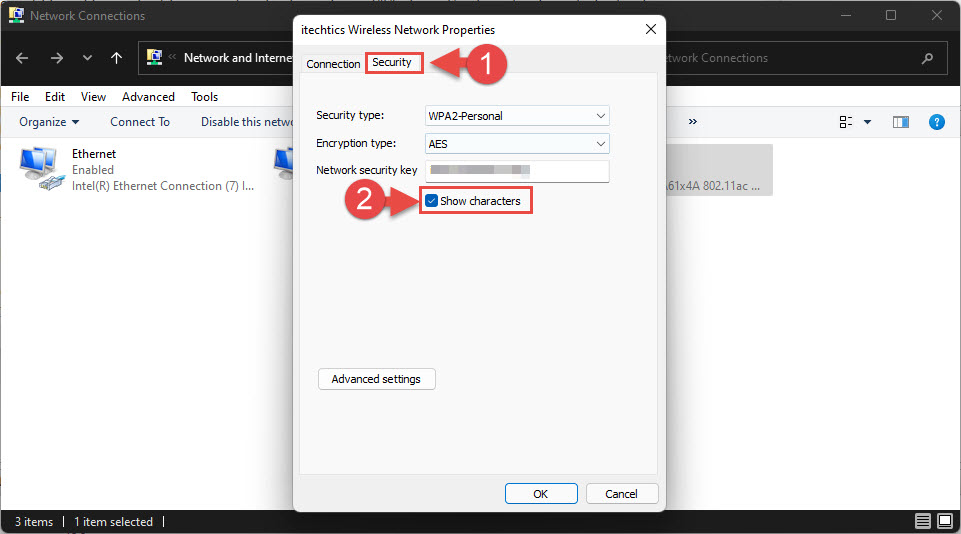
If you’re on Windows and already connected to the network, this is the easiest path. Go to Settings > Network & Internet > Status > Network and Sharing Center. Click on your WiFi network name (next to ‘Connections’), then click ‘Wireless Properties’. Under the ‘Security’ tab, check ‘Show characters’ and your password appears. This built-in method is a classic wireless password recovery windows technique that doesn’t require any extra software.
For those who prefer the command line, open Command Prompt as administrator and type: netsh wlan show profile name="YourNetworkName" key=clear. Look for ‘Key Content’—that’s your password. This works even if you’re not currently connected but have connected before. Need to recover a hidden network? Check out our dedicated guide on wifi password recovery for hidden network.
Step 2: Recover WiFi Password on Mac
Mac users can retrieve stored WiFi passwords using the Keychain Access app. Open Keychain Access from Applications > Utilities. In the search bar, type your network name. Double-click the entry (it usually says ‘AirPort network password’ under Kind). Check the box ‘Show password’ and enter your Mac’s admin username and password when prompted. The WiFi password will be revealed. It’s that simple—no extra tools needed, and it’s a perfectly secure method.

Step 3: Recover WiFi Password on Android
Modern Android phones (Android 10 and up) let you view saved WiFi passwords directly, or you can share them via QR code. Go to Settings > Network & Internet > Internet (or WiFi). Tap the gear icon next to your connected network. Tap ‘Share’ (sometimes a QR code icon). Authenticate with your PIN, pattern, or biometric. The QR code appears, and the password is shown below it. No root required! This is the safest method for Android and is much better than using a free wifi password recovery utility that might not be trustworthy.

If you need to recover a hotspot password, the process is similar—check our hotspot wifi password recovery guide for more details.
Step 4: Recover Password from Your Router
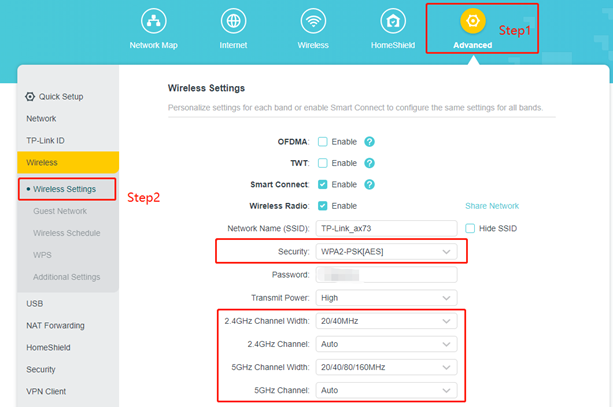
When you can’t access any connected device, logging into the router is your fallback. Find your router’s IP address (usually 192.168.0.1 or 192.168.1.1) and enter it in a browser. Log in with the admin username and password (check the router sticker if you never changed it). Navigate to the wireless settings section—often called ‘Wireless’, ‘WiFi’, or ‘Security’. The password is displayed as a ‘Passphrase’ or ‘Pre-Shared Key’. This method works on any router brand and is the most direct way to see or change your WiFi password. For more on specific routers, see our guide on wifi password recovery for mikrotik or general wifi password recovery on access point.
Common Pitfalls
- You’re not connected and have never connected on that device: Most OS recovery methods only work if the network profile is saved. If you’ve never connected on that computer or phone, you’ll need to use the router method or check a device that has connected before.
- Forgot your router admin password: If you changed the router login and forgot it, you’ll have to reset the router to factory defaults (usually a 10-second press of the reset button). This wipes all settings, so be prepared to reconfigure your network.
- Android doesn’t show the password: Some OEMs remove the ‘Share’ feature. In that case, you might need to install a trusted app like ‘WiFi Password Viewer’ (requires root) or use ADB commands. But we recommend avoiding overly simple free wifi password recovery utilities from unknown sources—they can be risky.
Where to Next
Now that you’ve got your WiFi password back, consider backing it up for future convenience. Learn how to restore wifi passwords from backup so you never have to dig through settings again. If you use Linux, check out our guide on show wifi password linux. And for ultimate security, read about secure wifi password recovery tools that protect your credentials. Stay connected and stay safe!



