Are you about to format your computer or factory reset your phone? You probably have a dozen WiFi passwords saved that you don’t want to lose. This guide is for anyone who needs to back up those passwords before wiping the device. By the end, you’ll have a safe copy of all your WiFi credentials that you can restore after the fresh install.
We’ll cover Windows, Mac, and Android. You don’t need to be a tech wizard—just follow the steps. No more hunting for stickers on routers or asking neighbors for passwords. Let’s get those passwords saved.
What you’ll need
- A Windows PC, Mac, or Android device with your WiFi networks saved
- Administrator access (for Windows) or your login password (for Mac)
- A USB drive, cloud storage (Google Drive, iCloud, etc.), or email to store the backup file
- A text editor (like Notepad or TextEdit) to view the exported data
- Optional: a password manager to securely store the backup
Step 1: Backup WiFi Passwords on Windows
Open Command Prompt as Administrator. Click Start, type “cmd”, right-click on Command Prompt, and select “Run as administrator”. Then run the following command to list all saved WiFi profiles: netsh wlan show profiles. Note the profile names. To export a single profile to an XML file, use netsh wlan export profile name="ProfileName" folder=C:Backup key=clear. Repeat for each network, or use a one-liner script. The exported files contain your SSID and password in plain text—store them safely. After exporting, copy the backup folder to a USB drive or cloud storage.

For a faster method, you can use a third-party tool like WirelessKeyView, but the built-in netsh is reliable and doesn’t require extra software. If you’re already formatted, check out our guide on wireless password recovery windows for alternative methods.
Step 2: Backup WiFi Passwords on Mac
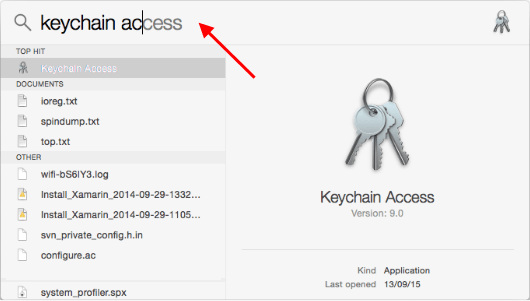
On a Mac, your WiFi passwords are stored in Keychain Access. Open Keychain Access from Applications > Utilities. In the search bar, type “AirPort” to see all saved WiFi networks. Double-click a network, check “Show password”, enter your Mac’s login password, and copy the password. You can also export the entire Keychain, but that’s overkill. Alternatively, use the Terminal command security find-generic-password -wa "YourSSID". Save the passwords in a text file and store securely. For more details, see how to find saved wifi password from keychain.

Step 3: Backup WiFi Passwords on Android
Android’s approach varies by version. On Android 10+, you can go to Settings > Network & Internet > WiFi > Saved networks, tap a network, and see the QR code or share option. The password is often hidden, but you can use an app like “WiFi Key Recovery” (no root required) to view saved passwords. Export the list via the app’s backup feature. On older Android, you might need root access—but many modern apps work without. Store the output file safely. If you lose access, offline wifi password recovery solutions can help.

Common pitfalls
- Forgetting to run Command Prompt as Administrator on Windows—without admin rights, the export command fails silently.
- Not saving the exported files to a separate drive—if you store them only on the local disk, they’ll be wiped alongside the system.
- Assuming Android requires root—many modern Android phones let you view passwords via QR code or apps without root. Don’t skip this step!
Where to next
Now that you’ve backed up your WiFi passwords, the next step is to restore them after formatting. Learn how to restore wifi passwords from backup for a seamless setup. For other recovery scenarios, explore wifi password recovery from backup. If you need to recover passwords on a device you’ve already wiped, our secure wifi password recovery tools guide can help. And always keep a copy safe—you never know when you’ll need it.