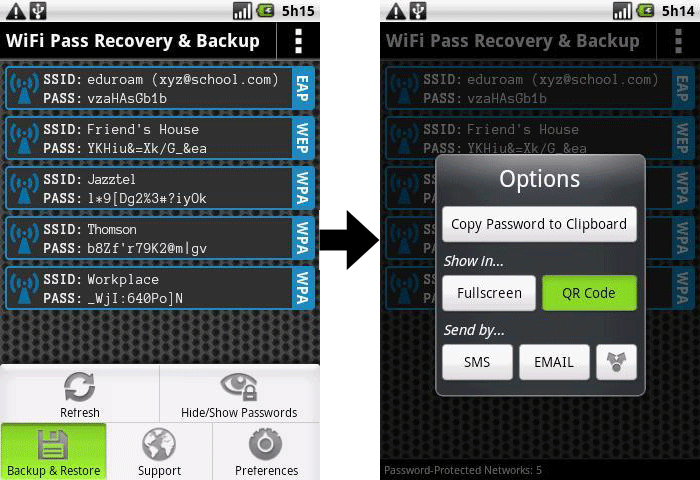
Ever been in a situation where you needed to reconnect a device to your home WiFi but couldn’t remember the password? Or maybe you’re setting up a new laptop and want to transfer all your saved networks effortlessly. Backing up your WiFi passwords automatically is a lifesaver, and it’s easier than you think. This guide is for anyone who wants to create a simple, automated backup of all their saved WiFi passwords on Windows or Mac—no sketchy third-party software required.
By the end of this tutorial, you’ll have a working script or set of commands that exports every WiFi profile and its password to a text file you can store safely. Whether you’re a command-line newbie or a seasoned pro, I’ll walk you through it step by step. Plus, you’ll learn how to schedule these backups so they run automatically—perfect for forgetting about them until you need them.
What You’ll Need
- A Windows PC (Windows 10/11) or a Mac (macOS Catalina or later)
- Administrator privileges on Windows (to export WiFi profiles)
- Basic familiarity with Terminal (Mac) or PowerShell (Windows)
- A place to save the backup file (cloud folder, USB drive, etc.)
- Optional: Task Scheduler (Windows) or launchd (Mac) for automation
- Optional: A text editor (like Notepad or TextEdit) to tweak scripts
Step 1: Backup WiFi Passwords on Windows Using PowerShell
Windows stores all WiFi profiles and their passwords in encrypted files. Luckily, a simple PowerShell script can extract them. Open PowerShell as Administrator (right-click Start menu, select ‘Windows PowerShell (Admin)’). We’ll use a combination of netsh commands to export each profile. If you’re new to this, check out our guide on wifi password recovery via powershell for more context.
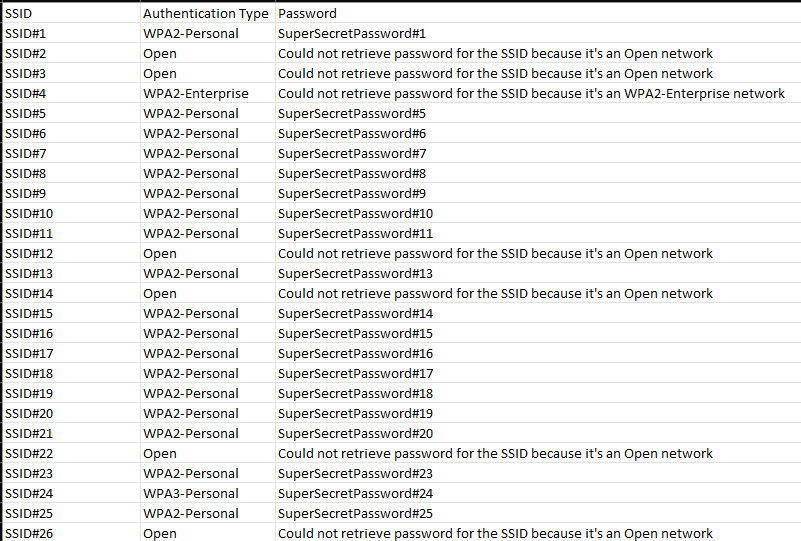
First, get a list of all WiFi profiles with this command: netsh wlan show profiles. Note the profile names. Then, for each profile, run: netsh wlan show profile name="ProfileName" key=clear and look for the ‘Key Content’ line. To automate this, create a new script file: paste the following code into Notepad and save it as BackupWiFi.ps1.
Here’s the script: $profiles = netsh wlan show profiles | Select-String 'All User Profile' | ForEach-Object { $_ -replace '.*:s+', '' }; $output = @(); foreach ($profile in $profiles) { $details = netsh wlan show profile name="$profile" key=clear; $password = ($details | Select-String 'Key Content' | ForEach-Object { $_ -replace '.*:s+', '' }); $output += [PSCustomObject]@{ Profile = $profile; Password = $password } }; $output | Export-Csv -Path 'WiFiBackup.csv' -NoTypeInformation. Run the script in PowerShell. It will create a CSV file with all your saved networks and passwords. For an alternative method using a batch file, see our wifi password recovery command batch file guide.
Step 2: Backup WiFi Passwords on Mac Using Keychain
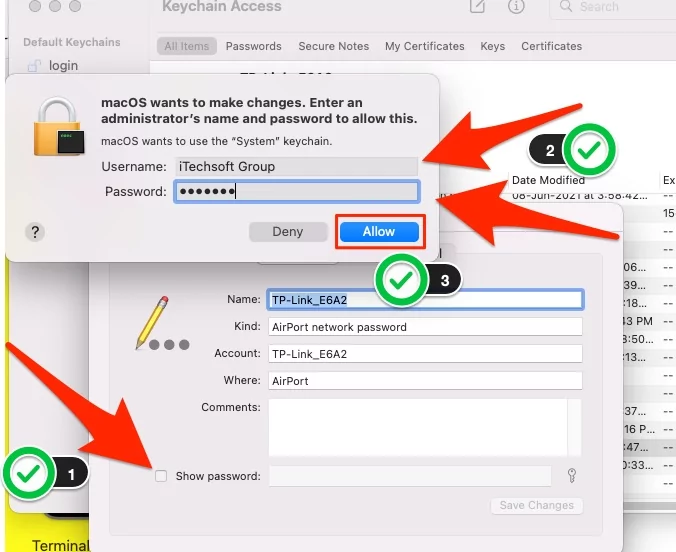
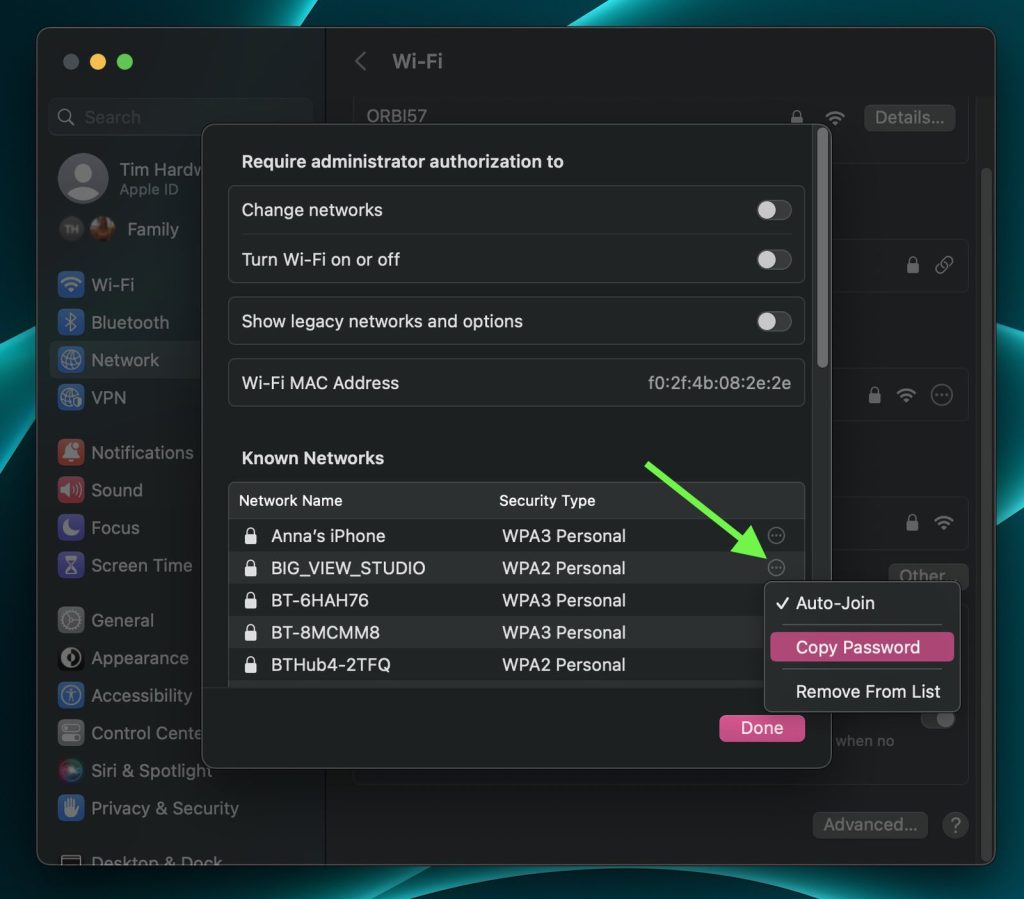
On a Mac, all your saved WiFi passwords live in the Keychain. You can export them via Terminal using the security command. Open Terminal from Applications > Utilities. To list all saved WiFi networks, type: security find-generic-password -wa 'Wi-Fi' -s 'YourNetworkSSID' but that’s manual. Instead, use a one-liner to dump everything: security dump-keychain -d ~/Library/Keychains/login.keychain-db | grep -A 1 'ssid'. This prints SSIDs and passwords. For a more complete backup, follow our wifi password recovery for mac users guide.
To automate, create a shell script. Open TextEdit, paste: #!/bin/bash. Save as
for ssid in $(networksetup -listallhardwareports | awk '/AirPort|Wi-Fi/{getline; print $NF}' | xargs -I {} networksetup -getairportnetwork {} | awk -F': ' '{print $2}'); do password=$(security find-generic-password -wa "$ssid" 2>/dev/null); echo "SSID: $ssid, Password: $password"; donebackup_wifi.sh. Make it executable with chmod +x backup_wifi.sh and run it in Terminal: ./backup_wifi.sh > wifi_backup.txt. This will output all SSIDs and passwords to a text file. For manual recovery methods, our home wifi password recovery guide covers alternative approaches.
Step 3: Automate the Backup with Task Scheduler (Windows)
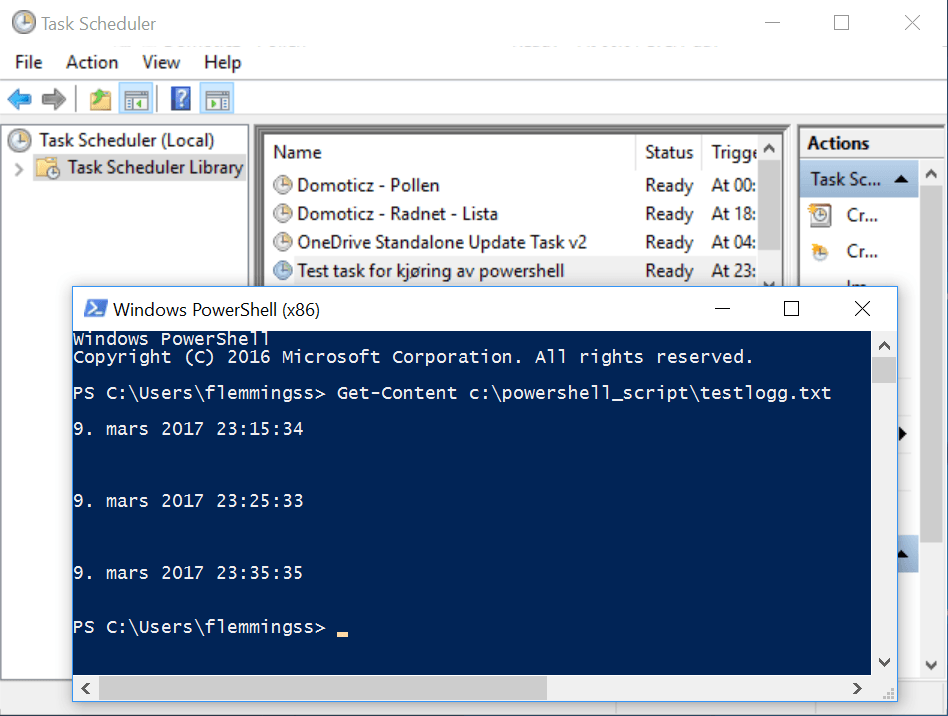
Now that you have a script, let’s make it run automatically every week. Open Task Scheduler from Start Menu. Click ‘Create Basic Task’, name it ‘WiFi Backup’, choose ‘Daily’ or ‘Weekly’. Set the trigger—I recommend weekly. For the action, select ‘Start a program’, browse to powershell.exe, and in the arguments field enter: -ExecutionPolicy Bypass -File "C:pathtoBackupWiFi.ps1". Finish the wizard. Now your WiFi passwords will be backed up automatically. For more advanced registry-based recovery, check our find saved wifi password from registry guide.
Step 4: Automate the Backup on Mac Using launchd
On Mac, launchd is the built-in scheduler. Create a plist file: ~/Library/LaunchAgents/com.backup.wifi.plist. Open it with TextEdit and paste:
Label
com.backup.wifi
ProgramArguments
/bin/bash
/Users/you/backup_wifi.sh
StartInterval
604800
RunAtLoad
. Save, then in Terminal run: launchctl load ~/Library/LaunchAgents/com.backup.wifi.plist. Your WiFi passwords will now back up weekly. For a complete laptop recovery approach, see our wifi password recovery from laptop guide.
Common Pitfalls
- Running PowerShell without administrator rights: netsh wlan commands require admin. If you get errors, right-click PowerShell and choose ‘Run as administrator’.
- SSID with special characters: If your network name has spaces or quotes, the netsh command may fail. Wrap the SSID in quotes in the script. On Mac, similarly escape spaces in the shell script.
- Keychain access on Mac: Terminal may prompt for your login password multiple times. To avoid, add your script to the Keychain access list or run it while logged in. Also ensure you’re not using the iCloud keychain sync.
Where to Next
You now have an automated backup of all your WiFi passwords. Store the backup file somewhere safe—like an encrypted cloud folder or offline drive. If you ever need to recover a single password quickly, you can also use manual methods. But with this automation, you’re always prepared. For more network security tips, explore our other guides on automating tech tasks. Happy (hassle-free) connecting!



