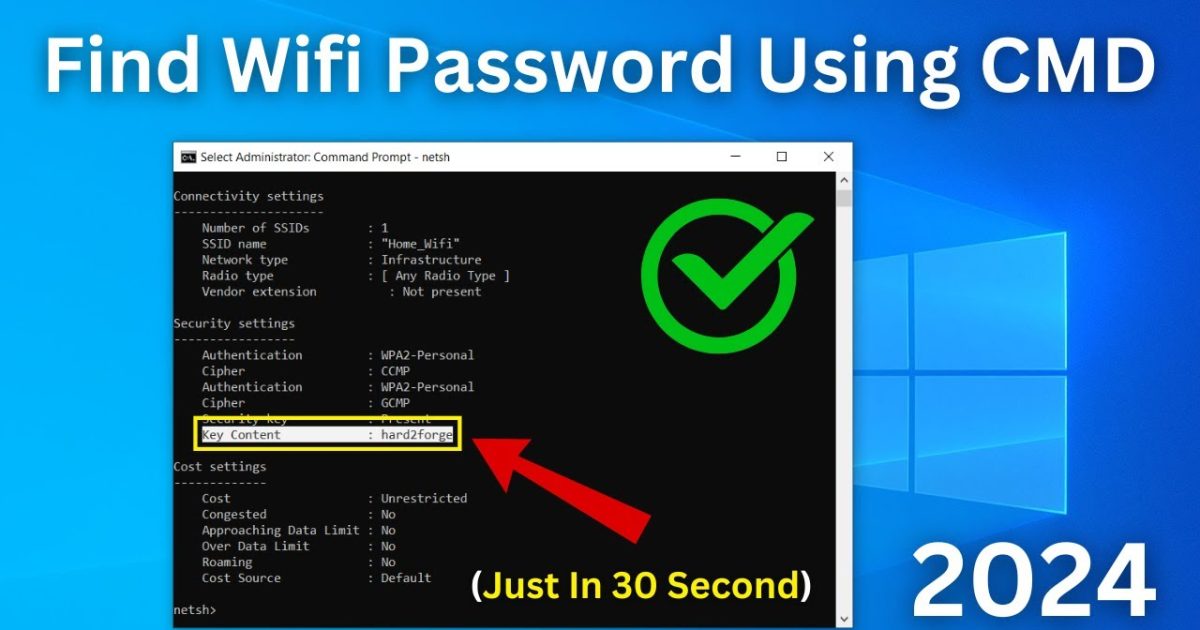
Ever needed to get back a forgotten WiFi password but didn’t want to dig through your router settings? If you’re on Windows, there’s a quick way to pull every saved password using nothing but a batch file. This guide is for anyone who’s comfortable running a script — no coding experience needed. By the end, you’ll have a handy .bat file that exports all your WiFi passwords to a text file with one double-click.
Batch files are incredibly useful for automating repetitive tasks. In this tutorial, we’ll write a script that uses the `netsh wlan` command to display saved profiles and then extract each password. You don’t need any third-party tools — everything is built right into Windows. We’ll also show you how to run it as an administrator (required) and where to find the output.
What you’ll need
- A Windows PC (Windows 7, 8, 10, or 11) with saved WiFi networks
- Administrator privileges on that PC
- Notepad (or any text editor)
- About 5 minutes of your time
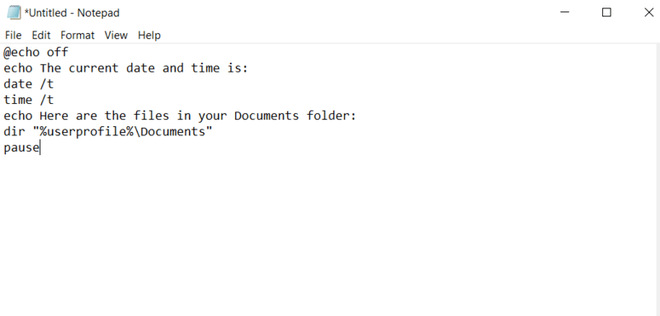
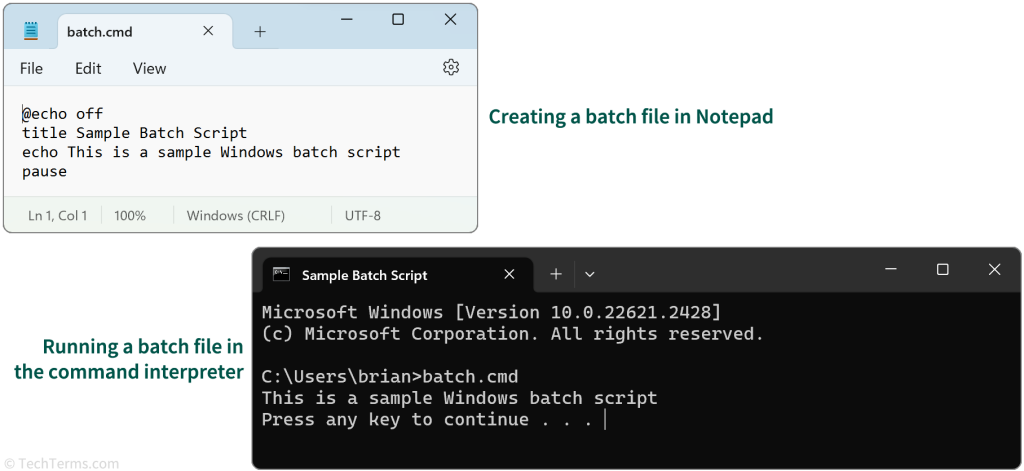
Step 1: Open Notepad and start writing the batch file
Press the Windows key, type “Notepad”, and open the app. We’ll write every command from scratch. The core command is `netsh wlan show profiles` that lists all saved Wi‑Fi networks. Later we’ll loop through them to get each password.
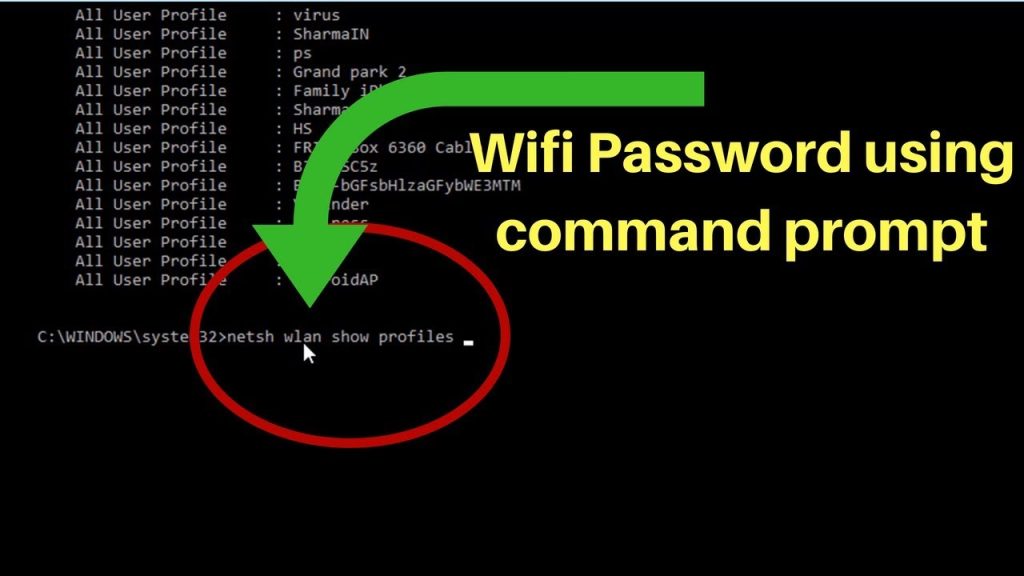
Step 2: Add the command to list all profiles
Type the following line in Notepad:
The `@echo off` keeps the output clean by not showing each command. Test this by saving the file as `wifi_recovery.bat` (make sure to change the “Save as type” to “All Files”) and run it as administrator (right‑click → Run as administrator). You’ll see all your saved WiFi profiles.

Step 3: Loop through each profile to get the password
We need to extract the password from each profile. Add these lines after the first command:
This loop parses the profile list, grabs each SSID, and runs `netsh wlan show profile name=”SSID” key=clear` to display the password (labeled “Key Content”). The `findstr` filters only the password line.
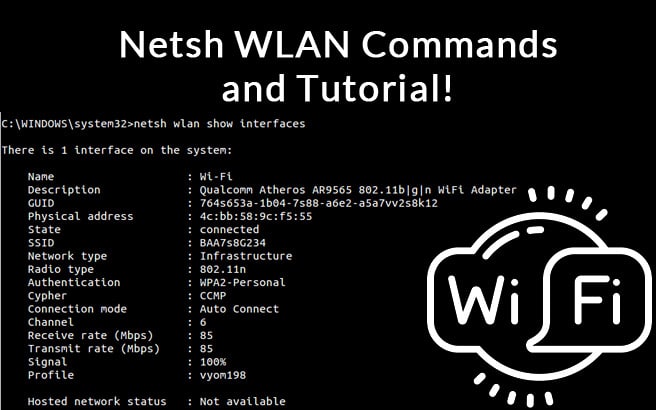
Step 4: Save the file and run as administrator
Go to File → Save As, name it `RevealMyWiFi.bat`, choose Desktop, set the type to “All Files (*.*)”, and save. To use it, right‑click the file and select “Run as administrator” — otherwise you’ll get an error because `netsh` needs elevated permissions.
Step 5: Redirect output to a text file (optional)
If you’d rather save the passwords to a file instead of watching the console scroll by, add `> WiFiPasswords.txt` after your loop. Modify the final line to:
Now when you run the batch file, a file called `WiFiPasswords.txt` will appear on the Desktop containing all SSIDs and their passwords.
Common pitfalls
- **Not running as administrator** — The most common mistake. Without admin rights, `netsh` returns “Access denied.” Always right‑click the .bat and choose “Run as administrator.”
- **Spaces in SSID names** — Some WiFi names contain spaces. Our loop trims the leading space with `%%ssid:~1%%`, but if your SSID has trailing spaces, you may need to adjust. A quick fix: manually wrap the SSID in quotes inside the batch file call.
- **Antivirus blocking the batch file** — Some security software flags batch files that extract passwords. That’s normal — it’s just being cautious. You can temporarily disable real‑time protection, but only do so if you trust your own script.
Batch files are a powerful way to automate network recovery tasks. With this script, you save time every time you need to retrieve a WiFi password.
WiFi Password Recovery Blog
Where to next
Now that you’ve built your own recovery tool, you might want to explore more advanced methods. Check out our dedicated wifi password recovery utility for a GUI version, or learn wifi password recovery via powershell if you prefer PowerShell scripting. For more options, see our guide on export wifi passwords windows to back up your credentials. And if you’re on a laptop, our tutorial on recover forgotten wifi password on laptop has you covered.



