You know the feeling: a friend comes over, pulls out their phone, and asks, “What’s the WiFi password?” And you draw a blank. It’s been years since you set it up, it’s written on a sticky note that fell off the router ages ago, or you just never memorized it. Don’t worry — this guide is for anyone who’s forgotten their home WiFi password and wants to get it back without calling their ISP or resetting the whole network. By the end, you’ll have your password in hand, ready to share or save.
We’ll cover the three most common scenarios: finding the password on a Windows PC that’s already connected, retrieving it on a Mac, and looking it up directly on your router’s admin page. Each method takes just a few minutes, requires no special tools, and works even if you’re not tech-savvy. Let’s dive in.
What You’ll Need
- A computer (Windows or Mac) that is currently connected to your home WiFi network
- Administrator access to that computer (you probably have it if it’s your personal device)
- Your router’s IP address (usually 192.168.1.1 or 192.168.0.1 — we’ll show you how to find it)
- Your router’s admin username and password (often printed on a sticker on the router itself, e.g. admin/admin or admin/password)
Step 1: Find Your WiFi Password on Windows
If you have a Windows PC that’s connected to your home WiFi, the password is stored somewhere in the system. Here’s how to pull it up quickly.
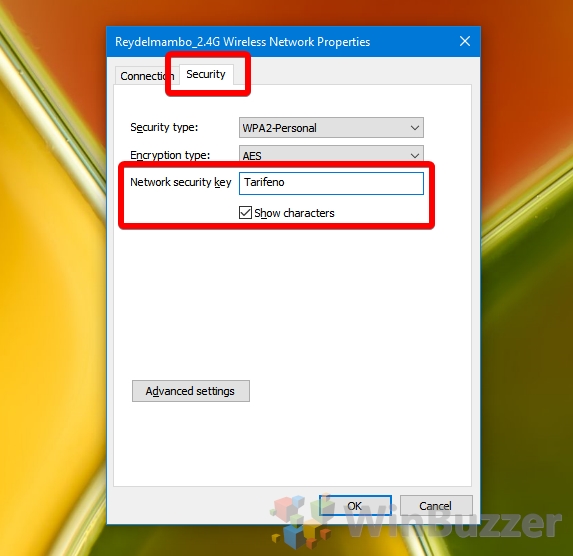
First, click the WiFi icon in the system tray (bottom-right corner). Select “Network & Internet settings” (or right-click the icon and choose “Open Network & Internet settings”). Then click “Wi-Fi” and choose “Manage known networks.” Find your network name (SSID) in the list, click on it, and select “Properties.” Scroll down to the “Network profile” section and check the box next to “Show character” — your password will appear in the “Network security key” field.
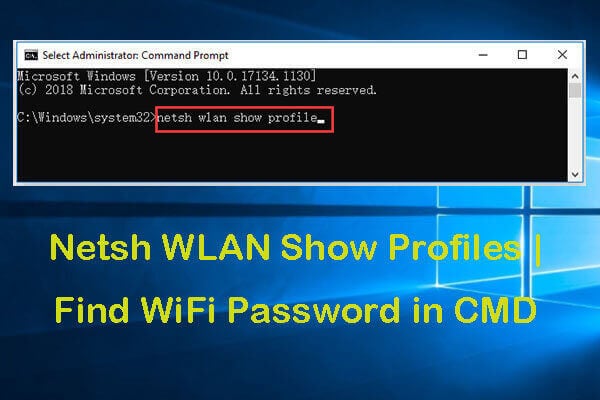
Alternatively, you can use a quick command-line method. Open Command Prompt as Administrator (press Windows key, type “cmd”, right-click and select “Run as administrator”). Type netsh wlan show profile and press Enter to see all saved networks. Then type netsh wlan show profile name="YourNetworkName" key=clear (replace “YourNetworkName” with your actual SSID). Look for the line “Key Content” — that’s your password. This is essentially the same technique as wifi password recovery via powershell, but we’re using CMD here for simplicity.
Step 2: Find Your WiFi Password on a Mac
If you’re on a Mac that’s connected to the network, the password is stored in your Keychain. Open the “Keychain Access” app (you can find it via Spotlight or in the Utilities folder under Applications). In the search bar, type your WiFi network name. Double-click the entry that appears under “System” or “login”. Check the box “Show password” — you may need to enter your Mac’s administrator username and password. The WiFi password will then be displayed in the “Show password” field.

This method works on all recent versions of macOS. For a more detailed walkthrough, check out our guide on wifi password recovery for mac users that covers extra scenarios like after a macOS update.

Step 3: Find Your WiFi Password from the Router
If you don’t have a connected computer handy — or you just want the password straight from the source — you can log into your router’s admin panel. First, you need your router’s IP address. On Windows, open Command Prompt and type ipconfig, then look for “Default Gateway” under your active network adapter. On Mac, go to System Settings > Network > Wi-Fi > Advanced > TCP/IP and look for “Router.” Common values are 192.168.1.1 or 192.168.0.1.
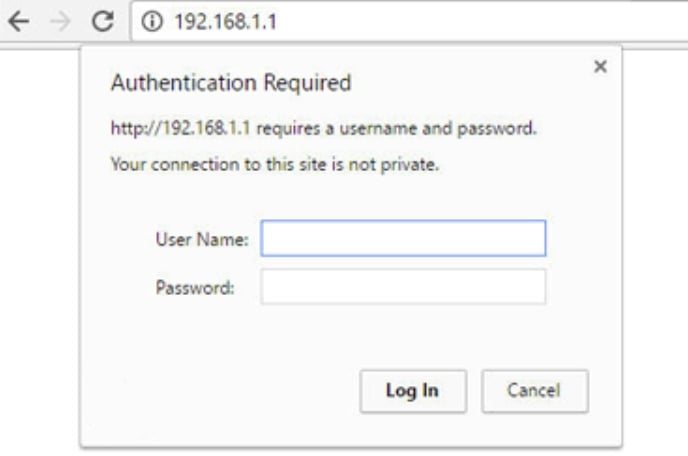
Open a web browser and type that IP address into the address bar. You’ll see a login page. Enter your router’s admin username and password (check the sticker on the router). Once logged in, look for a section like “Wireless” or “Wi-Fi Settings.” There you’ll find the network name (SSID) and password (sometimes called “Passphrase” or “Pre-Shared Key”). Some routers hide the password behind a “Show” button. Write it down or take a photo.
This is the most reliable method because it never changes unless you manually change it. For more details, see our article on how to recover forgotten wifi password from router. If your router is a Netgear, we have a dedicated guide for wifi password recovery for netgear routers.
Common Pitfalls
- Wrong router IP: If you can’t access the router admin page, double-check the IP. Try both 192.168.1.1 and 192.168.0.1. Your ISP might use a different one like 10.0.0.1. Use the ipconfig or network settings method to be sure.
- Forgotten router admin password: If you never changed the default, it’s often printed on the router. If you changed it and forgot, you’ll need to do a factory reset (hold the reset button for 10 seconds) — this wipes all settings, so only as a last resort.
- Mac Keychain not showing password: Make sure you’re looking in the correct keychain (usually “login”) and that the entry isn’t corrupted. Try restarting Keychain Access or your Mac.
Where to Next
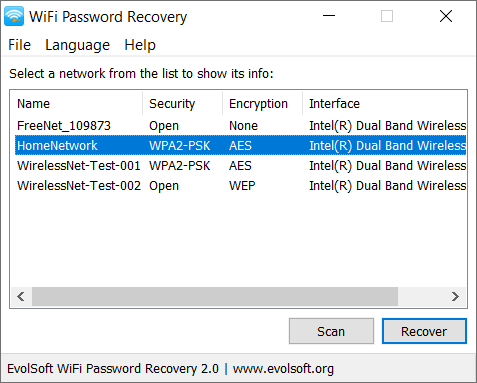
Now that you’ve recovered your WiFi password, you might want to write it down somewhere safe (password manager, anyone?). If you’re still having trouble, consider using easy wifi password recovery software for a more automated approach. Also, learn how to share your WiFi with guests without typing the password by using a QR code — check out our guide on how to recover wifi password from qr code to generate one. And if you ever need to troubleshoot connectivity issues, wifi password recovery with ip address can help you access your router settings again.
Remember, your home network’s security is important. Once you have the password, consider updating it if you think it’s been shared too widely. Stay connected!



