Ever been in that awkward spot where you need to share your WiFi password with a friend, but you have no idea what it is? Or maybe you just want to reconnect an old device without digging through your router settings. If you’re a Mac user, you’re in luck: every WiFi network you’ve ever connected to has its password stored safely in your Mac’s Keychain Access. In this guide, I’ll show you exactly how to dig that password out in just a few clicks.
By the end of this tutorial, you’ll be able to pull up any saved WiFi password from your Mac. No command-line wizardry required—just a couple of app window hops and your admin credentials. Let’s get that password back.
What You’ll Need
- A Mac running macOS (any recent version)
- Admin username and password for that Mac
- The exact name (SSID) of the WiFi network you want the password for
Step 1: Open Keychain Access
Keychain Access is the built-in password manager on Mac. To open it, click the Spotlight magnifying glass in the top-right corner of your screen (or press Cmd + Space), type “Keychain Access”, and hit Enter. Alternatively, you can find it in Applications > Utilities.

Step 2: Search for Your Network
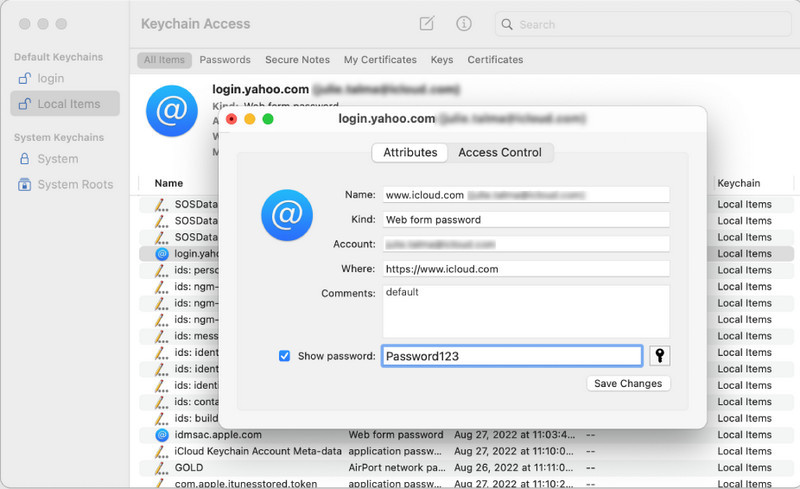
Once Keychain Access is open, look for the search bar in the top-right corner of the window. Type in the name of the WiFi network (SSID) whose password you want to recover. As you type, you’ll see a list of matching entries appear below.
Step 3: Find the Right Entry
Look through the results for an entry whose “Kind” column says “AirPort network password”. The name should match your network’s SSID exactly. Double-click that entry to open its details.

Step 4: Show the Password
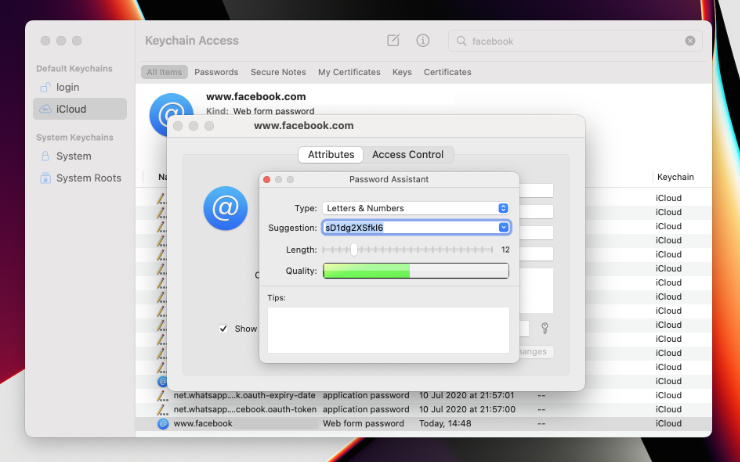
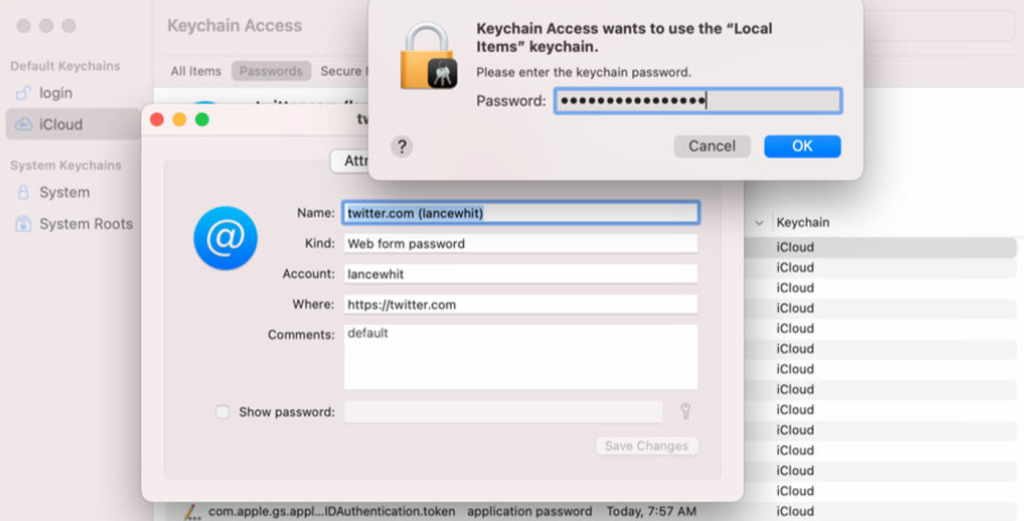
A new window will pop up showing information about that network. Check the box next to “Show password” at the bottom of the window. A dialog box will appear asking for your Mac’s admin username and password. Enter them and click “Allow” or “OK”. (This is a security measure—only an admin can see stored passwords.)
Step 5: Copy or Share the Password
After you authenticate, the password will appear in the field next to “Show password”. You can now copy it, write it down, or share it with your friend. To copy, highlight the text and press Cmd+C, or right-click and choose “Copy”. Close the Keychain Access window when you’re done.
Common Pitfalls
- Network not appearing: Make sure you’ve actually connected to the network before. Also double-check the exact SSID spelling—some routers broadcast hidden networks that may have a different name in Keychain.
- Forgot your admin password: Without the admin password, you can’t reveal stored passwords. If you’ve forgotten it, try resetting it via Apple ID or Recovery Mode.
- Looking in the wrong keychain: By default, WiFi passwords are stored in the “System” keychain. If you’ve moved things around, check the “iCloud” or “Local Items” keychain as well.
Where to Next?
Now that you’ve mastered the Keychain method, you might want to explore other ways to manage passwords on your Mac. For a more advanced approach, you can use the Terminal command `security find-generic-password -ga “NETWORK_NAME” | grep “password:”` to extract the password directly. Also, iOS and Mac both support sharing WiFi passwords via AirDrop—if the other person is in your contacts, just bring your devices close and tap “Share” when the prompt appears. Happy surfing!
Your Mac saves WiFi passwords in the Keychain, a built-in password management system. It’s like a digital safe for all your network credentials.
Apple Support