Ever needed to connect a new device to your WiFi but couldn’t remember the password? Or maybe you just reformatted your PC and want to pull the password from an old backup. Whatever the reason, WiFi password recovery apps can seem like magic—but they can also be risky if you don’t know what you’re doing. This guide is for anyone who wants to recover WiFi passwords on Android or Windows 10 using a dedicated app without compromising security. By the end, you’ll know exactly which apps are safe, how to use them step by step, and what red flags to avoid.
We’ll focus on free WiFi password recovery methods that actually work, and I’ll show you how to steer clear of malware-ridden apps. Whether you’re a tech newbie or a seasoned user looking for a refresher, these steps will help you get your password back safely.
What You’ll Need
- A device that has previously connected to the WiFi network (Android phone, Windows laptop, etc.)
- A reputable WiFi password recovery app (I’ll tell you which ones are safe)
- Administrator access on Windows or USB debugging enabled on Android (if needed)
- A stable internet connection to download the app
Step 1: Choose a Reputable WiFi Password Recovery App
Not all apps are created equal. Stick to official app stores like Google Play or the Microsoft Store. Look for apps with high ratings, many downloads, and recent updates. Avoid apps that ask for unnecessary permissions like SMS or camera. For Android, good options include “WiFi Password Viewer” or “WiFi Key Recovery.” On Windows, the built-in method is safer than any third-party app, but if you want an app, try “WirelessKeyView” from NirSoft (just note it’s a standalone exe, not a store app).

Step 2: Install and Open the App
Once you’ve chosen an app, download and install it. When you open it for the first time, it will likely request permissions. On Android, recovering saved WiFi passwords usually requires location permission (due to Android’s security model) or root access. If the app asks for root, make sure you trust it. For non-root methods, many apps can still show saved passwords without root—just grant the location permission. On Windows, the app may request administrator privileges.

Step 3: Scan for Saved Networks
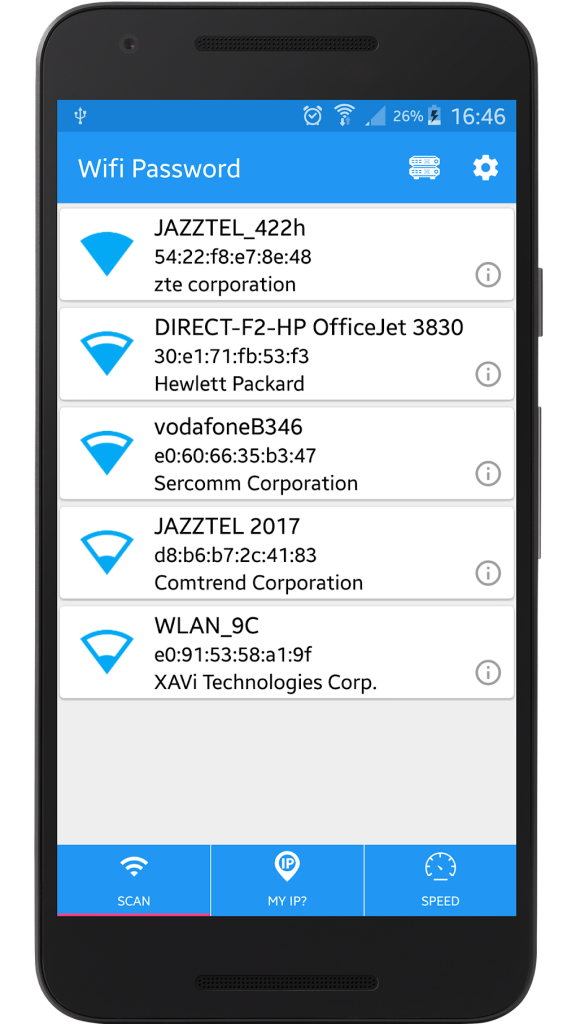
After granting permissions, the app will scan your device for saved WiFi networks. This usually happens automatically. You’ll see a list of all networks your device has ever connected to, along with their passwords (often masked with asterisks). The app will decode these and display them in plain text. On Windows, tools like WirelessKeyView show all saved profiles at once.
Step 4: View the Password for Your Network
Find the network you need in the list. Tap or click on it to reveal the password. Most apps will show it immediately. On Android, you might need to tap a “show” icon. On Windows, the password column will display the key. Write it down or copy it to a secure location. If you’re on Android and the app doesn’t show the password due to Android restrictions, you may need a non-root method—check out our guide to recover WiFi passwords without root for alternative techniques.
Step 5: Copy or Save the Password Securely
Once you have the password, do not leave it visible on your screen. Copy it to your clipboard or type it directly into the new device. If you need to store it, use a password manager rather than a sticky note. Some apps offer a “copy” button. After you’re done, consider uninstalling the app to minimize risk. If you regularly forget passwords, you might want to back them up in a safe place—we have a guide on how to recover passwords after a system crash that could come in handy.

Step 6: Review App Permissions and Uninstall (Optional)
For security, review what permissions the app has after use. On Android, go to Settings > Apps > [App Name] > Permissions and revoke any that seem excessive. Better yet, uninstall the app once you have your password. If you think you might need it again, you can always reinstall later. Keeping a recovery app installed constantly is like leaving your house key under the mat—convenient but risky. For comprehensive alternatives, check our complete WiFi password recovery solutions that include built-in OS methods.

Common Pitfalls
- Downloading from unverified sources: Stick to official app stores. Third-party APKs or cracked versions often contain malware that can steal your passwords and personal data.
- Granting too many permissions: If a WiFi app asks for access to your contacts, camera, or SMS, that’s a huge red flag. It has no legitimate reason to need those. Deny and uninstall immediately.
- Assuming the app will work without root on Android: Many recovery apps require root access to read saved WiFi passwords. Non-root methods work but may be limited. Our guide to recover WiFi passwords on Android can help you find the right approach.
Where to Next
Now that you’ve safely recovered your WiFi password, you might want to explore other methods. If you’re on Windows, our guide to recover WiFi passwords on Windows 10 shows how to do it without any third-party software. For Android users, we have a dedicated tutorial to recover WiFi passwords on Android that covers both rooted and non-rooted devices. And if you prefer offline or built-in tools, our free WiFi password recovery methods article lists even more options. Stay safe and never get locked out again!



