
So you’ve got a new device or a friend wants to hop on your WiFi, but you can’t remember the password. Don’t worry — your MacBook has it saved. This guide is for anyone who’s already connected to a WiFi network on their Mac and needs to retrieve the password. By the end, you’ll have the password in plain text, ready to share or save.
We’ll use the built-in Keychain Access app — no third-party tools required. It’s safe, fast, and works on all recent versions of macOS. Let’s get that password back.
What you’ll need
- A MacBook that is currently connected (or has previously connected) to the WiFi network.
- Your Mac’s login password (admin privileges).
Step 1: Open Keychain Access
First, head to your Applications folder, then open the Utilities folder. Double-click on Keychain Access. Alternatively, you can use Spotlight by pressing Cmd+Space, typing “Keychain Access,” and hitting Enter.
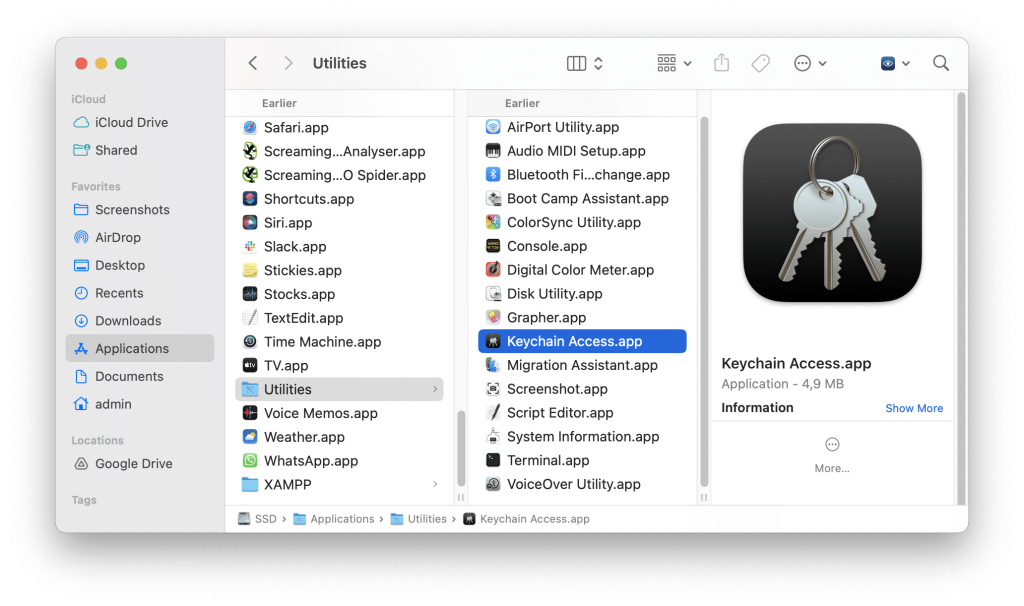
Step 2: Find Your WiFi Network
In Keychain Access, make sure you’re looking at the “login” keychain (it’s selected by default). In the search bar at the top-right, type the name (SSID) of your WiFi network. As you type, results will filter. Look for the entry that matches your network name — it should have a small lock icon.

Step 3: Show the Password
Double-click the network entry. A dialog box will open. Check the box that says “Show password.” You’ll be prompted to enter your Mac’s login username and password. Do that, then click Allow or OK. The password will now appear in the text field next to “Show password.”

Step 4: Copy or Note the Password
Once the password is visible, you can copy it to your clipboard by selecting it and pressing Cmd+C, or simply write it down. Close the dialog when you’re done. That’s it — you’ve recovered your WiFi password!

Common pitfalls
- **You don’t see the network in Keychain Access.** Make sure your Mac has connected to that network before. If it hasn’t, you won’t find it in your keychain. Try connecting to the network first (if you can guess part of the password) or check another device.
- **Your Mac login password doesn’t work.** You need to be an admin user. If you’re using a standard account, you won’t be able to view the password. Log in with an admin account or ask the admin to do it.
- **The password field remains blank even after checking “Show password.”** This can happen if the keychain is locked. Go to the Keychain menu > Lock Keychain, then unlock it again and retry.
Where to next
Now that you’ve got your WiFi password back, you might want to share it with others. Consider using QR codes or a password manager for easy sharing. If you ever run into network issues, knowing how to access Keychain Access is a handy trick. Happy surfing!



