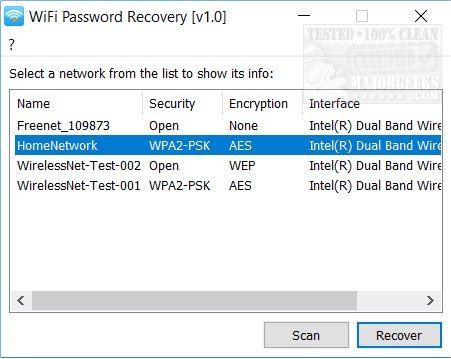
Did you just realize you can’t connect your new device to WiFi because the password slipped your mind? Don’t panic — you’re not alone, and you don’t need to reset your router and set everything up from scratch. This guide is for anyone who still has physical access to the router (or can connect to it via ethernet) but has lost the network password. By the end, you’ll have that password in hand, ready to share or save.
There are two easy ways to recover your WiFi password: checking the sticker on the router body (if you’ve never changed the default) or logging into the router’s admin interface. Both methods take just a few minutes and require no special tools. Let’s dive in.
What You’ll Need
- A computer, phone, or tablet that can connect to your network (wired or wirelessly)
- The router itself (to check its sticker or access its physical buttons)
- The default admin username and password (often printed on the router sticker — common combos: admin/admin, admin/password)
- Optional: an ethernet cable if you can’t connect wirelessly
Step 1: Connect to Your Router’s Network
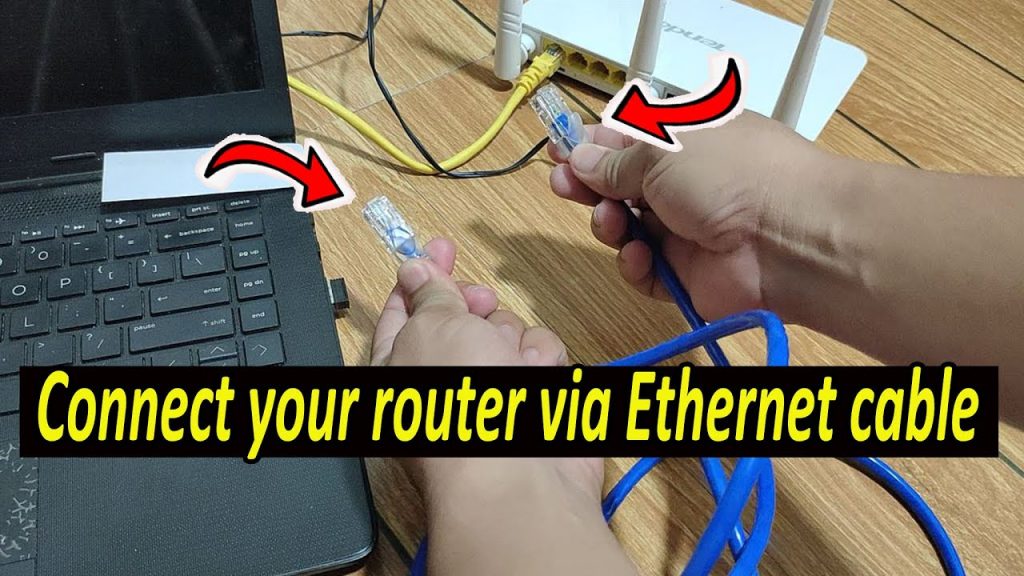
You need to be on the same network as the router to access its admin panel. If you’re already connected wirelessly, great. If not, plug your computer into one of the router’s LAN ports using an ethernet cable. This wired connection will work even if you forgot the WiFi password.
Step 2: Find Your Router’s IP Address
Most routers have an IP address like 192.168.0.1 or 192.168.1.1. To find yours, open a command prompt (Windows: press Win+R, type cmd, then enter ‘ipconfig’ and look for Default Gateway) or on Mac/Linux, open Terminal and type ‘netstat -nr’ then look for the gateway IP. That’s your router’s IP. Write it down.
Step 3: Log in to the Router’s Admin Page
Open your web browser and type the router’s IP address into the address bar. Hit Enter. You’ll see a login page. Enter the admin username and password. If you don’t know them, check the sticker on the router — it usually lists them. Common defaults are admin/admin, admin/password, or admin/1234. If those don’t work, someone changed them; skip to the Common Pitfalls section below.
Step 4: Navigate to WiFi Security Settings
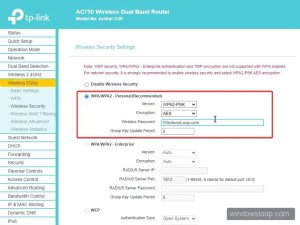
Once logged in, look for a section labeled Wireless, Wi-Fi, or Network. Inside, find Security, Wireless Security, or something similar. The exact wording varies by router brand (TP-Link, Netgear, Asus, etc.). The WiFi password is usually in a field called Passphrase, Pre-Shared Key, or Wireless Password. It may be hidden behind asterisks — look for a ‘show’ icon or toggle.
Step 5: Copy the Password
If the password is visible, just copy it. If it’s hidden, click the Show/Reveal button (often an eye icon). If there’s no reveal option, you can inspect the page: right-click on the password field, select Inspect, and look for the input element — change ‘type=”password”‘ to ‘type=”text”‘ to see the plain text. Write it down or save it in a password manager.
Step 6: Check the Router Sticker (Alternative)
If you’ve never changed the default password, you can simply look at the sticker on your router. Usually on the bottom or back, it lists the SSID (network name) and the default WiFi password. Use that to connect. Note: This only works if you stuck with the original password.

Common Pitfalls
Even though this process is straightforward, a few things can trip you up. Here’s what to watch for:
- Can’t connect to the router because you’re not on its network: If you can’t connect wirelessly (password lost) and have no ethernet cable, you’re stuck. Go to Step 6 (sticker) or buy an ethernet cable. Alternatively, use a friend’s phone that is still connected to your WiFi — tether a new device via hotspot? Not ideal.
- Default admin credentials don’t work: Someone may have changed the admin password. In that case, you’ll need to reset the router to factory defaults. Look for a tiny pinhole button labeled Reset on the router. Press it with a paperclip for 30 seconds while powered on. This erases all settings, including your WiFi password, so you’ll have to reconfigure everything afterwards — but at least you’ll be able to set a new password.
- Password is hidden and no ‘show’ button: Many routers hide the password by default. If your browser doesn’t have a reveal option, use the Inspect Element trick (right-click, Inspect, then change type=’password’ to type=’text’). If that’s too technical, try accessing the router from a different browser or device — sometimes the mobile version shows the password plainly.
- The password you see doesn’t work: You might be looking at the wrong field (e.g., the admin password instead of the WiFi password). Double-check that you’re in the Wireless Security section. Also confirm the WiFi encryption type (WPA2, WPA3, etc.) — but the password is the same regardless.
Where to Next
Now that you’ve recovered your WiFi password, consider writing it down physically and storing it near the router, or using a password manager to keep it safe. If you suspect someone else knows it, you can change the password in the same admin panel (just make sure to update all your devices). For better security, also check that your router’s firmware is up to date. Enjoy your restored internet access!