You know the struggle: a friend asks for your WiFi password, and you have to dig through old emails or squint at a sticker peeling off the router. Maybe you’re setting up a new laptop and don’t want to retype that 20-character key. Or you’re just paranoid about forgetting it. Whatever the reason, exporting your saved WiFi passwords in Windows is surprisingly simple—no third-party apps needed.
By the end of this guide, you’ll have a plain-text list of every WiFi network your Windows PC has ever connected to, complete with passwords. You can copy them, save them to a file, or share them with your devices. Let’s unlock those invisible credentials.
What You’ll Need
- A Windows PC (Windows 7, 8, 10, or 11) – all versions work the same way.
- Administrator access – you need to be able to run Command Prompt or PowerShell as admin.
- At least one saved WiFi network – if you’ve ever connected to WiFi, you’re good.
- Optional: a text editor like Notepad to save the output.
Step 1: Open Command Prompt as Administrator
First, we need to open Command Prompt with elevated privileges. This is the key to seeing passwords—normal user mode won’t cut it. Click the Start button, type “cmd” or “Command Prompt”, then right-click the result and select “Run as administrator”. If you see a User Account Control prompt, click “Yes”.

Step 2: List All Saved WiFi Profiles
Now that the black window is open, type the following command and press Enter: <code>netsh wlan show profiles</code>. This will display every WiFi network your PC has ever connected to, listed under “User Profiles”. Each profile is the network’s SSID (name).

Look for the network whose password you want. If you have many, note down the exact spelling—spaces and capital letters matter. For example, if it says “Home WiFi”, you’ll use that name exactly.
Step 3: Show a Single WiFi Password
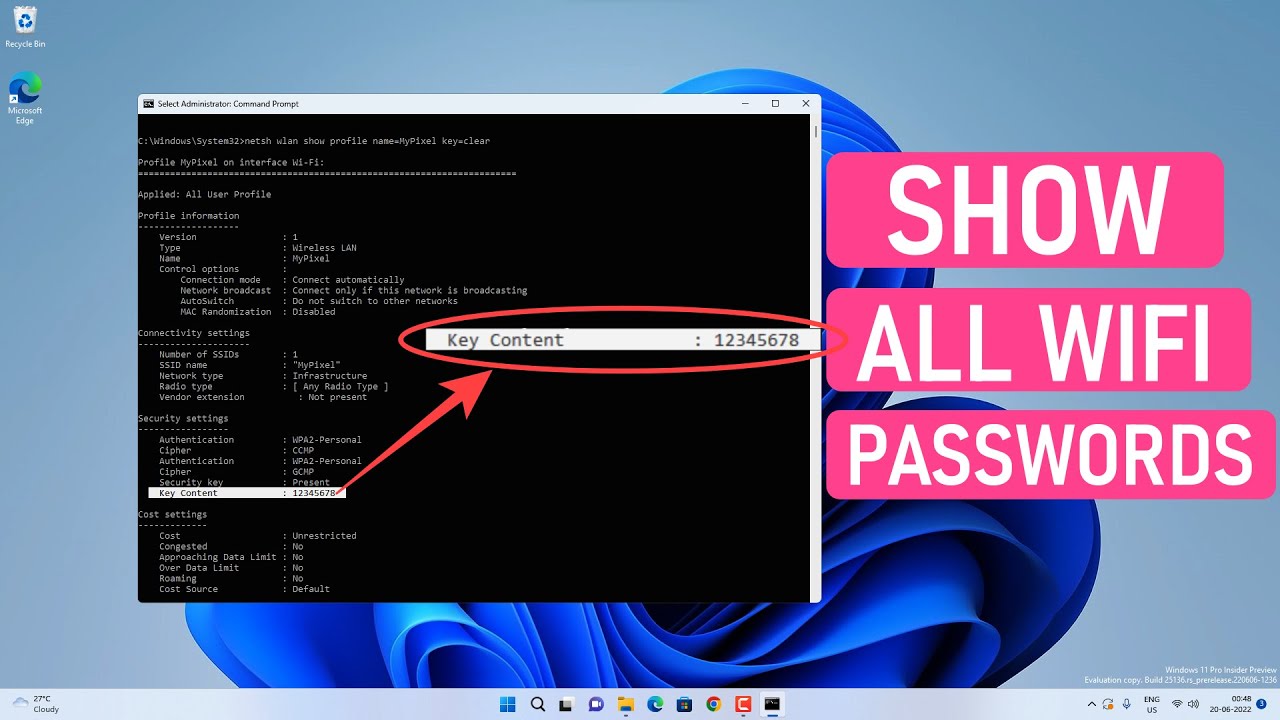
To see the password for a specific network, run this command: <code>netsh wlan show profile name=”YourNetworkName” key=clear</code>. Replace “YourNetworkName” with the actual SSID. For instance: <code>netsh wlan show profile name=”Home WiFi” key=clear</code>. Look for the “Key Content” field in the output—that’s your password in plain text.

“The key=clear parameter is the secret sauce that decrypts the stored password for you.”
Microsoft Support Documentation
Step 4: Export All Passwords at Once (Optional but Awesome)
If you have more than a couple of networks, repeating Step 3 gets old fast. Instead, we can use a one-liner in PowerShell to dump everything. But first, let’s stay in Command Prompt for a manual method: run <code>netsh wlan show profiles</code> to get the list, then for each profile, run the command from Step 3. To save the outputs to a text file, add <code> > C:WiFiPasswords.txt</code> to each command. For example: <code>netsh wlan show profile name=”Home WiFi” key=clear >> C:WiFiPasswords.txt</code>. Use <code>></code> to overwrite or <code>>></code> to append.
For a fully automated export, open PowerShell as Administrator (right-click Start > Windows PowerShell (Admin)) and paste this command: <code>(netsh wlan show profiles) | Select-String “:s(.+)$” | ForEach-Object { $name=$_.Matches.Groups[1].Value.Trim(); netsh wlan show profile name=”$name” key=clear }</code>. This will print all profiles and their passwords. You can redirect the output to a file by adding <code> | Out-File -FilePath C:AllWiFi.txt</code> at the end.

Common Pitfalls
- Not running as Administrator – If you forget to run as admin, the password field will show “Key Content : (null)” or you’ll get an access denied error. Always right-click and select “Run as administrator”.
- Profile name with spaces or special characters – If the SSID contains spaces, quotes, or symbols, you must enclose it in double quotes inside the command. For example: <code>name=”My Home Network”</code>. Missing quotes causes a “profile not found” error.
- No saved networks – If the list is empty, your PC has never connected to a WiFi network, or the wireless service might be disabled. Check your network settings or connect to a network first.
Where to Next
Now that you have your passwords in hand, you can use them to connect other devices, back them up in a password manager, or share them with family. Remember to keep the extracted file secure—anyone with access to it can join your networks. If you’re concerned about security, consider rotating your WiFi passwords regularly. Enjoy never having to ask “What’s the WiFi password again?”