We’ve all been there: a friend asks, ‘Hey, what’s the WiFi password?’ and you draw a blank because it’s been saved on your phone for years. Good news: your Android phone remembers it, and you can view it in just a few taps. This guide is for anyone with an Android phone – even if you’re not technical. By the end, you’ll know exactly how to find the password for any WiFi network your phone has connected to, no rooting required (for most devices).
Whether you want to share the password with a guest, set up another device, or just need to jot it down, I’ll walk you through the built-in methods on stock Android, Samsung’s One UI, and Xiaomi’s MIUI. I’ll also cover what to do if your phone doesn’t show the password out of the box. Let’s get those WiFi bars filled.
What You’ll Need
- An Android phone (any brand running Android 6.0 or later – most phones since 2015)
- The WiFi network currently saved on your phone (or any previously saved network)
- Optional: A QR code scanner app if your phone doesn’t have a built-in scanner

Step 1: Open WiFi Settings
Swipe down from the top of your screen to open the notification shade, then long-press the WiFi icon. That’ll take you directly to the WiFi settings menu. Alternatively, go to your phone’s Settings app, tap ‘Connections’ (Samsung) or ‘Network & Internet’ (stock Android), then ‘Wi-Fi’.

Step 2: Tap on the Saved Network
You’ll see a list of available networks and a ‘Saved networks’ option. Tap on ‘Saved networks’ (on stock Android) or look for your current network under ‘Connected’. Tap on the network name you want the password for. If you’re already connected, you might see a gear icon or ‘Manage’ next to it – tap that.

Step 3: View the Password (Stock Android / Samsung / Xiaomi)
Here’s where it gets specific to your phone model.
Stock Android (Pixel, Motorola, Nokia, etc.): After tapping the network, you’ll see a detail screen with options like ‘Share’ or a QR code icon. Tap ‘Share’ or the QR code icon. You’ll be asked to verify your identity – use your fingerprint, PIN, or pattern. Once verified, a QR code appears with the network name and password below it. If you see a QR code only, the password is embedded; you can scan it with another phone or look for a ‘Show password’ checkbox.

Samsung (One UI): Go to the network details (gear icon next to connected network). Tap the QR code icon at the bottom. You’ll need to verify with biometrics or PIN. The QR code and password will be displayed. Simple!
Xiaomi (MIUI): Tap the network name, then tap ‘Share’. You’ll see a QR code. Tap the ‘Show password’ checkbox (if available) to reveal the plain text. If you don’t see ‘Share’, long-press the network and select ‘Share’.

Step 4: If Your Phone Doesn’t Have a QR Code Option
Older Android versions (before Android 10) or some custom skins may not include the QR code/share feature. But you still have options:
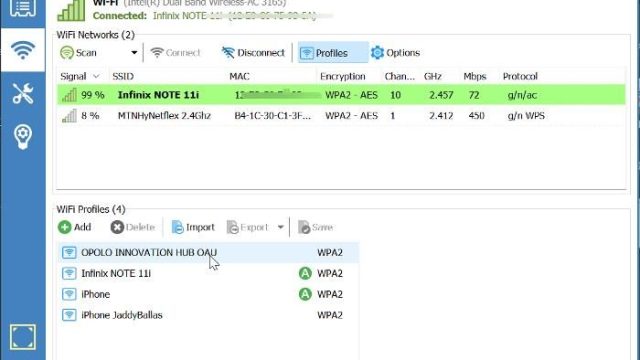
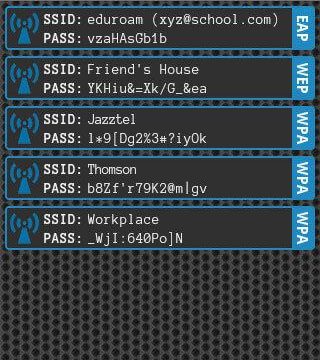
- Use a third-party app like ‘WiFi Key Recovery’ (no root needed – it uses system settings via accessibility service). Download from Play Store, grant permissions, and it’ll show saved passwords.
- If you’re tech-savvy and have root, install a file manager with root access and navigate to /data/misc/wifi/ – open wpa_supplicant.conf. The passwords are in plain text next to each network (SSID).
For a safer alternative, check out our guide on the safest WiFi password recovery method – it avoids risky apps.
Common Pitfalls
- Phone not showing the ‘Share’ or QR code option: This happens on older Android versions (pre-10) or manufacturer skins that hide the feature. Use a trusted app or check our offline WiFi password recovery solutions.
- Forgot the network and it’s no longer saved: If the network was deleted, your phone can’t show the password. You’ll need to reset the router or use a backup. Our guide on restore WiFi passwords from backup can help if you backed up before.
- App from Play Store asks for too many permissions: Stick to well-reviewed apps with minimal permissions. Many apps require accessibility access – that’s normal, but be cautious of apps that demand SMS or location for no reason.
Where to Next
Now that you’re a pro at retrieving WiFi passwords on Android, you might want to learn how to recover WiFi password after Android update, or maybe back them up regularly with our guide on offline WiFi password recovery solutions. Don’t forget to also check out how to use a free WiFi password recovery utility for safe sharing. Stay connected!