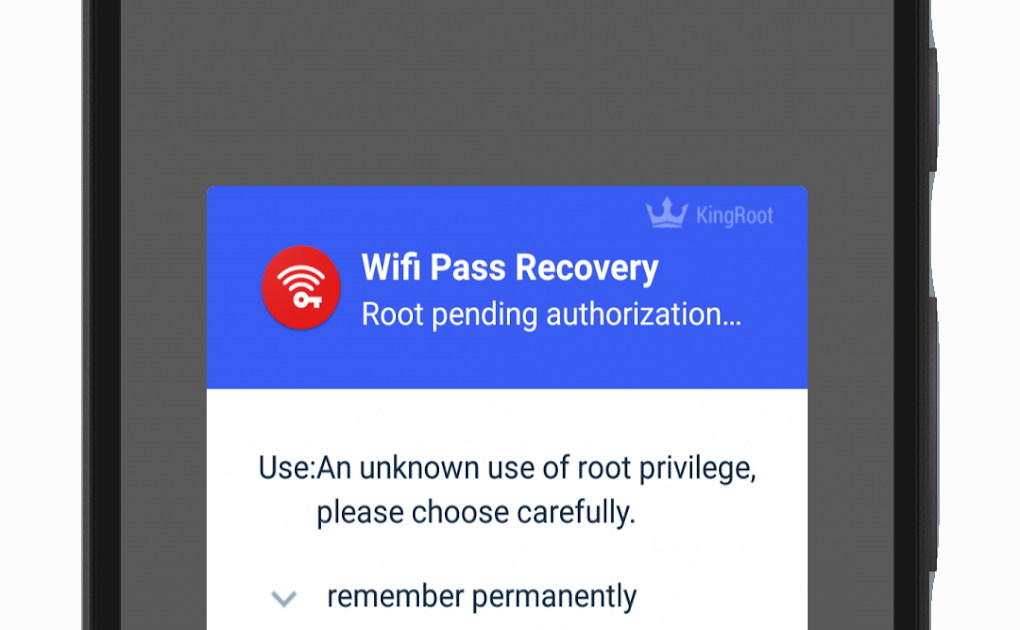
You’ve just updated your Android phone, and suddenly all your saved WiFi networks are asking for passwords again. Frustrating, right? But don’t panic—this is a common issue after major system updates, and recovering those passwords is easier than you think. This guide is for anyone who’s lost their WiFi credentials after an Android update and wants them back without resetting routers or calling ISPs. By the end, you’ll have your WiFi passwords restored, whether through built-in Android tools, Google’s password manager, or a quick app.
We’ll cover multiple methods that work on different Android versions and device brands. Some require no extra tools, while others might need a computer or a few seconds of setup. Even if you’re not tech-savvy, you’ll find a method that works. Let’s get those passwords back.
What You’ll Need
- An Android phone with the update installed
- A computer (optional, for ADB or router access)
- A QR code scanner app (most phones have one built-in)
- A USB cable (if using ADB)
- Access to your router’s web interface (as a last resort)
Step 1: Check If Your Passwords Were Actually Erased
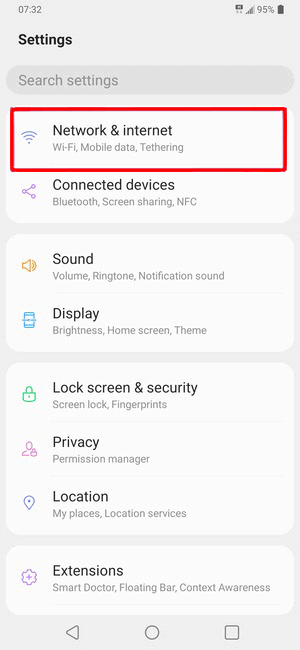
Sometimes an update doesn’t delete passwords but just hides them temporarily. Go to Settings > Network & Internet > WiFi. Tap on a saved network and see if there’s an option to ‘Forget’ or ‘View password.’ If you see the password, you’re good. If not, move to the next step.
Step 2: Use the Built-in QR Code Feature (Android 10+)
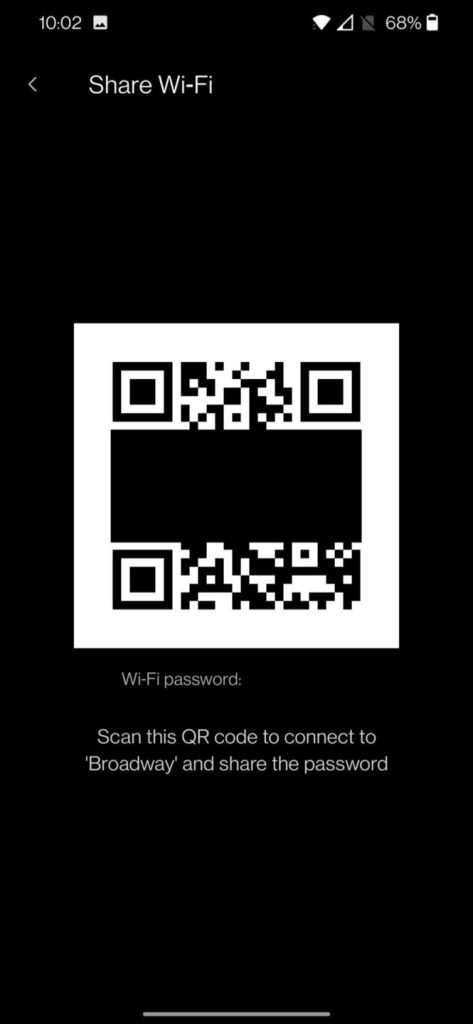
On Android 10 and newer, you can share WiFi passwords via QR code. Even if the password field is blank, try this: Go to Settings > Network & Internet > WiFi. Tap the gear icon next to the connected network (or any saved network). Look for a ‘QR code’ or ‘Share’ icon. Scan that code with another device—the password will appear below the QR. Write it down or use the code to reconnect.
Step 3: Retrieve Passwords via Google Password Manager
If you sync your WiFi passwords with Google (enabled in Settings > Google > Autofill), they might be saved in your Google account. Go to passwords.google.com on any device, sign in, and look under ‘WiFi networks.’ If they’re there, you can copy the password directly. Note that this only works if you had sync turned on before the update.
Step 4: Use a Third-Party App (With or Without Root)
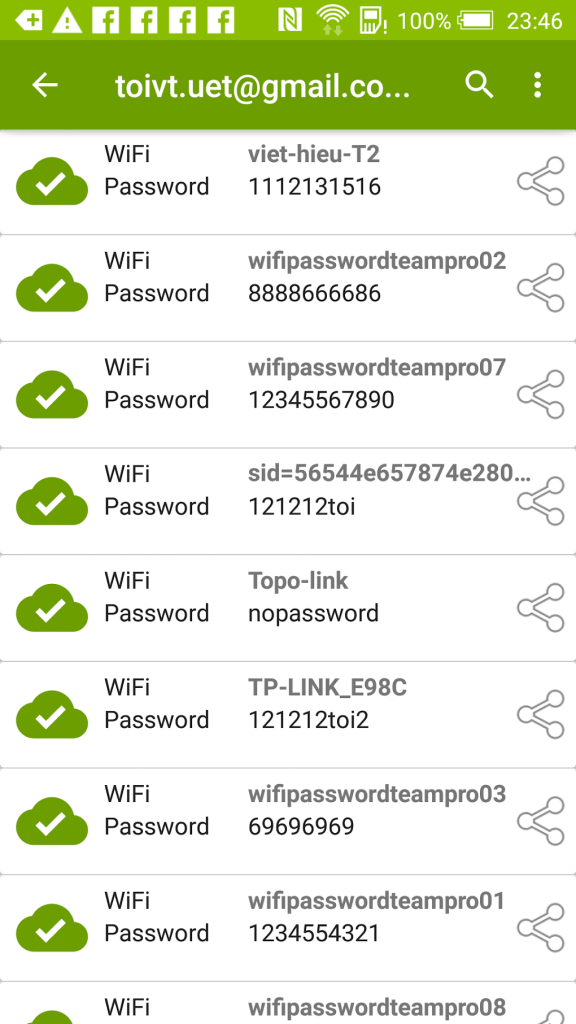
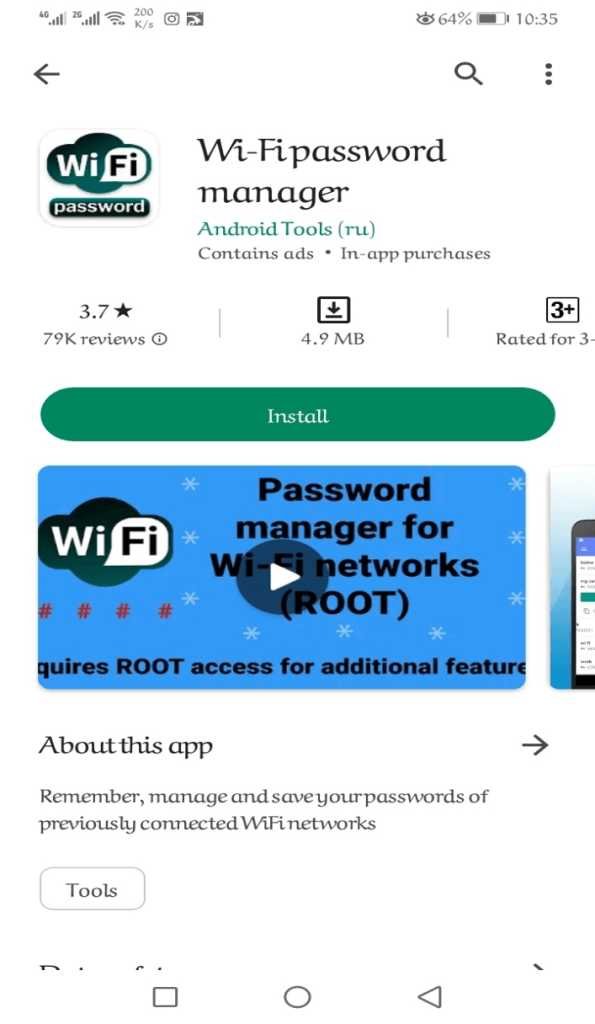
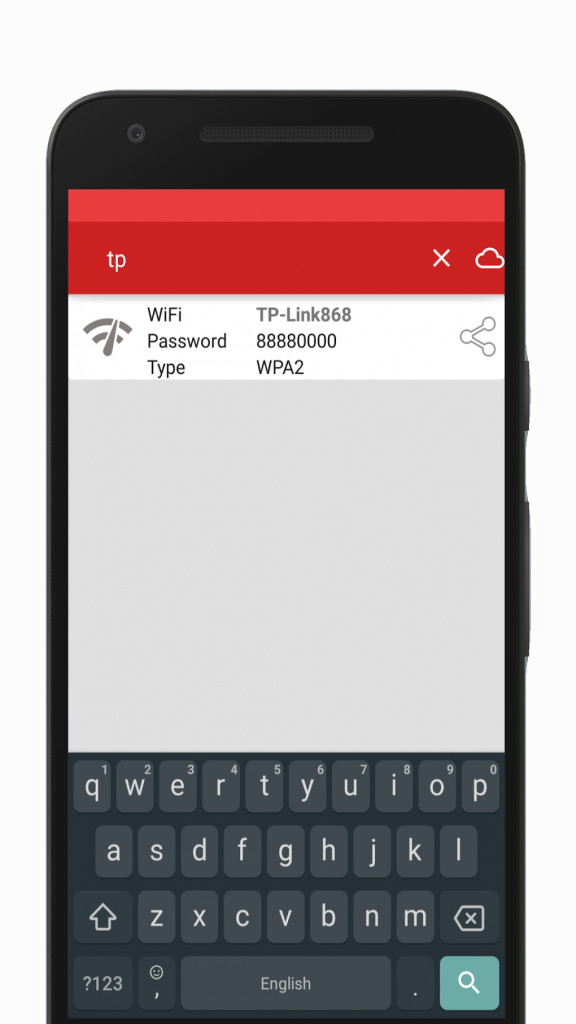
For most Android phones, you can install a WiFi password recovery app from the Play Store. Apps like WiFi Key Recovery, WiFi Password Viewer, or the popular secure wifi password recovery tools work without root if your phone runs Android 9 or earlier. For newer versions, you may need root or use ADB. If root sounds scary, consider the best wifi password recovery software that uses ADB without root. One example is the wifi password recovery app for xiaomi, which works on many brands. Simply install the app, grant necessary permissions, and it scans your saved networks.
Step 5: Recover via Router’s Web Interface (Last Resort)
If all else fails, log into your router. Connect to the router via Ethernet or (if you can) use the default admin credentials printed on the sticker. Once logged in, look for ‘Wireless Settings’ or ‘WiFi’ section. The current password is displayed there. This method requires you to have access to the router, but it’s foolproof. For detailed steps, check out our guide on wifi password recovery on access point.
Common Pitfalls
- QR code option missing on older Android versions: If your phone is Android 9 or below, skip step 2 and try the app method or Google Password Manager.
- Root required on Android 10+: Many recovery apps won’t work on newer Android without root or ADB. Use the ADB approach or router login instead.
- Google sync wasn’t enabled: If you didn’t sync passwords before the update, Google Password Manager won’t have them. Focus on the app or router methods.
Where to Next
Now that you’ve recovered your WiFi passwords, take a moment to back them up. Consider using a password manager to avoid this hassle in the future. For more recovery tips, check out our tutorials on recovering passwords from other devices or explore the wifi password recovery premium options for extra features. Stay connected!



