Ever needed to connect a new device to your phone’s hotspot but realized you forgot the password? Don’t worry—it happens to the best of us. Whether you’re setting up a friend’s laptop or just can’t recall that random string you typed months ago, there’s a good chance you can recover the hotspot password from a device that already knows it. This guide walks you through the most common methods for recovering a hotspot WiFi password from Windows, macOS, Android, iPhone, and even the hotspot’s admin panel. By the end, you’ll have that password in hand without resetting or calling your carrier.
We’ll keep things casual and step-by-step. No fancy jargon—just practical solutions that work. If you’ve ever used the recover forgotten wifi password using cmd trick on Windows, you’re already halfway there. Let’s dive in.
What You’ll Need
- A device that was previously connected to the hotspot (e.g., Windows laptop, Mac, Android phone, iPhone).
- The hotspot device itself (usually a smartphone or a dedicated mobile hotspot router) or admin access to it.
- Optional: Router admin credentials if the hotspot is a standalone device (often printed on a sticker).
Step 1: Recover from Windows (Network Settings or Command Line)
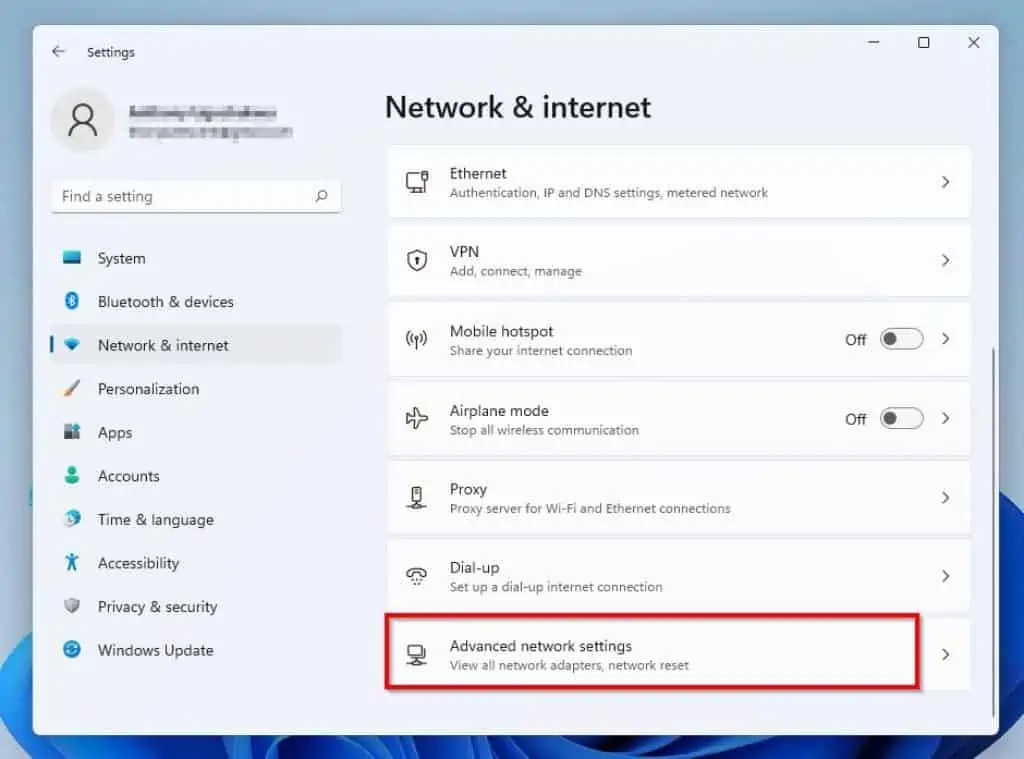
Windows keeps a copy of every WiFi password you’ve ever connected to, including hotspots. Start by clicking the WiFi icon in your system tray, then select ‘Network & Internet settings.’ Go to ‘Status’ and click ‘Network and Sharing Center.’ In the left pane, click ‘Manage known networks,’ find your hotspot, and click its name. Then click ‘Wireless Properties,’ go to the ‘Security’ tab, and check ‘Show characters.’ Ta-da! If that doesn’t work, an even faster way is the command line: open Command Prompt as Administrator, type netsh wlan show profile name="HotspotName" key=clear (replace HotspotName with your hotspot’s SSID). Look for the ‘Key Content’ line—that’s your password. For more details, see our guide on show wifi password windows.
Step 2: Recover from macOS (Keychain Access)
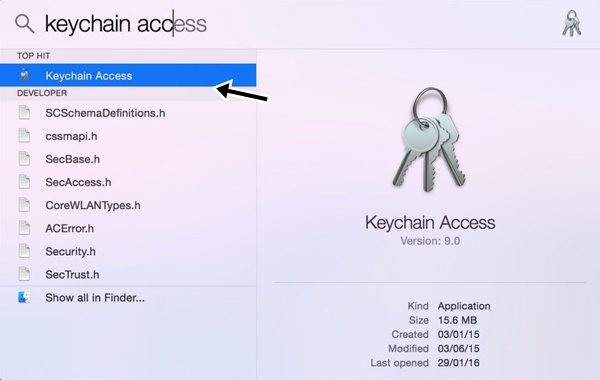
On a Mac, open the Finder and go to ‘Applications’ > ‘Utilities’ > ‘Keychain Access.’ In the search bar, type your hotspot’s name. Double-click the entry (it should look like a WiFi network icon). A window will pop up—check the box that says ‘Show password.’ You’ll need your Mac’s admin password (the one you use to log in) to reveal it. That’s it! For a deeper dive, check out how to restore wifi passwords mac from Keychain.
Step 3: Recover from Android (Depends on Version)
Android makes it easy if you’re running version 10 or later. Go to ‘Settings’ > ‘Network & internet’ > ‘Internet.’ Tap the gear icon next to your hotspot network. A QR code will appear with the password underneath. If you don’t see it, tap ‘Share’—you may need to authenticate with your fingerprint or PIN. Older Android versions (9 or below) don’t show passwords natively, but you can root your phone or use a third-party app. Alternatively, if the hotspot is your phone, just check the hotspot settings on the device itself. For more specifics, see our guide on wifi password recovery using terminal (for rooted devices).
Step 4: Recover from iPhone or iPad (iCloud Keychain)
If you have an iPhone that has connected to the hotspot before (and iCloud Keychain is enabled), the password is automatically saved across your Apple devices. On your iPhone, go to ‘Settings’ > ‘WiFi’ and tap the ‘i’ icon next to the hotspot network (if it’s still in range). You’ll see the password field, but it’s usually hidden. To reveal it, you may need to use a Mac or check iCloud Keychain on a Mac as described in Step 2. If the hotspot is your iPhone, go to ‘Settings’ > ‘Personal Hotspot’ and the password is displayed in plain text. That’s the simplest method if you own the hotspot device.
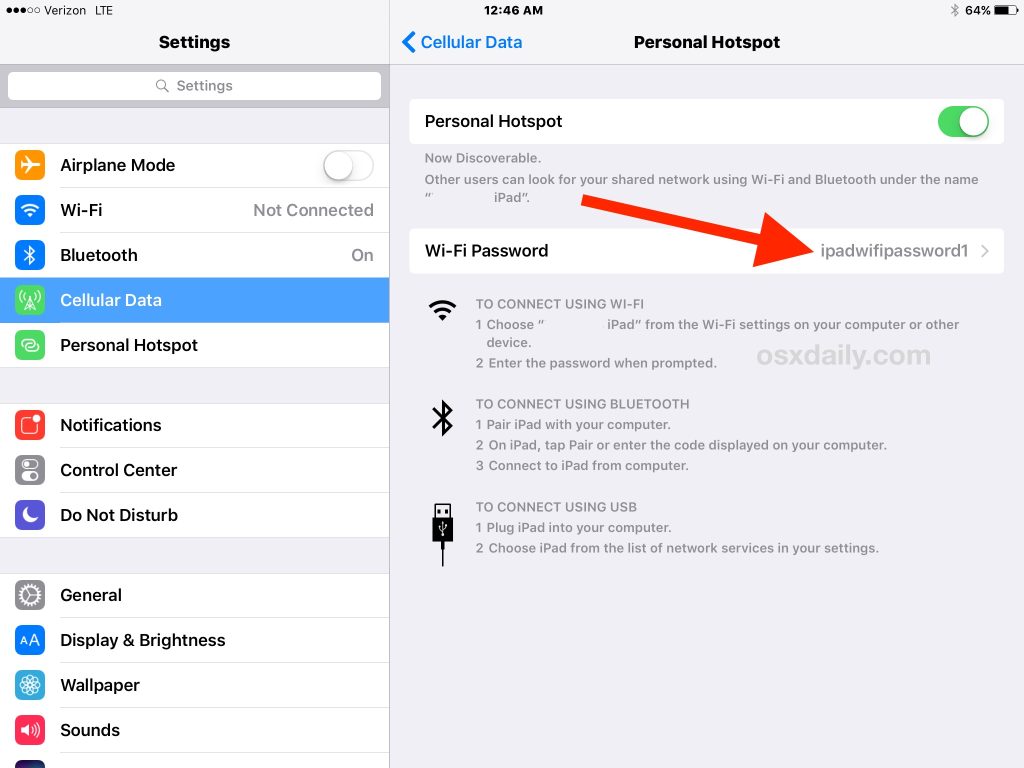
Step 5: Recover from the Hotspot Device (Router or Mobile Hotspot)
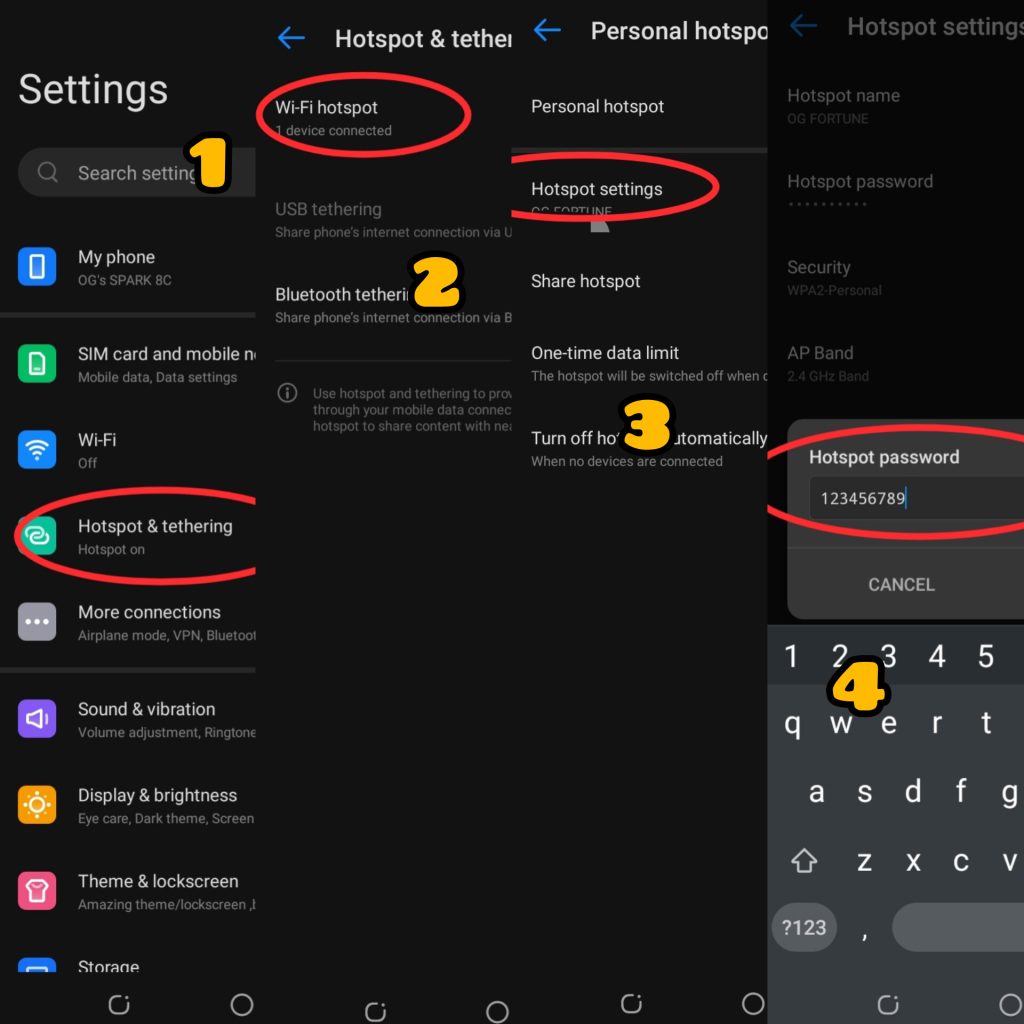
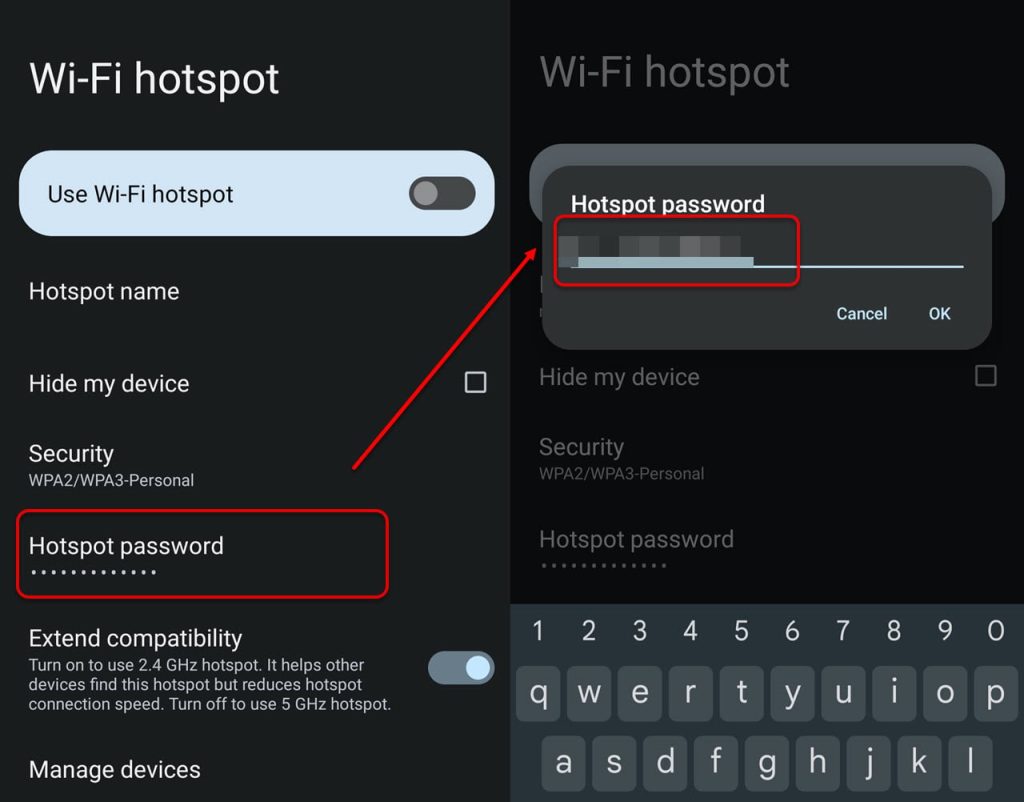
If you can’t find the password on any connected device, the next best thing is to access the hotspot’s admin panel. For a mobile hotspot (like a MiFi or a phone), open the device’s settings app or connect to its management interface via a web browser (common IPs: 192.168.1.1 or 192.168.0.1). Look under ‘WiFi Settings’ or ‘Security.’ For a phone acting as a hotspot, go to ‘Settings’ > ‘Hotspot & Tethering.’ The password is usually right there. For a dedicated mobile hotspot router, log in with the admin password (often printed on the device or in the manual). If you have a Huawei or Netgear hotspot, our guides on recover wifi password from huawei router and recover wifi password from netgear router can help.
Common Pitfalls
- You don’t have any device that was previously connected. Without a saved profile, you’ll need to reset the hotspot (if it’s yours) or ask the owner.
- The hotspot name is hidden or you don’t remember the exact SSID. Try checking your device’s list of known networks—it might still be there with a slightly different name.
- Android version differences: On older Android versions (pre-10), the password is hidden in settings. You may need to use a QR code scanner app or, if rooted, use wifi password recovery powershell tutorial-style commands via ADB. Alternatively, use the wifi password recovery online method—but only if you have admin access to the hotspot.
Where to Next?
You’ve recovered your hotspot password—great! Now you might want to jot it down or save it in a password manager. If you run into issues with other types of networks, check out our guides on wifi password recovery using terminal for macOS and Linux, or the wifi password recovery powershell tutorial for Windows automation. Stay connected!



