So you just updated your Mac to the latest macOS—Sonoma, Ventura, whatever—and suddenly you can’t connect to your WiFi. Or maybe you’ve got a new device that needs the password, but you’ve long forgotten it because your Mac always saved it. Don’t worry, this happens more often than you’d think. The good news is macOS keeps a little vault called Keychain Access where all your saved passwords live, including WiFi networks. By the end of this guide, you’ll be back online in under 2 minutes.
This tutorial is for anyone who has a Mac with a recent macOS update and needs to recover a WiFi password that was previously saved. You don’t need to be a tech wizard—just follow the steps and you’ll be good. No third‑party tools, no shady downloads. Just good old Keychain Access.
What You’ll Need
- Your Mac (obviously)
- The admin username and password for that Mac (the one you use to install stuff)
- The exact name of the WiFi network (SSID) you want to recover
- Patience of about 2 minutes
Step 1: Open Keychain Access

First up, we need to open the Keychain Access app. You can find it by opening Finder, going to Applications, then double‑clicking the Utilities folder, and finally opening Keychain Access. Alternatively, hit Command + Space to open Spotlight, type ‘Keychain Access’, and press Enter. Once it’s open, you’ll see a list of your keychains on the left side—usually ‘login’ and ‘System’.
Step 2: Find Your WiFi Network

In the top‑right corner of Keychain Access, there’s a search box. Click on it and type the name of your WiFi network (the SSID). As you type, the list below will filter down. You’re looking for an entry named exactly like your network, with a ‘Kind’ of ‘AirPort network password’. If you have multiple networks saved, they’ll all appear here.
Step 3: Reveal the Password
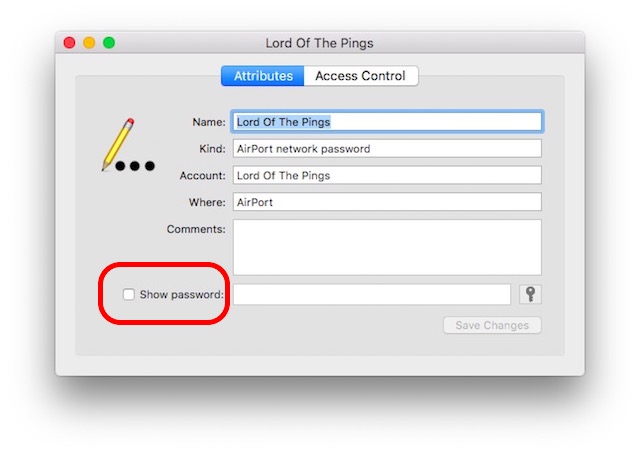
Double‑click on the network entry. A new window will pop up with details about that network. Near the bottom, you’ll see a checkbox labeled ‘Show password’. Check that box. A dialog will ask for your Mac’s admin username and password—enter those and click Allow. Once you do, the password will appear in the text field next to ‘Show password’.
Step 4: Copy the Password
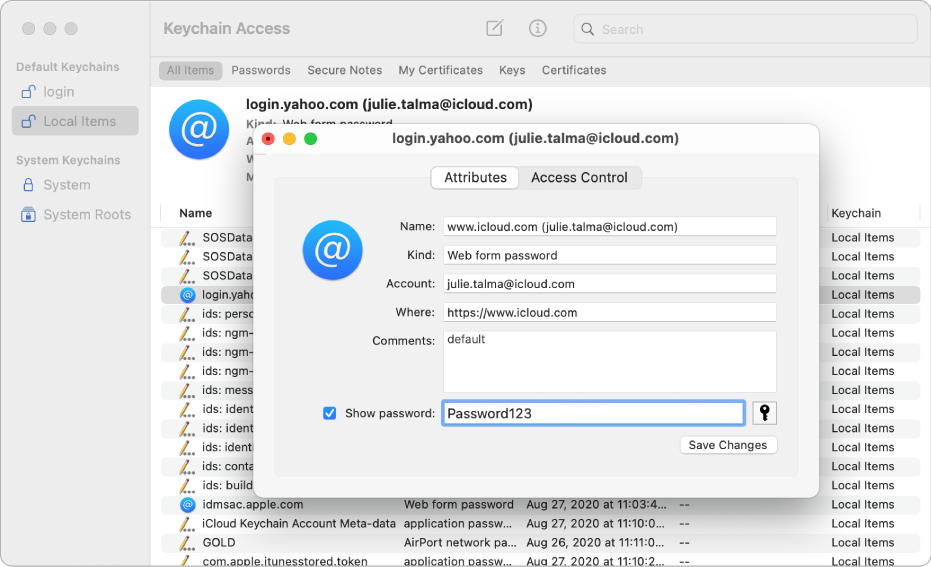
Now that you can see the password, you can copy it to your clipboard. Just highlight the password text (it’s usually a long string of characters) and press Command + C, or right‑click and select Copy. Paste it wherever you need it—like into the WiFi settings on another device. And you’re done!
Common Pitfalls
- Network not in keychain: If you don’t see your network in Keychain Access, it might have been deleted or never saved. In that case, you’ll need to reset your router or contact your ISP to get the password.
- Forgot admin password: You need the admin password for the Mac to reveal the WiFi password. If you’ve forgotten it, try using your Apple ID to reset it, or boot into Recovery Mode.
- iCloud Keychain synced but not showing: If you use iCloud Keychain, the WiFi password might be on another device. Check your iPhone or iPad under Settings > Passwords > Wi‑Fi Networks.
Where to Next
Now that you’ve recovered your WiFi password, consider saving it in a password manager like Apple’s built‑in Passwords app or a third‑party tool like 1Password. That way, next time you update macOS, you won’t have to dig through Keychain again. Also, if you ever need to share the password with a guest, you can use Apple’s built‑in QR‑code sharing feature (on iPhone or iPad). Happy surfing!