
Ever been handed a QR code to connect to Wi-Fi, but you actually need the plain-text password to share it with someone else or log in on a device that can’t scan codes? Maybe you’re setting up a new phone or a laptop and the only record is a tiny QR sticker on the router. Don’t worry – extracting the password from a Wi-Fi QR code is super easy, and you probably already have the tools on your phone. By the end of this guide, you’ll be able to grab the network name (SSID) and password from any standard Wi-Fi QR code, no extra hardware required.
This guide is for anyone who has a Wi-Fi QR code (sticker, screenshot, or printed) and wants to view the actual password. It assumes you’re comfortable using your phone’s camera or installing a free app. I’ll cover both iPhone and Android, including a few gotchas to watch out for. Let’s dive in!
What You’ll Need
- A Wi-Fi QR code (on a sticker, screen, or printed out)
- A smartphone (iPhone with iOS 11+ or any Android device)
- Optional: A free QR scanner app if your camera app doesn’t show the decoded text
- Optional: A computer with a web browser (for online QR decoders)
Step 1: Locate and Clean the QR Code
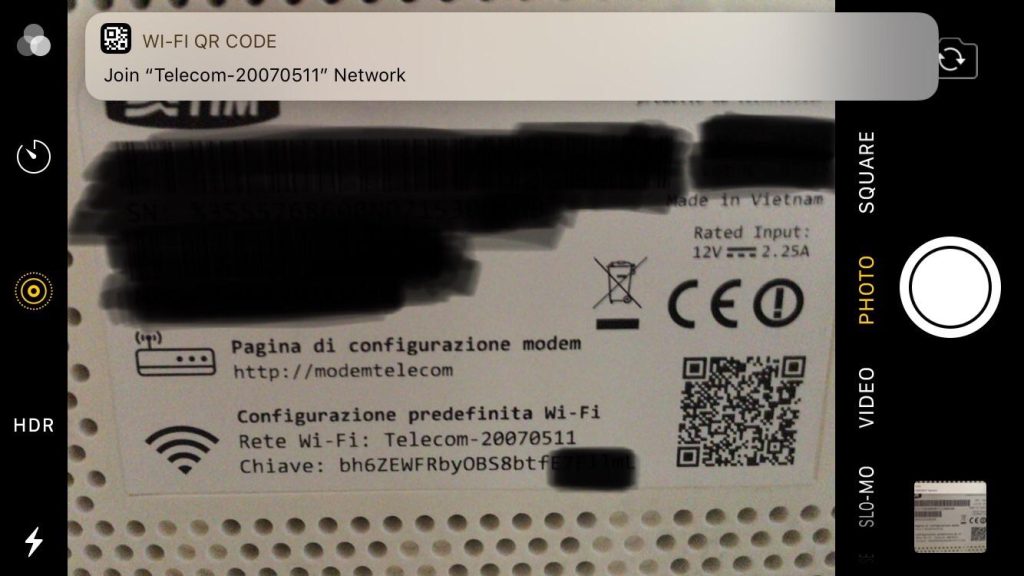
First, find the QR code. Common places: on the back or bottom of your router, on a card included in the router box, or on a friend’s phone screen. Make sure the code is clean and not scratched. If it’s a sticker, wipe off dust. If it’s on a phone screen, increase the brightness to max and clean the screen. A damaged or dirty QR code can be hard to scan.
Step 2: Scan the QR Code with Your Phone’s Camera
Most modern smartphones have a built-in QR scanner in the camera app. Open your camera and point it at the QR code. Hold the phone steady until a notification or link appears on the screen. On iPhone (iOS 11+), a “Join Network” banner will pop up. On Android (stock or Samsung), you’ll see a link or a pop-up offering to connect to the Wi-Fi. At this point, do NOT tap the notification yet. Instead, look for a way to view the raw text of the QR code. This is where it gets tricky – the camera often only lets you connect, not see the password.
Step 3: Extract the Password from the QR Code’s Raw Data
To get the actual password, you need to see the decoded text behind the QR code. Here’s how on different devices:
- iPhone: After scanning, tap the notification that says “Wi-Fi Password.” It will join the network, but that doesn’t reveal the password. Instead, use a dedicated QR scanner app (like QR Reader or QR Code Reader) that shows the decoded content. Open the app, scan the code, and it will display text like “WIFI:S:MyNetwork;T:WPA;P:SecretPass;;”. The password is after “P:” and before the first semicolon.
- Android (stock): After scanning with Google Lens or the camera, you may see a “Connect” button. Long-press on the notification or tap the “More” icon to copy the text. Alternatively, use a third-party scanner app that shows raw output.
- Samsung: Use the built-in Bixby Vision or camera. Tap the QR code icon, and it will show the network info. Look for “Password” field.
- Third-party apps: Download a free app like “QR & Barcode Scanner” (by Gamma Play). Open it, scan, and the text appears in a results screen. Copy the string manually.
Step 4: Decode the Standard Wi-Fi QR Code Format
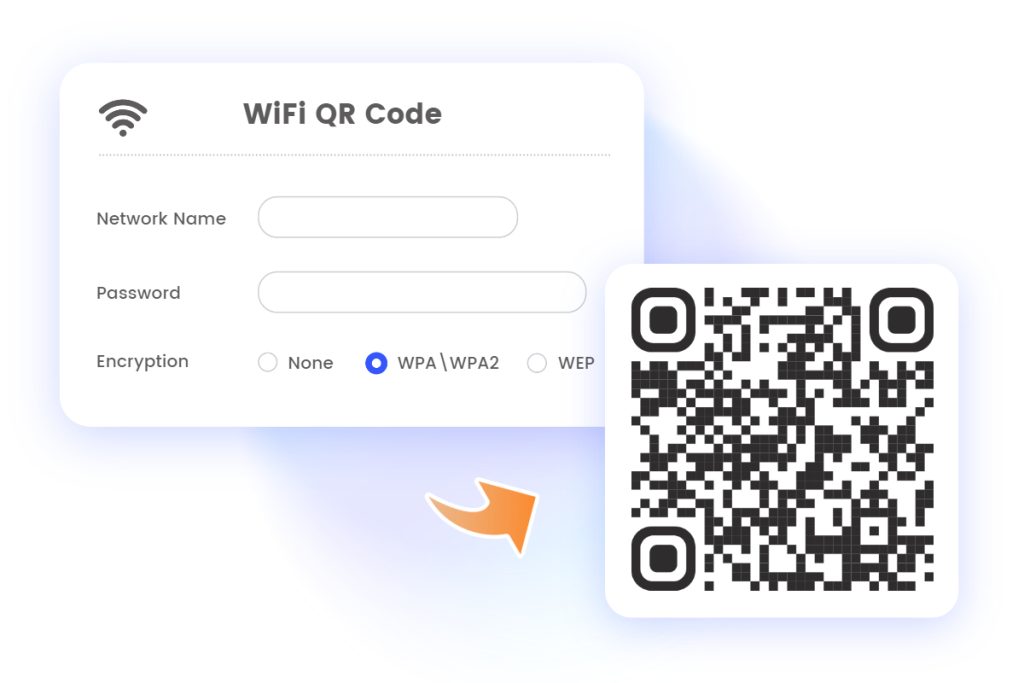
Wi-Fi QR codes follow a standard format: “WIFI:S:<SSID>;T:<encryption>;P:<password>;H:<hidden>;”. The parts after semicolons give you the info. Look carefully – the password can include special characters. Write it down exactly. If the QR code includes a semicolon or backslash in the password, it will be escaped. For most home networks, the format is simple. Example: “WIFI:S:HomeNetwork;T:WPA2;P:MyP@ssword!;” – the password is “MyP@ssword!”.
Step 5: (Alternative) Use an Online QR Decoder
If you have the QR code as an image file on your computer, you can upload it to a website like qrdecoder.org or zxing.org. Simply upload the picture, and the site will return the decoded text. Make sure to use a trusted site – avoid entering sensitive info on sketchy pages. This method works for any QR code, not just Wi-Fi ones.
Common Pitfalls
- The QR code only opens a connection dialog, not the password: The default camera app on many phones only triggers the Wi-Fi connection action. You need a scanner that shows the raw text. Use a third-party app or long-press notifications.
- The QR code is for a network that doesn’t require a password (open network): Open Wi-Fi QR codes may omit the password field. You won’t get a password because there is none. The text will look like “WIFI:S:Guest;T:nopass;;”.
- The password contains special characters that are encoded: Semicolons or backslashes in the actual password are escaped in the QR code. For example, a password “abc;” might appear as “abc;”. Take note of the backslash – it’s part of the password.
Where to Next
Now that you’ve recovered the password, you can share it easily or type it into any device. Want to create your own Wi-Fi QR code to avoid typing passwords forever? Check out our guide on How to Generate a Wi-Fi QR Code for Your Home Network. Or, if you want to make sure your network is secure, read about changing your Wi-Fi password and updating the QR sticker on your router.



