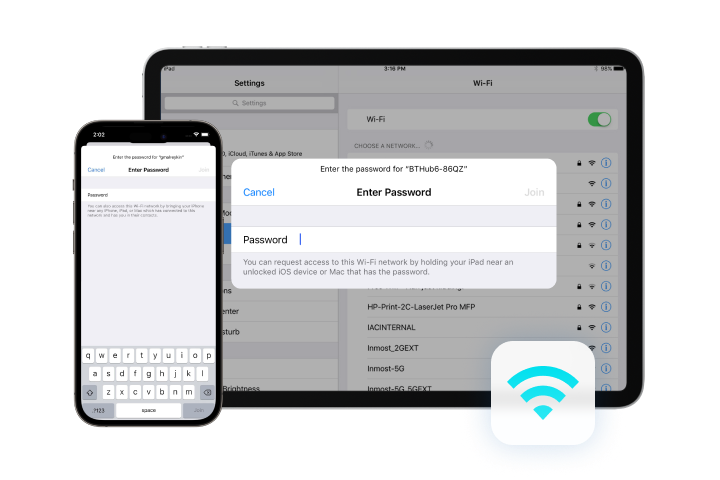
Ever needed to connect a new device to your home WiFi but couldn’t remember the password? If you’ve got an iPhone, you’re in luck. Apple’s iCloud Keychain is arguably the best WiFi password recovery tool for iPhone – it securely saves every network you join and syncs across all your Apple devices. By the end of this guide, you’ll know exactly how to retrieve any saved WiFi password directly from your iPhone, plus a few backup methods for those tricky situations where Keychain doesn’t cut it.
This tutorial is for anyone with an iPhone running iOS 12 or later. No jailbreak needed, no sketchy software. We’ll cover the built-in method (iCloud Keychain), third-party apps for non-synced networks, and even how to use your Mac to find passwords. Let’s dive in.
What You’ll Need
- An iPhone with Face ID or Touch ID (iOS 12+)
- iCloud Keychain enabled (Settings > [your name] > iCloud > Keychain)
- Optional: A Mac with the same Apple ID for backup methods
- Optional: A third-party app like WiFi Password Recovery (if the network isn’t synced)
Step 1: Enable iCloud Keychain (If Not Already On)
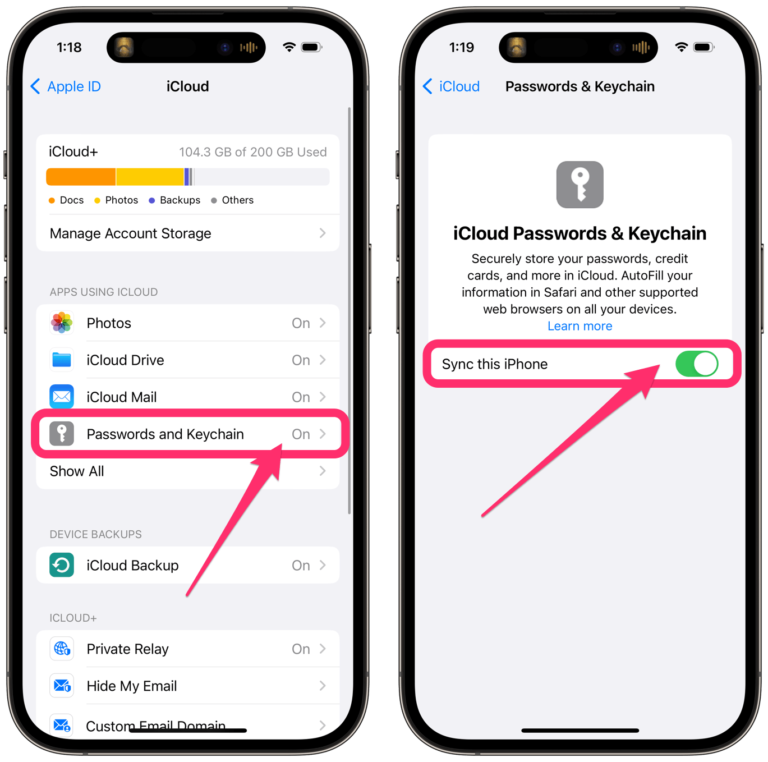
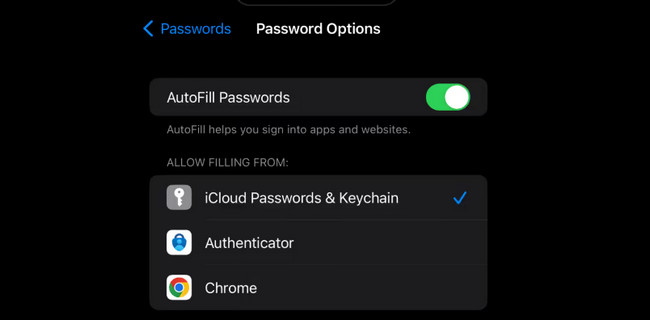
Before you can view saved passwords, make sure iCloud Keychain is turned on. Go to Settings > [your name] > iCloud > Keychain and toggle it on. This syncs your saved WiFi networks across all your Apple devices.
Step 2: Access Your Saved Passwords
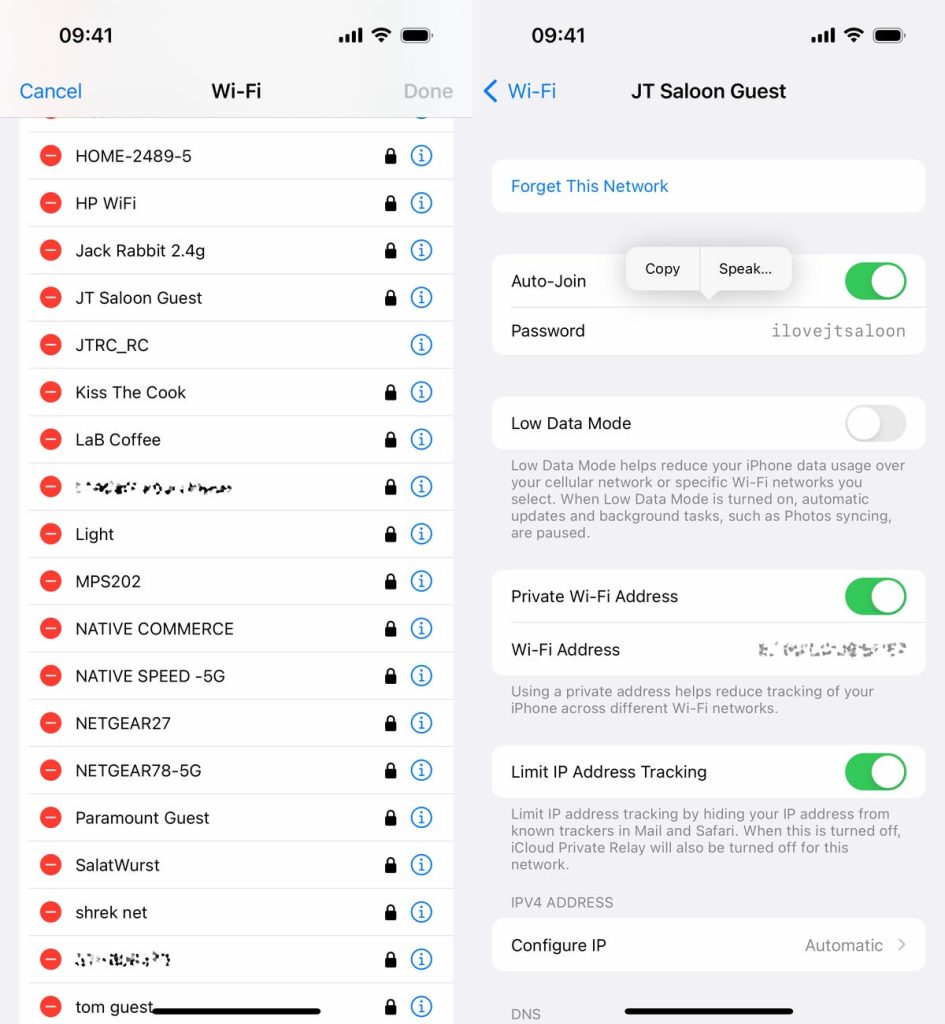
Open Settings and scroll down to Passwords. You’ll need to authenticate with Face ID, Touch ID, or your device passcode. Once inside, you’ll see a list of all saved websites and WiFi networks.
Step 3: Find and View the WiFi Password
Tap on the WiFi network’s name (the SSID). You’ll see the username (if any) and the password field hidden behind dots. Tap the password field to reveal it – you can then copy it or type it manually.
Step 4: Use a Third-Party App (For Non-Synced Networks)
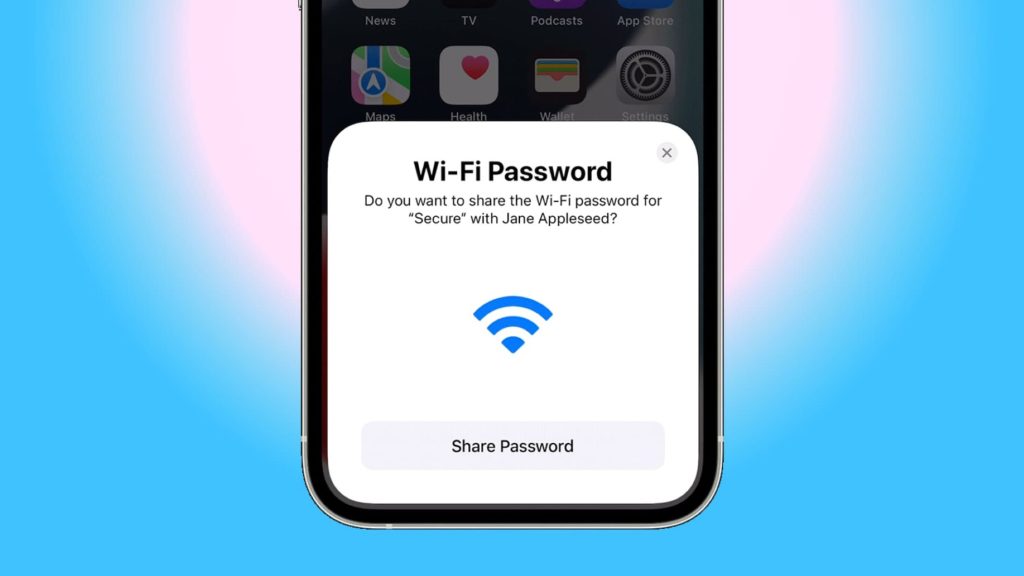
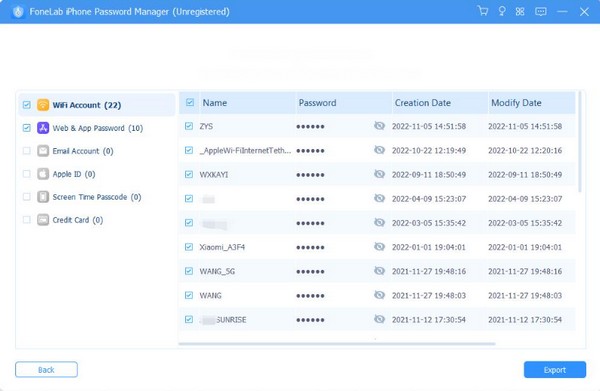
If the network doesn’t appear in your iCloud Keychain (e.g., you never synced it), you can use a reputable third-party app. Look for a best wifi password recovery app on the App Store – one that works offline and doesn’t require a computer. These apps scan the Keychain that’s stored locally on your device. We previously covered wifi password recovery for travelers which uses a similar approach.
Step 5: Retrieve Passwords via Mac Keychain (Alternative Method)
If you have a Mac with the same Apple ID, you can use the Keychain Access app to see all your saved WiFi passwords. This is especially handy after an iOS update that might have cleared local Keychain data. Learn more about wifi password recovery after ios update. To do this, open Keychain Access on your Mac, search for the network name, and double-click it. Check the box “Show password” and enter your Mac’s admin credentials.
Common Pitfalls
- iCloud Keychain not syncing: Ensure all devices are on the same Apple ID and have Keychain enabled. Sometimes toggling it off and back on helps.
- Network not appearing in Passwords: If you never saved the password on this iPhone (e.g., you typed it manually on another device), it won’t be in this list. Use the router login method instead.
- Third-party app not showing all networks: Some apps have limited access due to iOS privacy restrictions. Always use a trusted app and review permissions.
I’ve used these methods to recover dozens of forgotten WiFi passwords. iCloud Keychain is by far the most seamless tool, but having the router login method as a backup is a lifesaver.
A regular iPhone user
Where to Next
You’re now equipped to recover any WiFi password from your iPhone. If you run into a network that’s not in Keychain, check out our guide on how to recover wifi password without internet – it covers accessing the router directly. And if you ever switch to a new iPhone, know that your passwords travel with you thanks to iCloud Keychain. Happy connecting!





