So you’re running Kali Linux and you’ve lost the WiFi password to your network? Maybe it’s written on a sticky note that’s gone missing, or your roommate changed it and you never wrote it down. Don’t worry—Kali keeps a record of every network you’ve connected to, and with a few terminal commands you can pull that password out in plain text. This guide is for anyone comfortable with the Linux command line but new to network recovery on Kali. By the end, you’ll have your WiFi password back without needing to reset your router or call your ISP.
We’ll be using built-in tools like NetworkManager’s nmcli and a quick dip into the configuration files. No extra software needed. Whether you’re a security enthusiast or just a Linux user who forgot a password, these steps will work on most Kali installations (and most Debian-based distros too). Let’s dive in.
What You’ll Need
- A Kali Linux laptop (or any Debian-based Linux with NetworkManager)
- Root or sudo access (some commands require it)
- At least one WiFi network you’ve connected to previously
- Basic familiarity with the terminal
Step 1: List Saved WiFi Connections
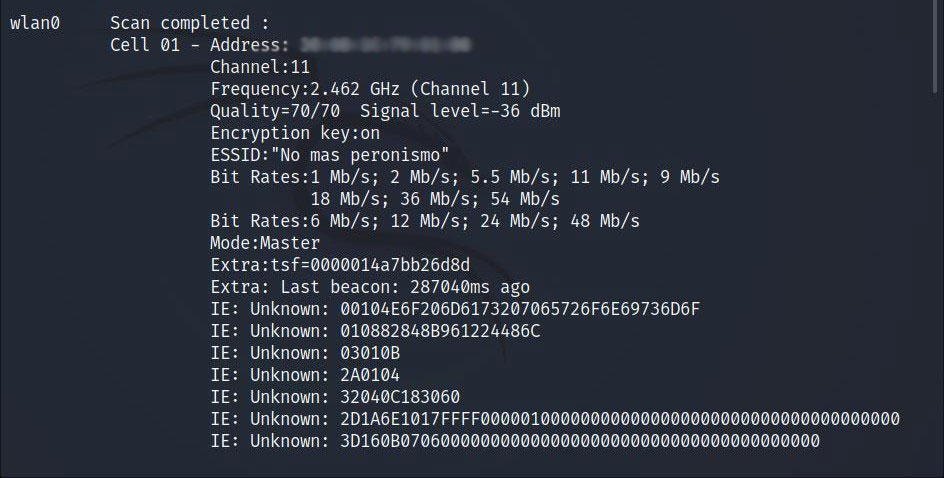
Open a terminal and run the following command to see all saved network connections. This will show you the names (SSIDs) that Kali remembers.
You’ll see a list of connections. Look for the one you need the password for. Note the exact name—it might have spaces or special characters. If you’re unsure, you can also use nmcli device wifi list to see available networks, but that’s not necessary.
Step 2: Display the Password for a Specific Network
Now grab the password using this command, replacing YourNetworkName with the actual SSID from Step 1. You’ll need to run it with sudo because the password is stored in a protected file.
If that doesn’t work (some versions of nmcli behave differently), try:
The output will show the password in plaintext next to psk:. That’s it! Write it down or copy it.

Step 3: Alternative Method – Read the Configuration File
If for some reason nmcli doesn’t show the password, you can dig directly into the configuration files. Kali (and most Linux distros) stores WiFi credentials in /etc/NetworkManager/system-connections/. Navigate there and list the files:
You’ll see one file per saved network, named after the SSID. Open the one you need with cat or sudo nano. For example:
Look for the line that starts with psk=. That’s your password. If the password is not there, the file might use an encrypted form, but on modern Kali it’s usually plaintext.

Step 4: Using grep to Extract the Password Quickly
For a one-liner that searches all connections at once, use this combination of grep and awk. It’ll print all SSIDs and their passwords:
This is handy if you have multiple networks and want to export them all. You can also save the output to a file for later:
Common Pitfalls
Here are three things that trip people up:
- Forgetting sudo. Most commands require root privileges to read the password files. If you get an empty output or a permission denied error, add
sudo. - Wrong connection name. SSIDs can have spaces. Use quotes around the name in the command (e.g.,
'My Home Network'). If you’re not sure, copy-paste the exact name from thenmcli connection showlist. - NetworkManager not managing the connection. If you connected using a tool like
wpa_supplicantdirectly, the password may not be in NetworkManager’s files. In that case, check/etc/wpa_supplicant/wpa_supplicant.confinstead.
Where to Next?
Now that you have your WiFi password back, you might want to try other recovery methods for different scenarios. If you’re on a different OS, check out our guides on how to recover WiFi password on Windows or on Mac. For home users with router access, logging into your router is another reliable option. And if you’re looking to automate the process, you can create a command line script that dumps all passwords at once. Happy hacking—or just happy remembering!





