You just got home from a long day, your phone is dead, and you need to connect your laptop to the WiFi. But that sticky note with the password is long gone. Don’t panic. This guide is for every home user who has ever stared at a login prompt and drawn a blank. By the end, you will be able to recover your WiFi password on Windows, Mac, or Android without any special software or command-line wizardry.
We focus on built-in tools and simple methods that work on the most common devices. Whether you need to retrieve the password from an existing connection or get it from a friend’s phone, these steps will have you back online in minutes. No technical degree required – just a little patience.
What you’ll need
- A device already connected to the WiFi network (Windows PC, Mac, or Android phone).
- Administrator access (for Windows) or your device login credentials.
- About 10 minutes of your time.
- Optional: a USB cable if you’re using an Android phone that doesn’t have a QR code feature.
Step 1: Recover WiFi Password on Windows
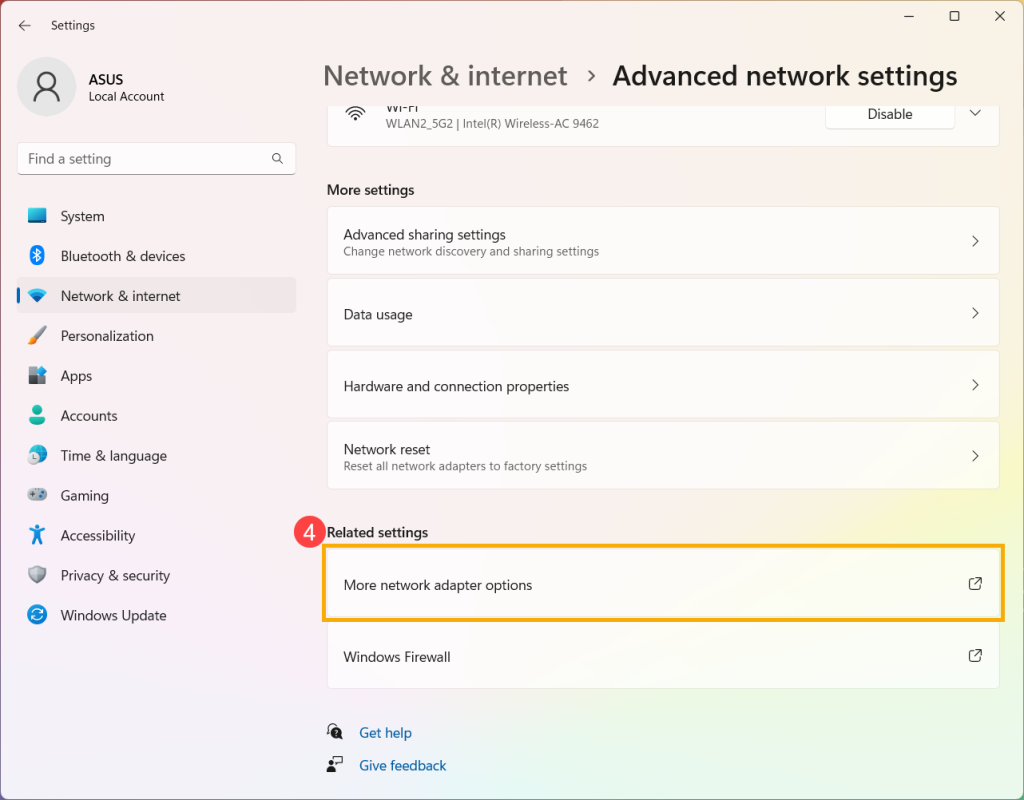
On Windows, the password is stored in the network adapter settings. Click the network icon in the system tray, select ‘Network & Internet settings’, then click ‘Advanced network settings’. Under ‘Related settings’, click ‘More network adapter options’. Right-click your WiFi adapter and choose ‘Status’. Click ‘Wireless Properties’, then go to the ‘Security’ tab. Check the box that says ‘Show characters’ – your WiFi password will appear in the ‘Network security key’ field. If you prefer a method without clicking through menus, check out our guide on how to recover wifi password on windows using the command line.
Step 2: Recover WiFi Password on Mac
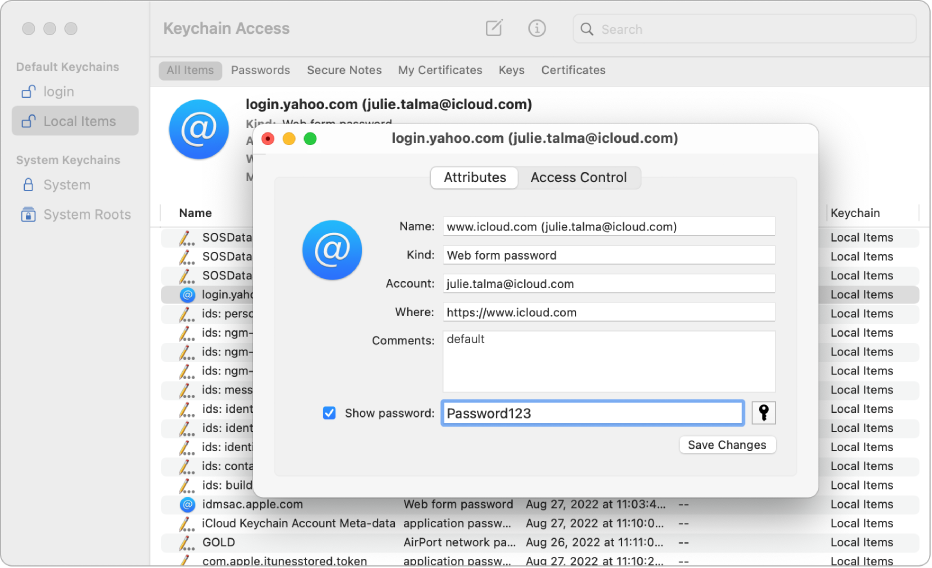
On a Mac, open ‘Keychain Access’ (use Spotlight and type ‘Keychain’). In the search bar, type the name of your WiFi network. Double-click the entry for your network. Check the box ‘Show password’. You’ll need to enter your Mac’s admin username and password. The WiFi password will then be displayed. For a visual walkthrough, see our guide on show wifi password mac.
Step 3: Recover WiFi Password on Android
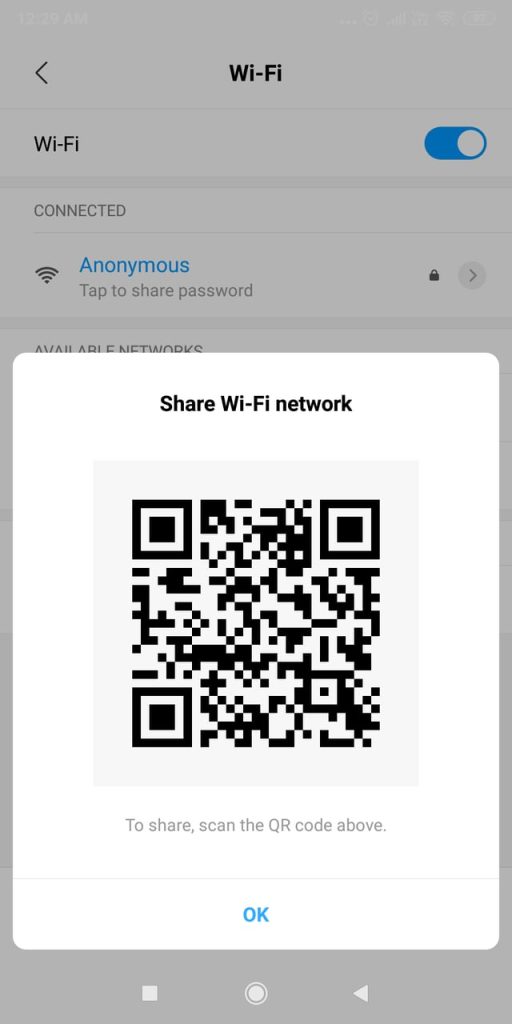
Android 10 and later have a built-in QR code share feature. Go to Settings > Network & Internet > WiFi. Tap the gear icon next to your connected network. Tap ‘Share’ (or ‘QR code’). You may need to enter your device PIN or password. The QR code appears – anyone can scan it to join. But the password is also shown below the QR code in plain text. This method works on most modern Android phones. For iPhones or other devices that can’t scan QR codes, you can use an app, but we recommend sticking with this built-in approach for wifi password recovery no command line.
Step 4: Recover WiFi Password from Your Router
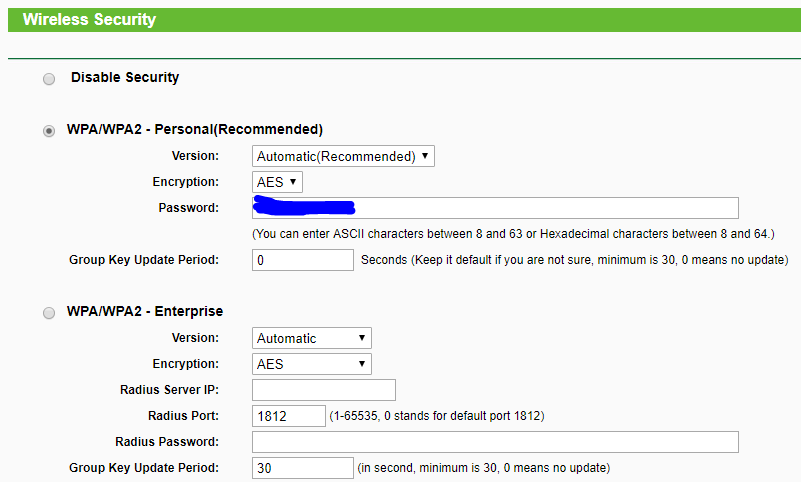
If no device is connected, you can log into your router’s admin page. Find your router’s IP address (often 192.168.1.1 or 192.168.0.1). Open a browser and enter that IP. Log in with the admin credentials (check the sticker on the router if needed). Look for ‘Wireless’ or ‘WiFi’ settings. The password will be in a field labeled ‘Security Key’, ‘Passphrase’, or ‘Password’. This method always works for recovering home network passwords.
Common pitfalls
- You don’t have admin access on Windows: If your PC is locked down by an IT department or parent, the ‘Show characters’ option may be greyed out. In that case, you’ll need to use a third-party tool or ask the admin.
- The router login credentials have been changed: Many people forget they changed the default admin password. If you can’t log in, a factory reset (press the reset button for 10 seconds) can help – but you’ll lose all custom settings.
- You’re trying to recover a password from an Android phone that doesn’t have QR code sharing: Older Android versions (pre-10) don’t have this feature. You can either use a password-recovery app (be careful of malware) or use the router method.
Where to next
Now that you have your WiFi password back, consider backing it up so you never lose it again. Our wifi password recovery backup guide shows you how to export your saved passwords. You can also learn wifi password recovery powershell all profiles to batch retrieve every network you’ve ever connected to. If you ever need to share access with guests without revealing the password, check out wifi password recovery without jailbreak ios for iPhone alternatives.





