
Ever needed to look up a WiFi password you saved months ago? Maybe you’re setting up a new device, or a friend is asking for the guest network. Instead of digging through router settings or downloading sketchy software, you can use a built-in Windows tool: PowerShell. This guide is for anyone with a Windows PC who wants to quickly see all their saved WiFi passwords in one go. By the end, you’ll know how to open PowerShell, run a simple command, and get a plain-text list of every network name and its password.
Even if you’ve never used PowerShell before, don’t worry. This method is safe, requires no downloads, and works on Windows 10 and 11. You’ll be able to recover passwords for every profile your computer has ever connected to, as long as the profile is still stored. Plus, we’ll cover what to do if you hit permission errors or if some passwords show up blank.
What You’ll Need
- A Windows PC (10 or 11) with saved WiFi networks
- Administrator access (you’ll need to run PowerShell as admin)
- About 2 minutes of time
Step 1: Open PowerShell as Administrator
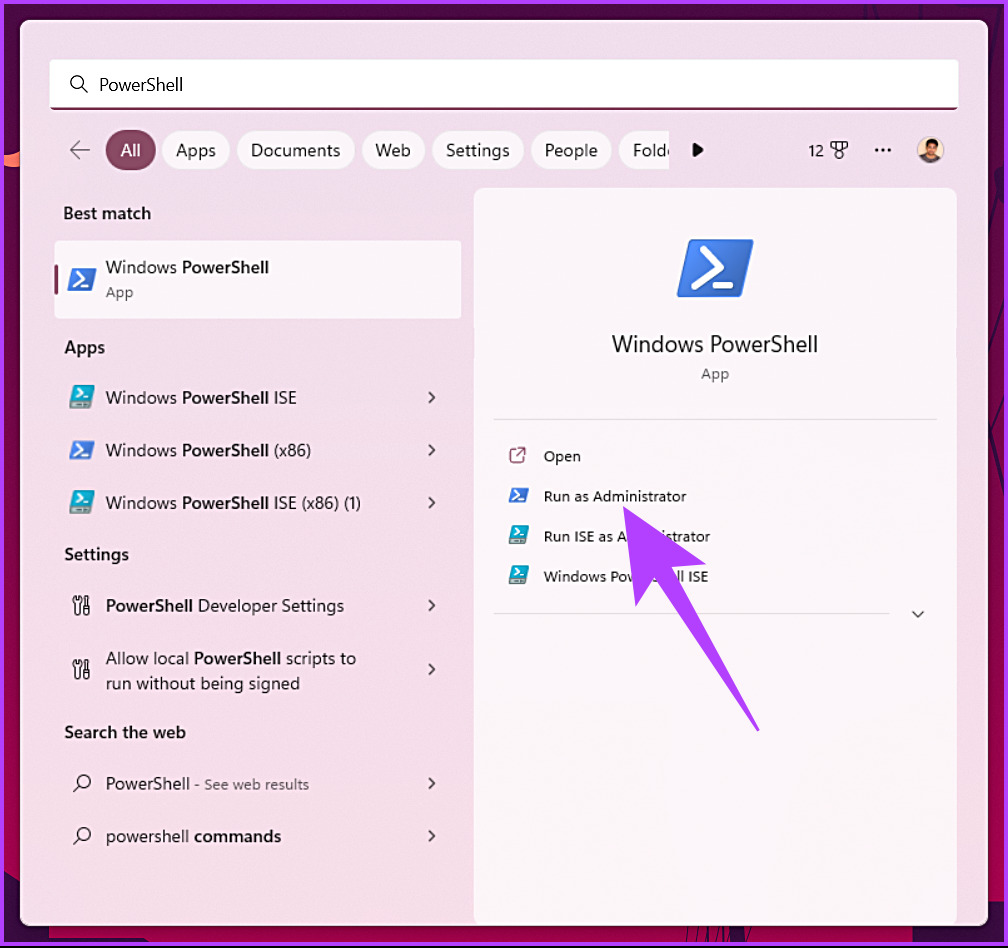
First, click the Start button, type ‘PowerShell’ in the search bar. You’ll see ‘Windows PowerShell’ appear. Right-click it and select ‘Run as administrator’. A User Account Control prompt may pop up; click ‘Yes’. This gives PowerShell the permissions needed to read WiFi profiles.
Step 2: Run the Command to List All Profiles
In the PowerShell window, type the following command and press Enter: netsh wlan show profiles. This lists all WiFi profiles saved on your computer. You’ll see ‘User profiles’ followed by each network name (SSID). Note the exact spelling of the network you want the password for. If you want to recover passwords for all profiles, proceed to the next step.
Step 3: Extract the Password for a Single Profile
To see the password for a specific network, use this command (replace ‘YourNetworkName’ with the actual SSID): netsh wlan show profile name="YourNetworkName" key=clear. Look for the line ‘Key Content’ — that’s your WiFi password. The ‘key=clear’ parameter tells Windows to show the password in plain text.
Step 4: Recover All Passwords at Once with a Script
If you have many networks, running one command per profile is tedious. Instead, use this one-liner that loops through each profile and shows the name and password. Copy and paste the entire command into PowerShell: (netsh wlan show profiles) | Select-String ":(.*)$" | %{$name=$_.Matches.Groups[1].Value.Trim(); $_} | %{(netsh wlan show profile name="$name" key=clear)} | Select-String "Key Content" | %{$pass=$_.ToString().Split(':')[1].Trim(); $_} | %{Write-Host "$name : $pass"}. This outputs each SSID and its password neatly.

Step 5: Save the Output to a File (Optional)
Want to keep a record? Add | Out-File -FilePath C:UsersYourNameDesktopwifi_passwords.txt to the end of the command. Replace ‘YourName’ with your username. This saves the list to a text file on your desktop. For example: (netsh wlan show profiles) | ... | Out-File -FilePath $env:USERPROFILEDesktopwifi_passwords.txt

Common Pitfalls
- **Must run as administrator** — If you get an error like ‘The request is not supported’, you forgot to run PowerShell as admin. Close and restart with admin rights.
- **Profile names with spaces** — Always enclose the SSID in quotes. If the name has double quotes inside, escape them with a backtick (`).
- **Key Content shows blank** — Some Windows settings or group policies may hide passwords. If this happens, try a different method like using the router’s web interface, or check our guide on wifi password recovery no admin windows.
Where to Next
Now you know how to recover all your saved WiFi passwords with PowerShell. This is one of the quickest and safest methods — no extra tools, no ads. If you want to keep a backup of your passwords for future use, consider using the script approach to export wifi passwords with script. For networks you no longer need, learn about wifi password recovery without deleting profiles. And if you ever need to recover passwords on another device, check out our guides for Android and iPad. Happy recovering!





