
So you set up a guest WiFi for your friends or customers, and now you—or they—can’t find the password. Maybe it’s written on a post-it that fell behind the fridge, or the person who set it up left town. Don’t worry. This guide is for anyone who needs to recover a guest WiFi password, whether you’re the host with router access or a guest who’s already connected on one device. By the end, you’ll have the password in plain text, ready to share or type in.
We’ll cover multiple methods: reading it from the router’s sticker, logging into the admin panel, pulling it from Windows, macOS, Android, or iPhone. No special software required for most methods, though we’ll mention a few third-party tools as backups. Let’s get that password back.
What You’ll Need
- Physical access to the router (for sticker or admin panel)
- A device already connected to the guest network (Windows, Mac, Android, or iOS)
- Router admin username and password (if not using the sticker method)
- A computer or phone to follow along
Step 1: Check the Router’s Sticker
Most routers have a sticker on the bottom or back that lists the default SSID and password for both the main and guest networks. Look for a label that says ‘Guest Network’ or ‘Guest WiFi’ – it might be printed separately from the main network.

If the password hasn’t been changed, you’re done. If it’s been customized, you’ll need to log into the router’s admin panel.
Step 2: Log Into Your Router’s Admin Panel
Open a web browser on a device connected to the same network (or connect via Ethernet). Enter your router’s IP address (commonly 192.168.1.1 or 192.168.0.1) in the address bar. Log in with the admin username and password (if you never changed it, check the sticker again). Once inside, look for a section called ‘Wireless,’ ‘WiFi Settings,’ or ‘Guest Network.’ The exact location varies by brand, but you should see the current guest password displayed in plain text or with a ‘Show’ toggle. Write it down.

If you can’t recall the admin password, you can perform a factory reset (using a paperclip on the reset button) to restore default credentials, but that will also erase any custom settings. Our guide on how to recover wifi password from router covers more router-specific steps.
Step 3: Recover from Windows (If You’re Already Connected)
On a Windows PC that’s currently connected to the guest network, go to Settings > Network & Internet > Status > Network and Sharing Center. Click on the guest network’s name next to ‘Connections.’ In the pop-up, click ‘Wireless Properties,’ then the ‘Security’ tab. Check the box ‘Show characters’ to reveal the password. This works for any saved WiFi network, not just the current one—just go to ‘Manage known networks’ and pick the guest network.

If you don’t have admin rights on the PC, you might need a third-party tool. Check our free wifi password recovery for windows guide for alternatives that don’t require administrator privileges.
Step 4: Recover from macOS (Keychain Access)
On a Mac that’s connected to the guest network, open Spotlight (Cmd+Space), type ‘Keychain Access,’ and open it. In the search bar, type the guest network’s name. Double-click the entry. Check the box ‘Show password’ and enter your Mac’s administrator password. The guest WiFi password will appear. You can also use the terminal command: `security find-generic-password -wa “Guest Network Name”`.

Step 5: Recover from Android (QR or Saved Network)
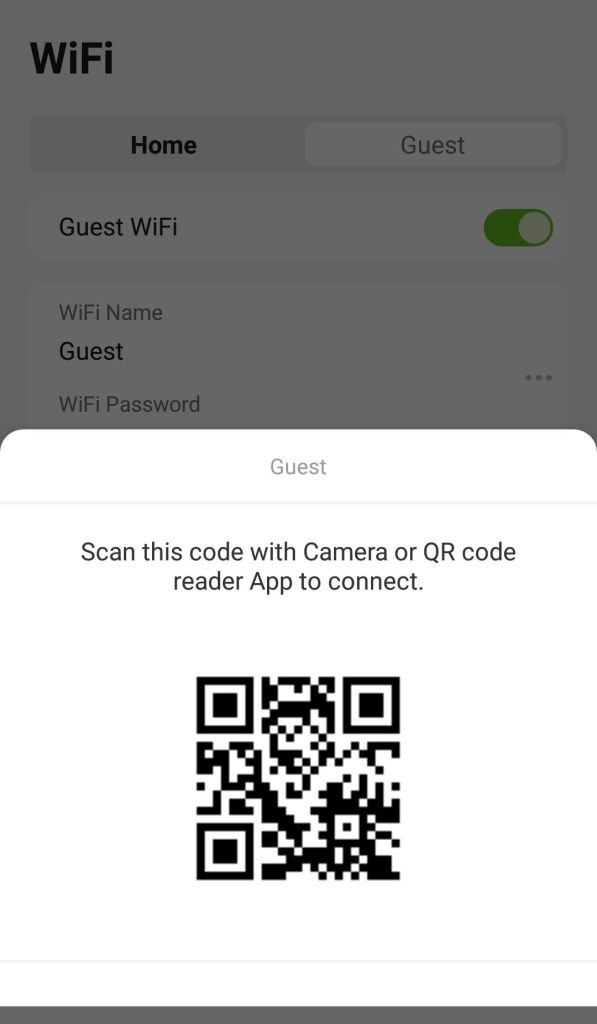
On an Android phone that’s currently connected to the guest network, go to Settings > Network & Internet > Wi-Fi. Tap the gear icon next to the guest network. If your phone has a ‘Share’ or ‘QR code’ option, you can either scan that code with another device (which reveals the password) or tap it to see the password in plain text (on Android 10+). For older versions, you can use a wifi password recovery app offline to extract it from the system files. Check our guide on how to restore wifi passwords android for detailed steps.
Step 6: Recover from iPhone/iPad (iCloud Keychain)
On an iPhone or iPad that’s connected to the guest network, go to Settings > Wi-Fi and tap the ‘i’ icon next to the network. If the password is hidden, you can tap on the password field, and Face ID or Touch ID will reveal it (iOS 16+). For older iOS versions, you can go to Settings > Passwords, authenticate, and search for the network name to view the password. This also works for saved networks. For a step-by-step, see our article on how to show wifi password iphone.
Common Pitfalls
- The guest network is disabled but the password is still saved on a device – you can still recover it using the above methods, but you may need to enable the network temporarily to connect and see the password in the router admin panel.
- The router’s default password has been changed, and you don’t have it – if you can’t guess it, a factory reset is your only option (except for some routers with a password recovery feature). Write down your custom admin password next time!
- You don’t have a device currently connected to the guest network – in that case, you must rely on the router sticker or admin panel. Physical access is required.
Where to Next
Now that you’ve recovered your guest WiFi password, you might want to save it somewhere safe (like a password manager) or even change it if it’s too easy to guess. If you’re looking for more methods, check out our guides on wifi password recovery without deleting profiles (if you want to keep the network saved) or using a wifi password recovery app offline as a portable solution. And if you’re ever stuck again, remember: the router sticker is often your quickest friend. Happy surfing!





